HubSpot Deal Suggestions
How Steve's AI suggests a project and competitors for every newly imported HubSpot deal, and how to review them
Overview
Every time a new deal arrives from HubSpot, Steve reads it and proposes two things: which of your projects it belongs to, and which of your competitors it involves. Those proposals land on the AI Deal Analysis page for you to approve, edit, skip, or reject.
It saves the tedious part of onboarding a CRM — deciding what a few hundred deals are actually about.
Who it's for: 📣 PMM / admin.
Where: Steve → HubSpot → Deal Analysis, at app.hiresteve.ai/hubspot/deal-suggestion. The button on the HubSpot dashboard shows the pending count, e.g. Deal Analysis (37).
How suggestions are generated
- A deal is newly inserted by the HubSpot sync — updates to existing deals don't trigger analysis.
- Steve checks whether a suggestion already exists for that deal, and skips if so.
- It pulls out the deal's text: name, stage, company, amount, description, and any competitor mentions in your mapped competitor property.
- It loads your projects and their competitors. With no projects, analysis stops here — there is nothing to suggest.
- An AI model reads the deal text against your projects and competitors, and returns a suggested project with a written reason, plus a list of suggested competitors.
- The suggestion is saved with status pending.
Suggestions are generated for Salesforce opportunities the same way, which is why the page has a source filter.
The review page
The card is titled AI Deal Analysis. Each row shows:
| Column | What it holds |
|---|---|
| Source and Deal Name | A HubSpot or Salesforce badge with the deal name and its company. |
| Amount | The deal amount as imported. |
| Stage | The deal stage. |
| Project Suggestion | The proposed project, with the AI's reasoning. |
| Competitor Suggestion | The proposed competitors as badges, plus whatever your competitor property already said. |
| Actions | Approve, Edit, Skip, Reject. |
Two filters sit at the top:
- Status — All Status, Pending, Approved, Rejected, Skipped
- Source — All Sources, HubSpot, Salesforce
When there's nothing to show, the page reads No suggestions found.
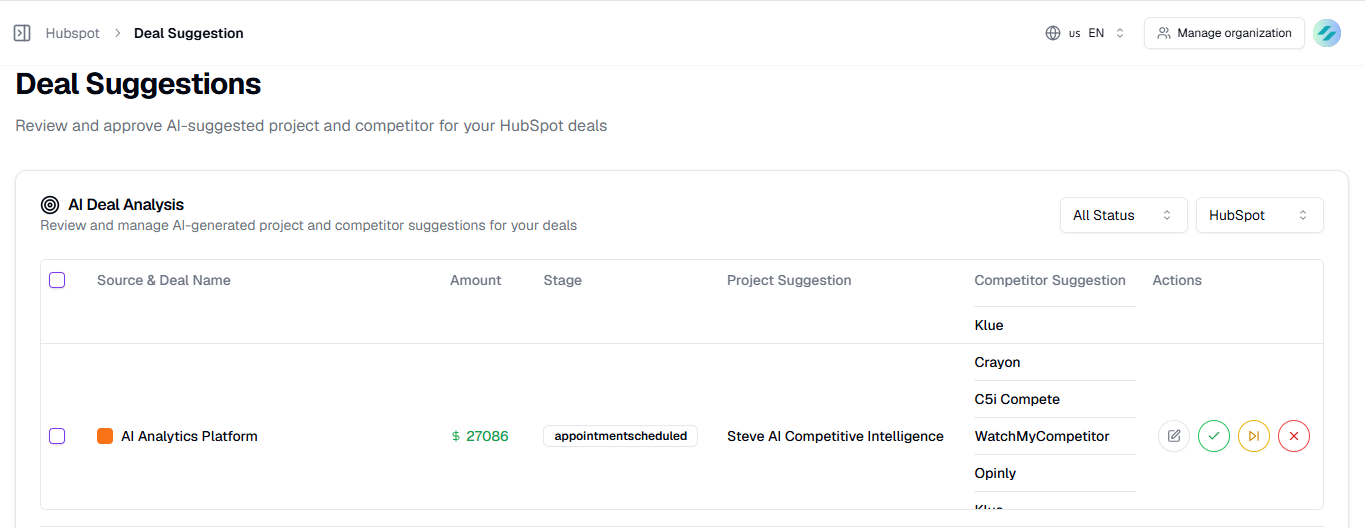
Caption: AI Deal Analysis — one row per newly imported deal, with the model's proposal and its reasoning.
Reviewing a suggestion
| Action | What it means |
|---|---|
| Approve (check) | You agree with the proposal. The suggestion is marked approved and stamped with who reviewed it and when. |
| Edit (pencil) | Opens a dialog to change the suggested project and competitors before you decide. |
| Skip (skip-forward) | Decide later — it drops out of the pending list without being rejected. |
| Reject (cross) | The proposal is wrong. Marked rejected. |
Each action shows "Updating suggestion…" then "Suggestion updated successfully".
Reviewing records a decision — it does not move the deal. Approving marks the suggestion as reviewed by you; it does not write the project or competitors onto the deal by itself. Apply the ones you agreed with in the deals table, where the project selector and competitor selector also handle the HubSpot write-back and the battle card links. Bulk-assign is the fast way to do it for a batch.
Editing a suggestion
The Edit dialog shows the deal and lets you change:
- Suggested Project — a dropdown of your projects, with the AI's reasoning displayed underneath so you can see why it chose what it chose.
- Suggested Competitors — pick from the competitors in your organization.
Steve validates that the project and every competitor actually belong to your organization before saving, so a stale selection can't be stored.
Bulk review
Tick the checkbox on several rows and the bulk bar offers Approve All, Skip All, and Reject All. A toast reports "Updating N suggestions…" then "Updated N suggestions". Selecting nothing and clicking a bulk action shows "Please select suggestions to update".
Working newest-first with the Pending filter on is the fastest way through a backlog.
Why a deal has no suggestion
| Reason | Fix |
|---|---|
| Your organization has no projects | Create a project with competitors, then re-sync so new deals are analyzed. |
| The deal already had a suggestion | Suggestions are generated once per deal, ever. |
| The deal was updated, not newly created | Only newly inserted deals are analyzed. |
| The deal arrived before the feature was enabled for your organization | Historical deals aren't back-filled. |
Next Steps
- The Deals Table — apply the projects and competitors you approved.
- Connected Battle Cards — what happens once competitors are on a deal.
- How Deals and Companies Sync — when new deals arrive.