The HubSpot Deals Table
Search, filter, sort, edit, and bulk-update your synced HubSpot deals in Steve
Overview
The HubSpot Deals table is where your synced deals live in Steve. It's a working surface, not a read-only mirror: assign projects, annotate competitors, edit mapped fields, and open the calls, chat, and resources attached to each deal. Edits to mapped fields are written back to HubSpot.
Who it's for: 🎯 Sales Rep and 📣 PMM.
Where: the Deals tab on app.hiresteve.ai/hubspot, or the HubSpot tab on /crm.
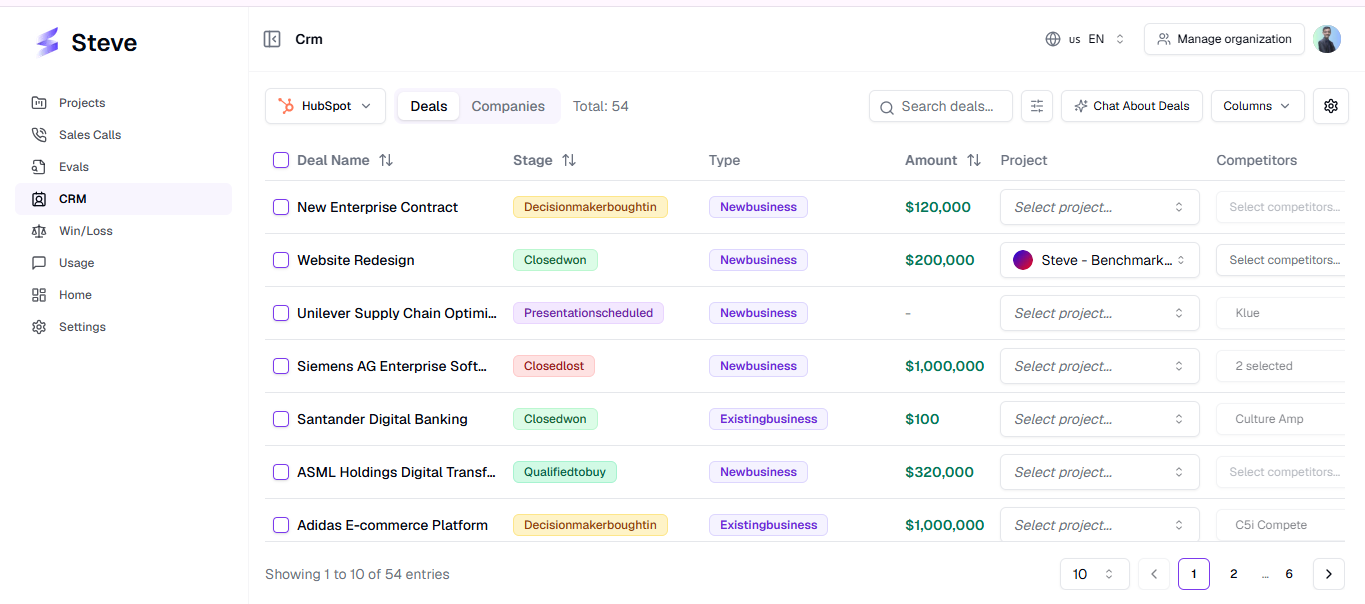
Caption: The Deals table — the deal count badge sits next to the title, with sync and refetch buttons on the right.
The header row
| Control | What it does |
|---|---|
| Deal count badge | Total deals matching the current filters. |
| Sync HubSpot Data (cloud-download) | Triggers a real HubSpot deal sync in the background. |
| Refetch (circular arrow) | Re-reads Steve's database without calling HubSpot. |
| Search deals… | Debounced free-text search across deals; resets to page 1. |
| Stage filter | Multi-select of every deal stage present in your data. |
| Columns | Show or hide any column. Your choice is remembered in this browser. |
The columns
Shown by default: Deal Name, Stage, Amount, Project, Competitors, and Actions. Everything else is available from the Columns menu.
| Column | Behaviour |
|---|---|
| Deal Name | Sortable. Truncated with the full name on hover. Falls back to Untitled Deal. |
| Stage | Sortable. A colour-coded badge — blue for appointment scheduled, emerald for qualified to buy, purple for presentation scheduled, amber for decision maker bought in, yellow for contract sent, green for closed won, red for closed lost. |
| Amount | Sortable. Formatted as currency; a dash when empty. |
| Type | A badge from dealtype. |
| Updated | Sortable. The HubSpot last-modified date. |
| Project | A project selector. Changing it reassigns the deal in Steve. |
| Competitors | A multi-select of the competitors in the deal's project. |
| Steve Channels, Steve Usage, Win Reason, Loss Reason | Inline editable when mapped. Reasons open a textarea; channels and usage use a single-line input. |
| Connected Battle Cards | One clickable link per competitor battle card written back to HubSpot. |
| BC Views | How many times those shared battle cards have been opened. Caps at 99+. |
| Actions | The per-deal action buttons, below. |
| Any selected property | Rendered generically — currency-like names as money, date-like names as dates, everything else as truncated text. |
Sorting is server-side on Deal Name, Amount, Stage, and Updated. Paging and page size sit at the bottom of the table.
Assigning a project
Pick a project in the Project column. A toast tracks it: "Updating project assignment…" then "Deal assigned to <project>" — or "Deal unassigned from project" if you clear it.
Project assignment matters because it scopes everything else. The competitor selector only offers competitors that belong to the deal's project.
Annotating competitors
The Competitors cell is disabled until the deal has a project. Hovering a disabled cell explains why: "Assign a project first to annotate competitors."
Once a project is assigned:
- Open the competitor selector — it lists the competitors in that project.
- Tick the competitors involved in the deal.
- A toast confirms "Competitors updated successfully".
Behind that single action, Steve:
- saves the competitor names on the deal in Steve,
- writes them to your mapped competitor property in HubSpot,
- and generates a tracked public battle card link per competitor, writing them to
steve_connected_battle_cardsand posting a note on the HubSpot deal timeline.
That last part is covered in Connected Battle Cards.
Editing mapped fields inline
Steve Channels, Steve Usage, Win Reason, and Loss Reason are editable only when mapped on the Field Mapping page. Click the cell, type, and save — a toast reports "<field> updated successfully", and the value is pushed to the mapped HubSpot property.
Long values are truncated to 50 characters in the cell; the full value is preserved.
While an update is in flight, an Updating… badge appears next to the table title.
The actions column
| Button | What it opens |
|---|---|
| HubSpot (orange logo) | The deal in HubSpot, in a new tab. |
| Connected Calls (phone, with a count badge) | The calls annotated to this deal — see Connected Calls and Deal Chat. |
| Chat about deal (speech bubble) | The deal chat panel, scoped to this deal's calls. |
| Upload resources (file-up, with a count badge) | The deal resource sheet — see Deal Resources and Insights. |
| Expand deal details (expand icon) | A dialog with the complete HubSpot deal record. |
Bulk actions
Tick the checkbox on one or more rows and a bulk action bar appears above the table showing "N deals selected".
| Action | What it does |
|---|---|
| Project | Choose a project, click Apply — every selected deal is assigned. Toast: "Assigned <project> to N deals". |
| Competitors | Choose competitors, click Apply — applied to every selected deal, including the battle card link sync for each. Toast: "Assigned N competitors to M deals". |
| Clear | Drops the selection. |
Selection clears automatically after a bulk action completes.
Deep-linking
The resource and insights sheets sync to the URL, so a link like /hubspot?dealResourceId=<id> or /hubspot?dealInsightsId=<id> opens the table with that panel already open. Handy for sharing a specific deal's uploads with a colleague.
If the table shows an error
HubSpot Deals — Error loading deal data with "Failed to load HubSpot deals: …" means Steve couldn't read its own copy of the deals. Refresh the page; if it persists, see Troubleshooting.
If you see the HubSpot Not Connected card instead of a table, the integration isn't authorized — start at Connecting HubSpot.
Next Steps
- Connected Battle Cards — what competitor annotation writes back.
- Connected Calls and Deal Chat — the calls behind a deal.
- Deal Resources and Insights — upload documents against a deal.
- The Companies Tab — the company side.