Step 12: Configure Slack Summary
Set up automated competitive intelligence summaries delivered to Slack channels
Steve Documentation Team
onboardingslackautomation
Configure automated competitive intelligence summaries sent directly to your Slack channels. Keep your team informed about competitor updates without manual reporting.
How to Configure Slack Summary
- Navigate to your project and click Slack Settings
- Select notification type (Slack or Email)
- Choose the destination Slack channel from dropdown
- Set summary frequency (daily, weekly, or custom)
- Click Save Settings
Summaries include recent competitor news, product updates, and battle card changes. Your team receives curated competitive intelligence on your chosen schedule.
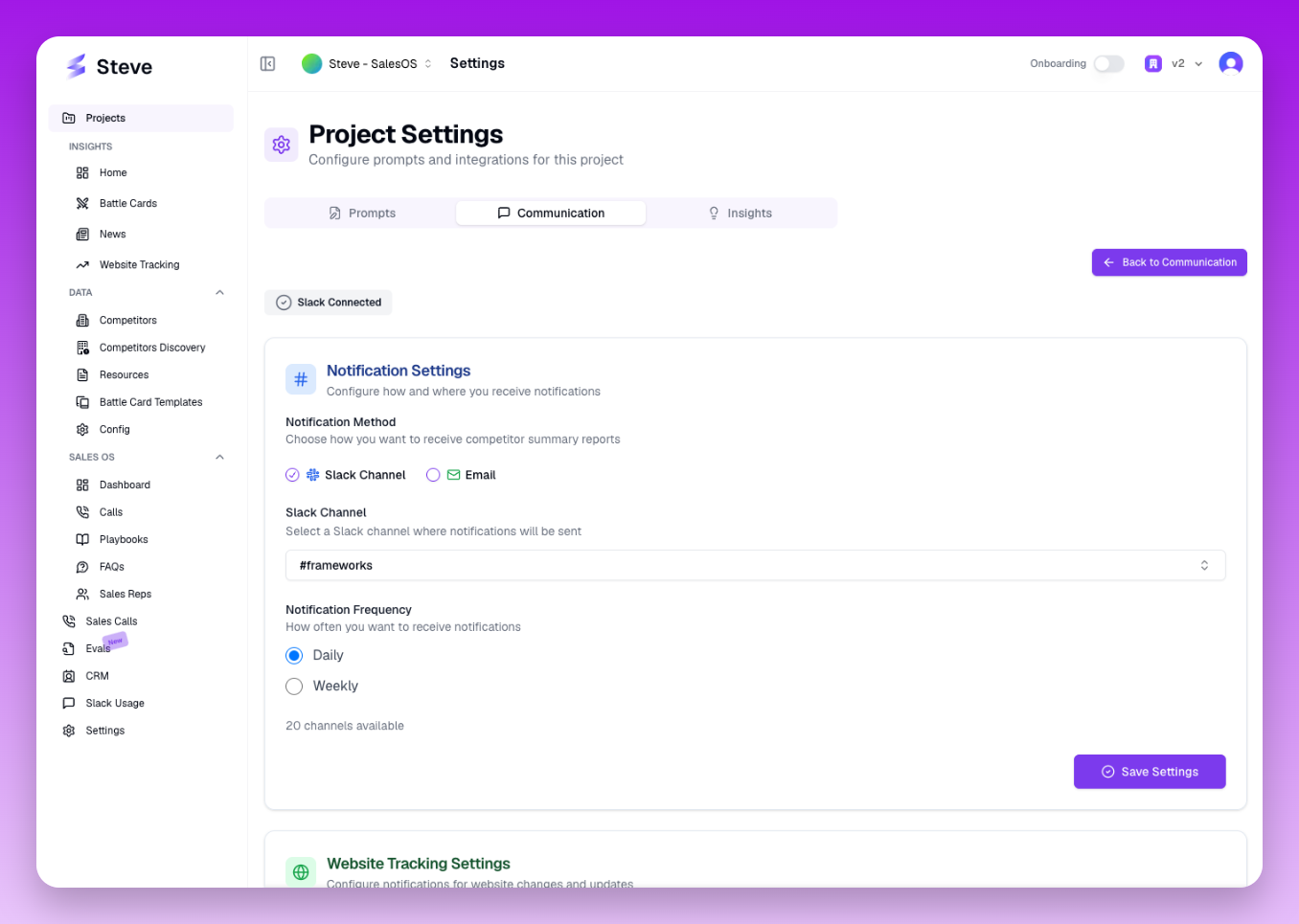 Configure which channel receives summaries and how often
What Happens Next
Steve automatically posts competitive intelligence summaries to your chosen channel according to the schedule. Team members can access insights without logging into Steve.