Step 13: Configure Website Tracking
Monitor competitor website changes and get notified about updates automatically
Track specific competitor website pages for changes. Get notified when competitors update pricing, launch products, or modify key pages.
How to Configure Website Tracking
- Navigate to Website Tracking in the sidebar
- Click Add Tracking Request
- Select the competitor to monitor
- Enter URLs to track (pricing page, features page, etc.)
- Describe what to monitor (e.g., "pricing changes")
- Click Save to start tracking
Steve checks tracked pages daily and alerts you when changes are detected. You'll receive summaries of what changed and why it matters.
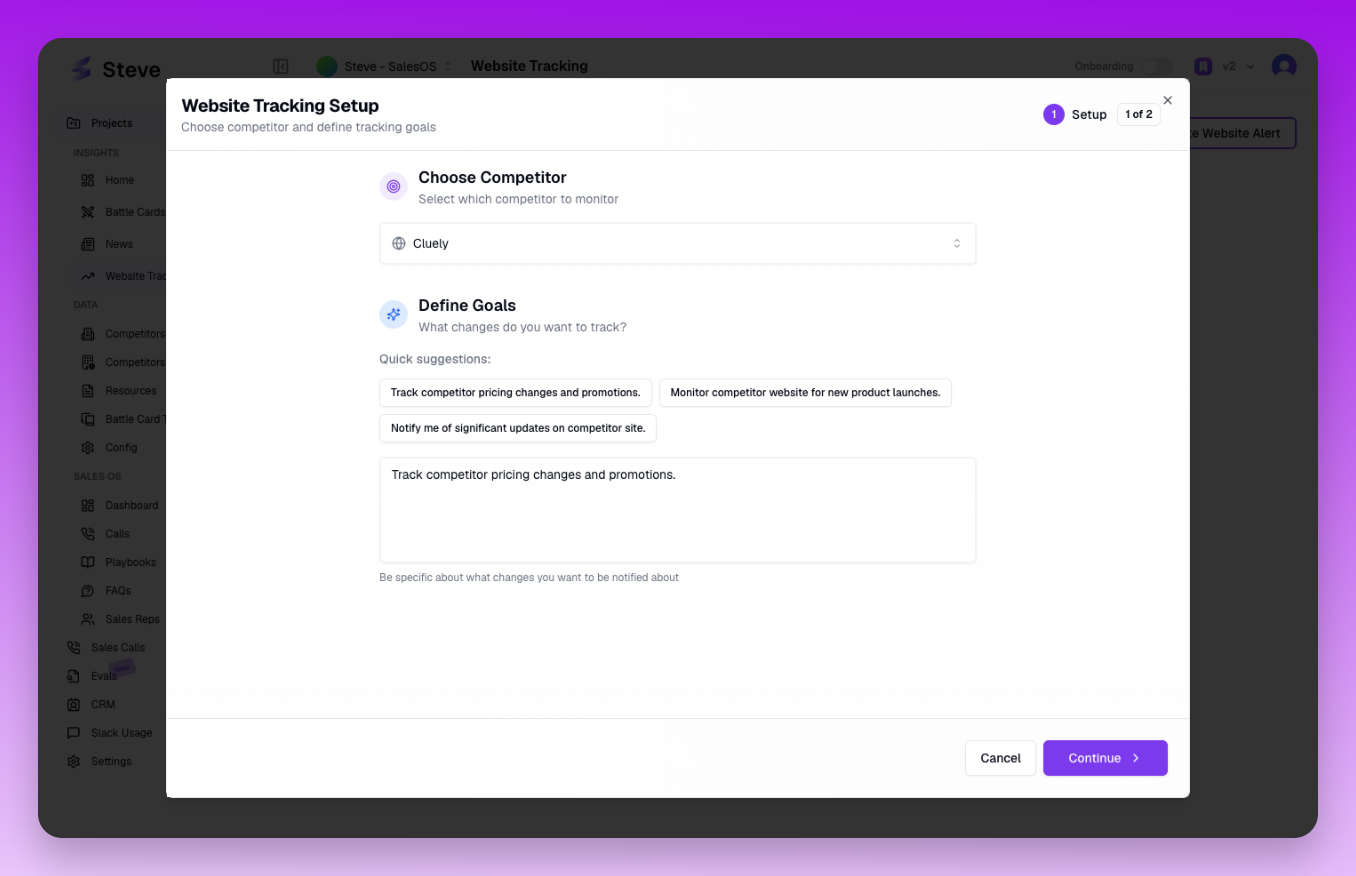 Add tracking requests for specific competitor URLs and monitor changes
What Happens Next
Detected changes appear in your website tracking dashboard and can trigger Slack notifications. Use insights to update battle cards and inform sales teams about competitive moves.
Congratulations! You've completed the Steve onboarding. Your competitive intelligence platform is fully configured and ready to help your team win more deals.