Understanding Your Onboarding Progress
Track your progress through Steve's guided onboarding with sidebar highlighting
Overview
Steve guides new users through key features with progress tracking and sidebar highlighting to show the next recommended action.
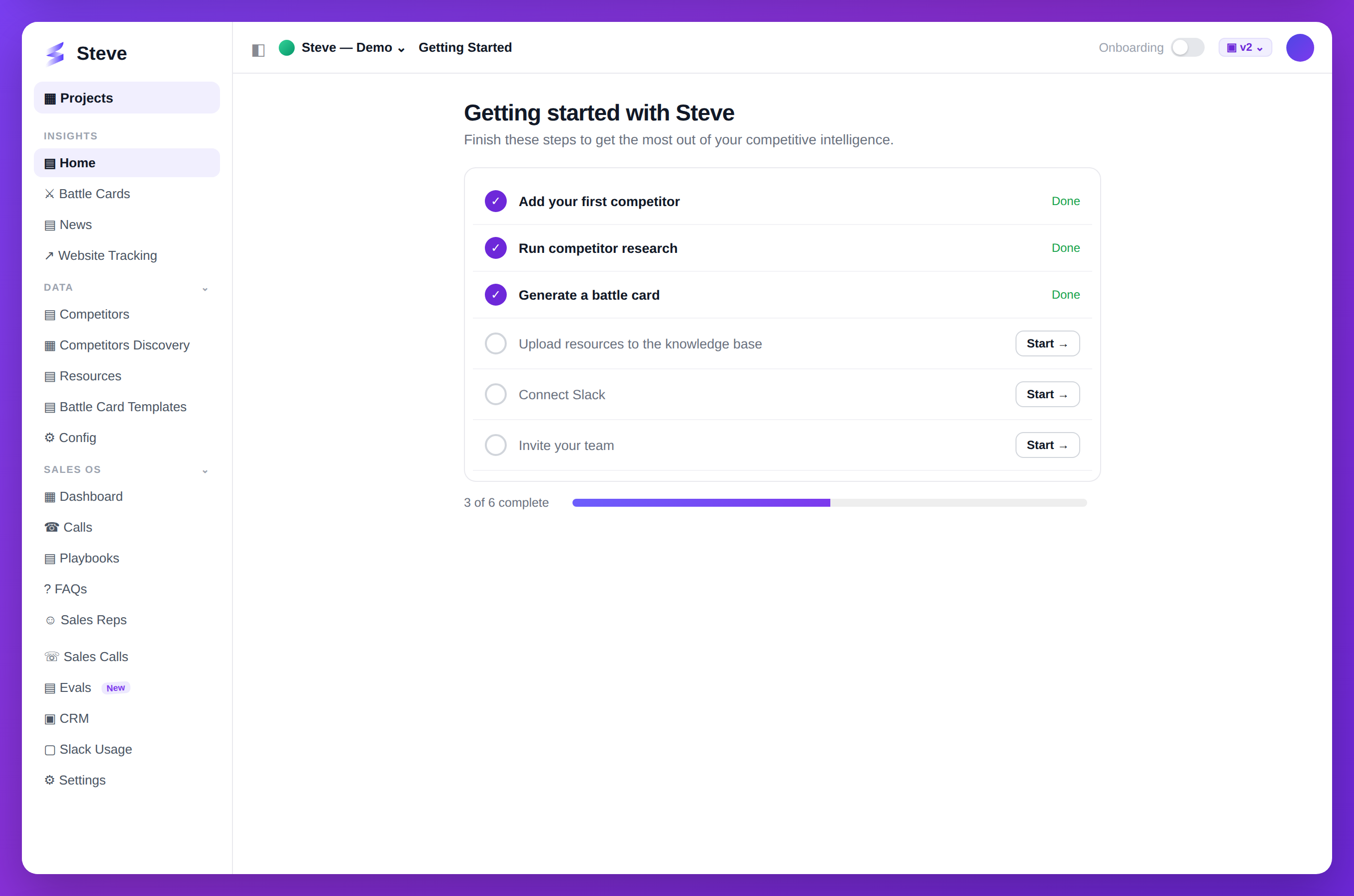
Caption: Track your setup progress and finish the steps that unlock the most value.
Onboarding Steps
The onboarding sequence covers:
- Add competitors
- Research competitors
- Generate battle card
- Share battle card
- View analytics
- Create battle card preset
- Generate from preset
- Create flexible battle card
- Generate news summary
- Upload project resources
- Discover competitors
- Integrate Slack
- Configure Slack summaries
- Set up website tracking
Track Your Progress
Progress Indicator
View progress in the sidebar:
- Step count (e.g., "3/14")
- Completion percentage
- Current highlighted step
Sidebar Highlighting
The next recommended step highlights in the sidebar with:
- Subtle glow or border
- Badge indicator
- Tooltip hint
In-Page Highlighting
When on the relevant page, specific UI elements highlight:
- Buttons glow
- Forms have borders
- Key actions stand out
Complete Steps
Steps complete automatically when you:
- Add your first competitor
- Generate your first battle card
- Share a battle card
- View analytics page
- Upload a resource
No manual marking required.
Skip Onboarding
Not ready for guided onboarding?
Dismiss Progress
Click the close icon on the progress indicator to hide it.
Resume Later
Reactivate from Settings → Onboarding → Show Progress.
Benefits of Completing Onboarding
Completing all steps ensures you:
- Understand core features
- Have configured essential integrations
- Created initial battle cards
- Set up team workflows
Expected Outcome
✅ Clear next steps visible ✅ Progress tracked automatically ✅ Features discovered systematically
Next Steps
- Follow the highlighted step in your sidebar
- Getting Started - Review basics