Web Quickstart
Get started with Sales OS on the web — connect your calendar, manage meetings, and monitor real-time AI coaching during calls.
Web Quickstart
Sales OS gives your sales team an AI-powered coaching layer that works live during calls. The web interface is where managers and reps connect their calendar, review upcoming and past meetings, and watch real-time AI analysis unfold during a call.
This guide walks you through the complete web journey — from connecting your calendar all the way to joining your first AI-assisted meeting.
Step 1: Connect Your Calendar
Before Sales OS can detect and join your meetings, it needs access to your calendar.
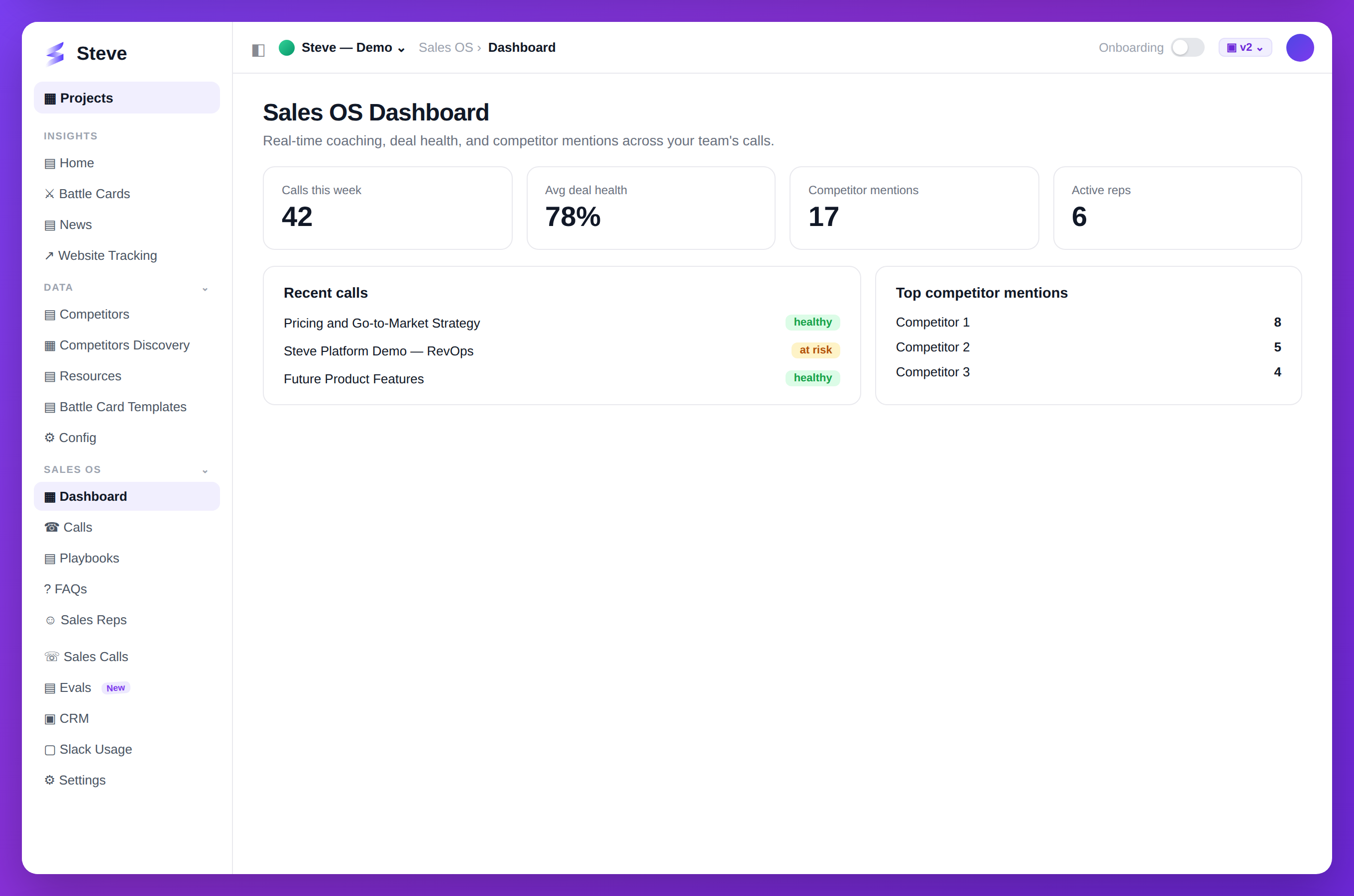
Caption: The Sales OS dashboard — deal health, competitor mentions, and coaching at a glance.
Navigate to Meetings in the sidebar. If no calendar is connected, you will see a "No Calendar Connected" state. Click Connect Calendar and follow the OAuth flow for your calendar provider (Google Calendar or Microsoft Outlook).
Once connected, your calendar syncs automatically. Upcoming meetings appear within seconds.
Sales OS only reads calendar metadata (title, time, meeting link). It does not read the content of your calendar events.
Step 2: The Meetings Page
After connecting your calendar, the Meetings page shows a two-panel layout.
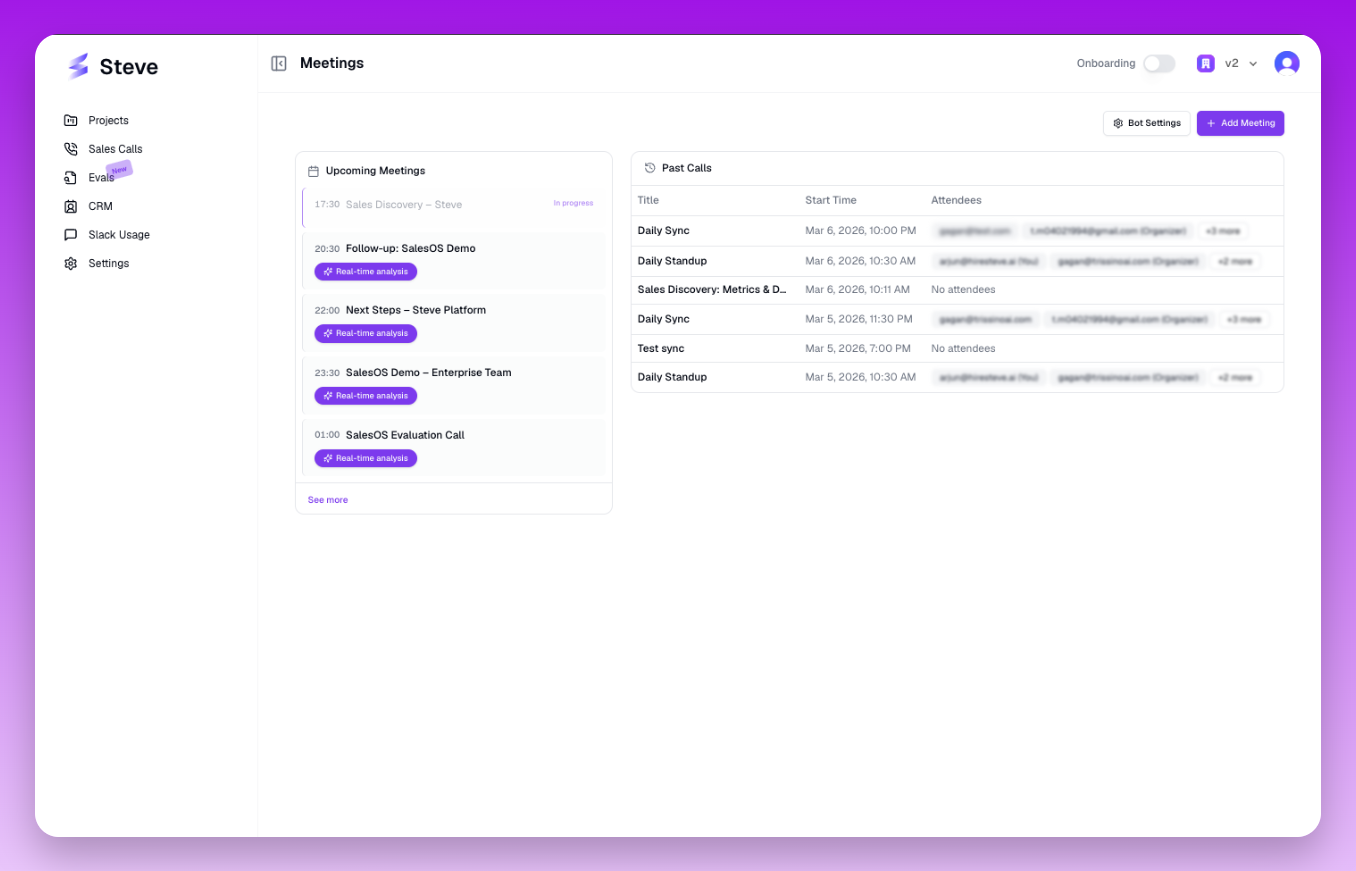
The Meetings page — upcoming meetings on the left, completed past calls on the right.
Upcoming Meetings (left panel)
The left panel lists meetings starting within the next few hours. The time window expands automatically — click See More to load meetings further out.
Each meeting card shows the meeting title, scheduled time, and whether a bot is already assigned to join.
Past Calls (right panel)
The right panel shows a paginated table of all completed calls. Use the page size selector to control how many rows are displayed at once.
From this table you can click through to the post-call analysis for any completed meeting.
Step 3: Configure the Meeting Bot
Click Bot Settings (gear icon in the top-right of the Meetings page) to configure how the AI bot behaves.
In Bot Settings you can:
- Set a display name for the bot (what participants see in the meeting)
- Configure auto-join behavior — decide whether the bot joins automatically when a meeting starts, or only when manually triggered
- Set a join offset — how many minutes before the scheduled start time the bot should enter the meeting
Saving these settings applies them globally for all future meetings in your organization.
Step 4: Start an Instant Meeting
Need to run an unscheduled call right now? Click + Instant Meeting in the top-right corner.
A modal opens where you paste any meeting link (Zoom, Google Meet, Microsoft Teams). Sales OS dispatches the bot to join that link immediately. The call appears in Past Calls once it ends.
Step 5: How the Bot Joins Automatically
When a calendar event with a recognized meeting link (Zoom, Meet, Teams) is detected within the auto-join window, Sales OS schedules the bot to join at the configured offset time.
The bot status follows this lifecycle:
| Status | Meaning |
|---|---|
| Scheduled | Bot is queued to join at the meeting start time |
| Joining | Bot is actively connecting to the meeting |
| In Call | Bot is live, recording and analyzing the conversation |
| Completed | Call has ended, analysis is being generated |
You can see the current bot status on the Upcoming Meetings card for each event.
Step 6: The Real-Time Analysis View
Once the bot is in a call and recording, you can open the Real-Time Analysis view. This is the live coaching interface.
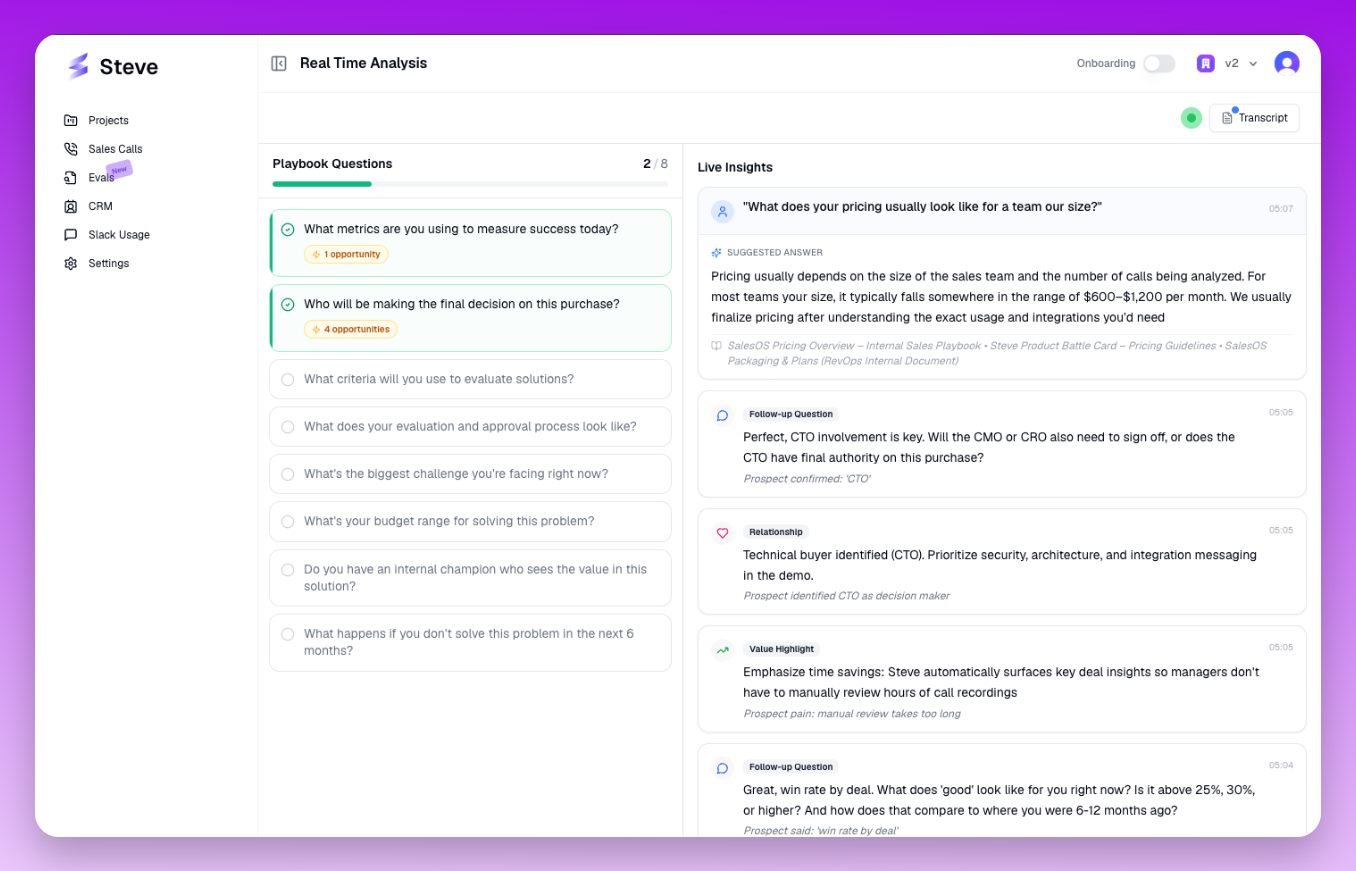
The Real-Time Analysis view — playbook questions on the left updating live, prospect questions and opportunities streaming on the right.
Navigate directly to the call's real-time page — Sales OS will open it automatically when available, or you can access it from the Upcoming Meetings card while a call is in progress.
The real-time view has two panels:
Left Panel — Playbook Questions (40% width)
This panel shows every question defined in the active playbook. As the conversation progresses, the AI monitors whether each question is being addressed by the sales rep.
Each question card updates in real time:
- Idle — not yet triggered
- Answering — the rep is currently addressing this question
- Completed — the question has been answered; the AI shows an explanation and any upsell or expansion opportunities identified
Right Panel — Live Insights Feed (60% width)
This panel streams live intelligence as the conversation unfolds:
- Prospect Questions — questions the prospect has asked, with AI-suggested answers drawn from your knowledge base and playbook FAQs
- FAQ Triggers — when a known FAQ is detected, the panel shows the question, the AI's recommended answer, and how completely the rep covered the key points
- Opportunities — upsell, expansion, or commitment signals detected by the AI during the call
Connection Status
The top header of the real-time view shows a Connection Status Badge indicating whether the live WebSocket feed is active. If the connection drops (e.g., network interruption), the badge turns red and reconnects automatically.
Transcript
Click Transcript in the top-right to open a side sheet with the full live transcript. As the bot transcribes the conversation, new entries appear in real time. Partial transcriptions appear as the speaker talks and finalize when they pause.
You Are Ready
Once you have watched the real-time analysis update during your first live call, the web quickstart is complete.
Next steps:
- Add Sales Reps to bring your team onto Sales OS
- Create Your First Playbook to define what the AI coaches for
- Calls & Analysis to review completed calls