Getting Started with Steve
Create your Steve account and complete initial setup to start tracking competitors
Overview
Steve is an AI competitive intelligence platform that monitors competitors, generates battle cards, and delivers insights to your team. This guide covers account creation and initial setup.
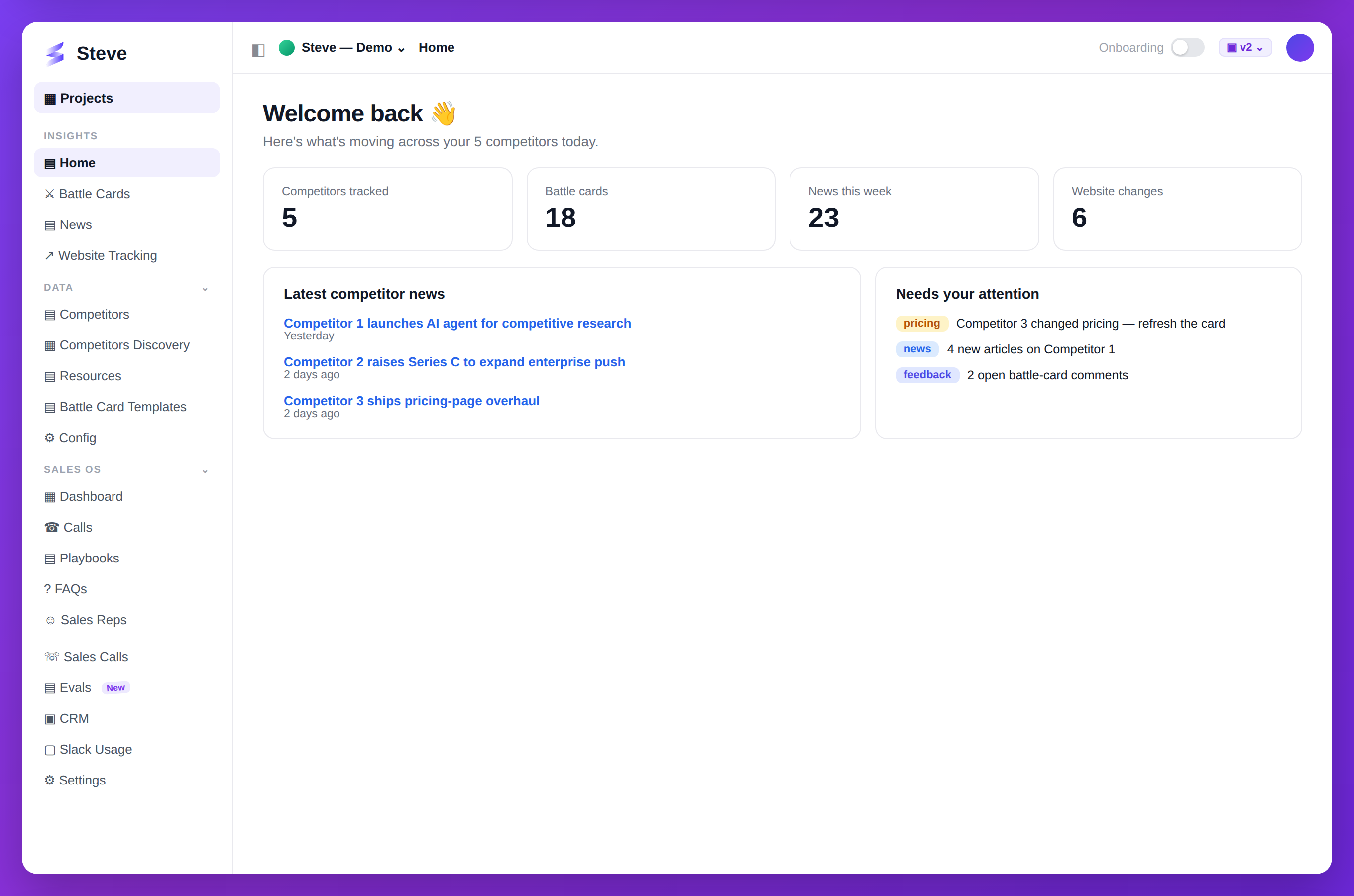
Caption: Your competitive intelligence home — news, battle cards, and what needs attention.
Create Your Account
- Visit your Steve platform URL
- Sign up with email or SSO
- Verify your email address
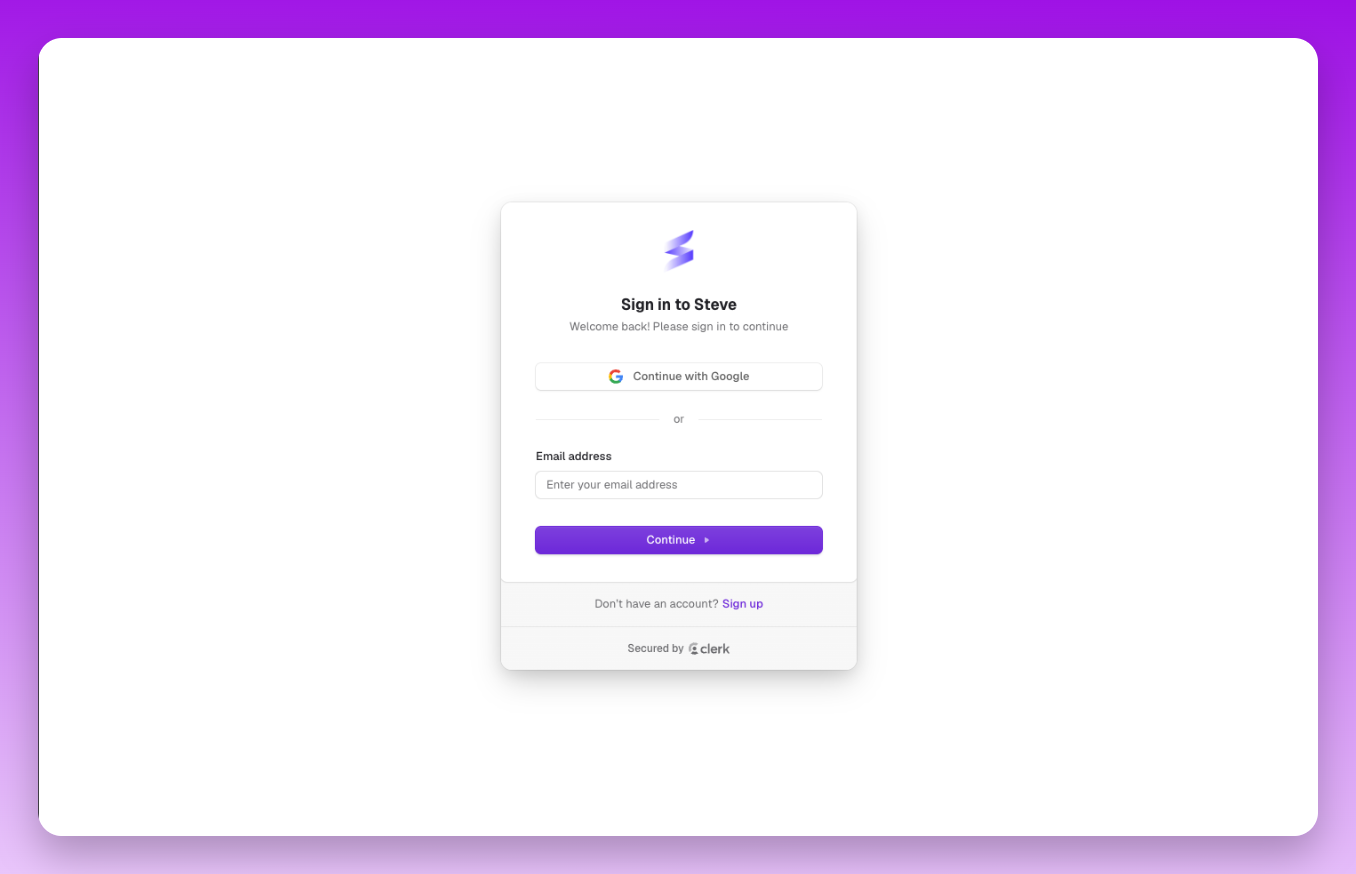
Caption: Steve authentication page with email and SSO options
Complete Your Profile
After signup, you'll see the setup page.
Select Job Position
Choose from the dropdown:
- Product Manager
- Product Marketing Manager (PMM)
- Chief Product Officer (CPO)
- Chief Marketing Officer (CMO)
- Sales Enablement
- Sales Manager
- RevOps
- Engineering Manager
- Software Engineer
- Designer
- Others (shows text input for custom title)
Choose Team Size
Select your team size:
- 1-5 members
- 6-10 members
- 11-25 members
- 26-50 members
- 50+ members
Complete Setup
Click Continue to proceed.
Create Your Organization
You'll see a welcome screen with an animated greeting.
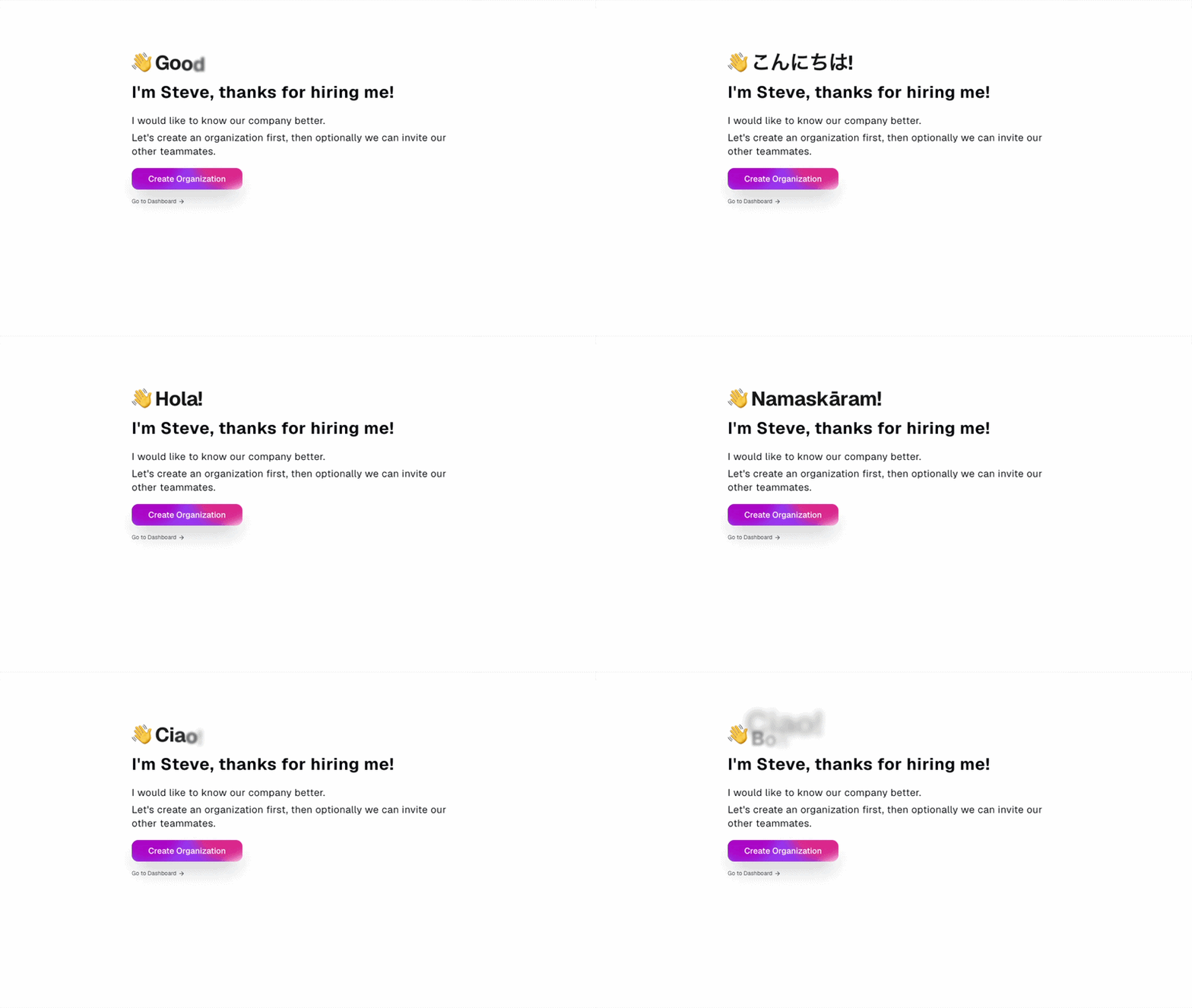
Caption: Welcome screen with multilingual greetings and organization creation dialog
Click Create Organization and enter your organization name.
After creating your organization, you'll be offered Slack integration.
Expected Outcome
✅ Active Steve account ✅ Profile completed with job position and team size ✅ Organization created ✅ Ready for Slack integration or project creation
Next Steps
- Integrate Slack with Steve - Connect your workspace (recommended)
- Create Your First Project - Skip Slack and start immediately