How to Generate Battle Cards from Presets
Use saved templates to quickly generate consistent battle cards
Overview
Generate battle cards quickly using pre-configured templates for consistent formatting and content.
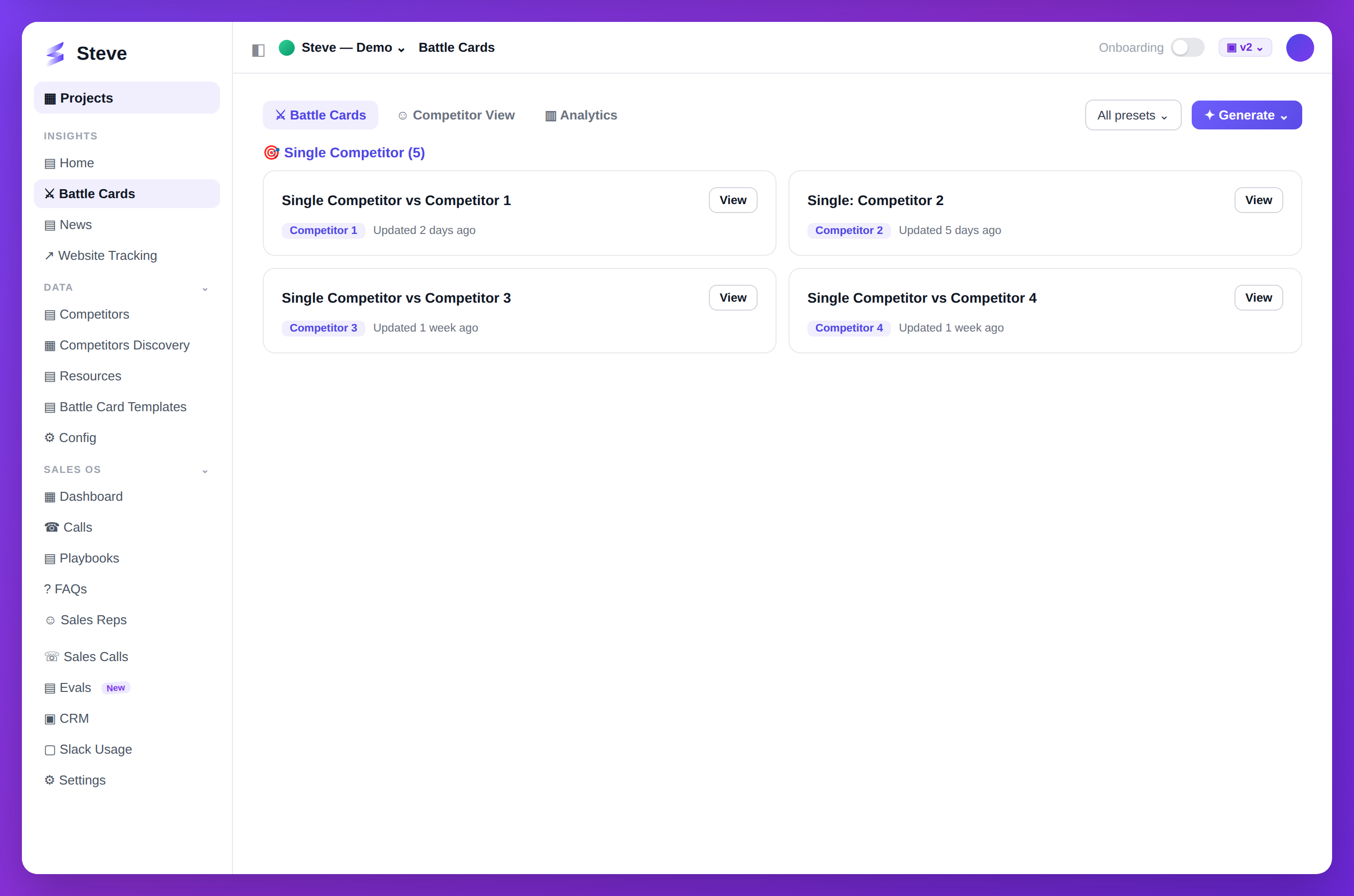
Caption: Battle cards generated from your presets, grouped and ready to use.
Prerequisites
- At least one battle card preset created
- Competitors added to your project
Single Card Generation
Step 1: Start Generation
Go to Battle Cards → Generate.
Step 2: Select Preset
Choose Use Preset option and select your template.
Step 3: Choose Competitor
Select which competitor to analyze.
Step 4: Generate
Click Generate and review the result.
Sections populate automatically based on preset configuration.
Bulk Generation
Generate multiple battle cards at once.
Step 1: Access Presets
Go to Battle Cards → Presets.
Step 2: Select Preset
Click on the preset you want to use.
Step 3: Choose Competitors
Click Apply to Competitors and select targets.
Step 4: Generate All
Click Generate All to create battle cards.
Progress shows in real-time:
- Cards in queue
- Cards generating
- Cards completed
Review Generated Cards
Access generated cards from Battle Cards page.
Each card:
- Follows preset format
- Uses preset prompts
- Includes preset sections
- Ready to share
Customize After Generation
Even with presets, you can:
- Edit content directly
- Add/remove sections
- Regenerate specific sections
- Adjust tone or focus
Expected Outcome
✅ Battle cards generated from template ✅ Consistent format across all cards ✅ Faster production workflow
Next Steps
- Share Battle Cards - Distribute to team
- Create Preset - Make new templates