How to Create a Battle Card Preset
Save battle card templates for consistent, repeatable generation
Overview
Presets standardize battle card format and content across your team, ensuring consistency and saving time.
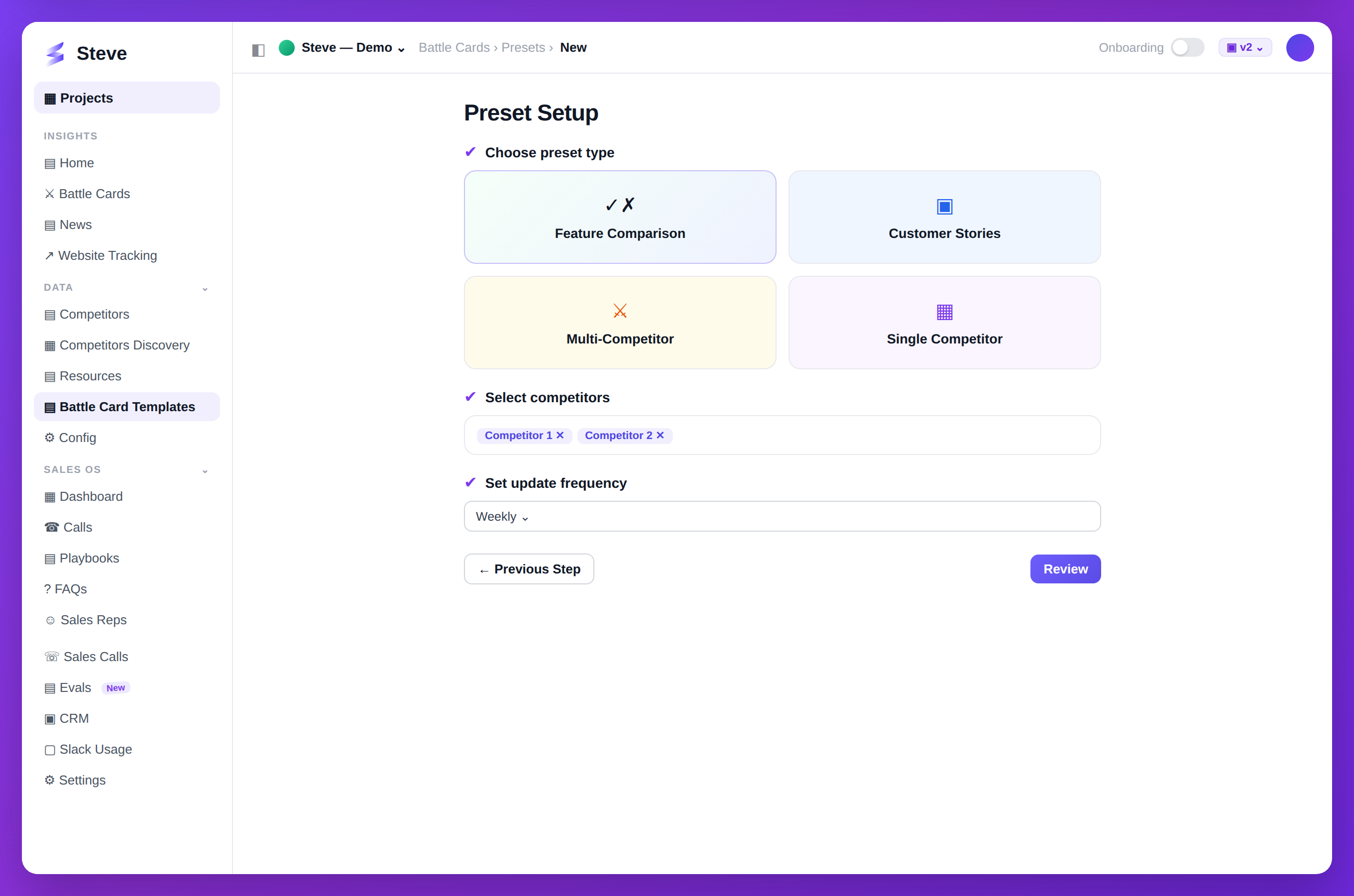
Caption: Create a preset — pick a card type, choose competitors, and set the update frequency.
Navigate to Presets
Go to Battle Cards → Presets.
Create New Preset
Click New Preset.
Configure Preset
Step 1: Name Your Preset
Enter a descriptive name:
- "Enterprise SaaS Template"
- "SMB Competitor Card"
- "Product Launch Format"
Step 2: Select Sections
Choose which sections to include:
- ☑ Company Overview
- ☑ Pricing Comparison
- ☑ Feature Comparison
- ☑ Why We Win
- ☑ Differentiators
- ☑ Objection Handling
- ☑ Customer Stories
Step 3: Customize Prompts
For each section, set AI generation prompts:
- Tone (professional, casual, assertive)
- Focus areas
- Length preference
- Data sources to prioritize
Step 4: Save Preset
Click Save Preset to make it available for generation.
Use Presets
Generate from Preset
- Go to Battle Cards → Generate
- Select Use Preset
- Choose your saved preset
- Select competitor
- Generate
Bulk Generation
Apply presets to multiple competitors:
- Go to Presets
- Select preset
- Click Apply to Competitors
- Choose competitors
- Generate all
Manage Presets
Edit Preset
Click preset name → Edit → Update settings → Save.
Delete Preset
Click preset → Delete → Confirm.
Existing battle cards generated from the preset remain unchanged.
Duplicate Preset
Click preset → Duplicate → Modify → Save As New.
Expected Outcome
✅ Preset template created ✅ Consistent battle card format ✅ Faster generation workflow
Next Steps
- Generate from Preset - Use your template
- Generate Battle Card - Create custom cards