Add an External MCP Connector
Fill in the Add custom connector dialog, pick the right credentials, and let Steve validate the server and discover its tools
Overview
Add a remote MCP server to your organization. Steve validates the URL, discovers the server's tools, and saves the connector as Connected.
Who it's for: 📣 PMM / org manager.
Prerequisites
- Organization manager role — the Connectors tab only appears for org managers
- A remote MCP server URL — an
http/httpsURL reachable from the internet - Credentials, if the server needs them — see Credentials below
- At least one project — connectors do nothing until they're linked to one
Step 1: Open the dialog
- Click Settings → Connectors (or open
/settings#connectors). - Click Add Connector.
Step 2: Fill in the fields
| Field | Required | Notes |
|---|---|---|
| Name | Yes | How it appears in the list. Also becomes the prefix on every tool name |
| Remote MCP server URL | Yes | For example https://mcp.example.com/sse |
| Token | No | Service account API key, sent as a Bearer token |
| Account email | Atlassian only | Appears automatically for atlassian.com URLs |
| Description | No | A one-line note about what it's for |
| Advanced settings | No | OAuth Client ID and Secret, collapsed by default |
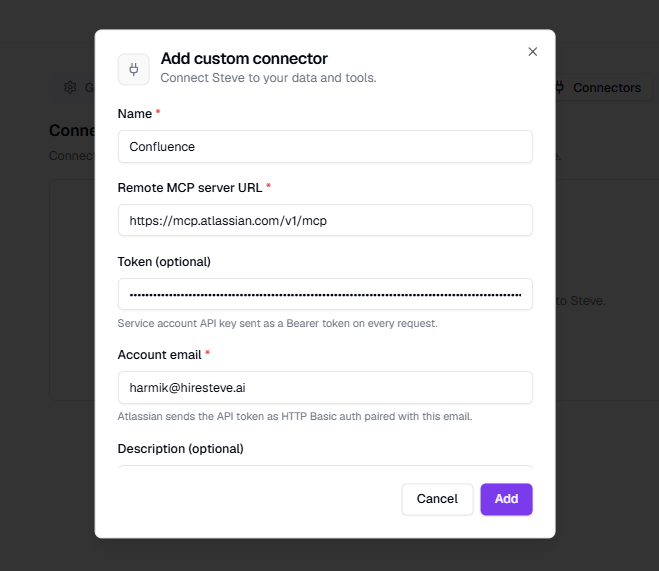
Caption: The Add custom connector dialog. Advanced settings holds the optional OAuth credentials.
Only use connectors from developers you trust. A connector's tools run with your organization's data.
Credentials
Steve picks the auth method from the fields you fill in, in this order:
| Fill in | What Steve sends |
|---|---|
| Token + Account email (Atlassian URL) | Authorization: Basic base64(email:token) |
| Token | Authorization: Bearer <token> |
| OAuth Client ID + Secret | Authorization: Basic base64(id:secret) |
| Nothing | No auth header |
Atlassian only returns its full toolset over HTTP Basic, so the Account email field is required for atlassian.com URLs — use the email that owns the API token.
Tokens and secrets are encrypted at rest and never returned to the browser. An existing one shows as ••••••••; leave it blank when editing to keep it.
Step 3: Click Add
Add stays disabled until the required fields are filled. Once you click it, Steve connects to the server, calls tools/list, and saves the connector as Connected — you'll see a toast like "Name connected · 12 tools discovered".
If the server can't be reached, the dialog stays open with the reason under the URL field:
| Message | Fix |
|---|---|
| Authentication failed | Check the token, its scopes, and (for Atlassian) that the email owns it |
| Couldn't reach this MCP server | Verify the URL and that the server is publicly reachable |
| A connector with this URL already exists | Edit the existing connector instead |
Expected Outcome
- ✅ The connector appears in the list under Connected
- ✅ Its tools are listed under Tool permissions
- ✅ A checklist shows what's still missing — a project and a feature
Next Steps
- Configure & Manage — make it active.
- Overview — where connectors run.