External MCP Connectors: Overview
Connect Steve to a remote MCP server from Settings → Connectors, and control which projects and features can use its tools
Overview
An external MCP connector links Steve to a remote MCP server — Atlassian, GitHub, Firecrawl, your own — so Steve can call that server's tools while it writes. Add it once in Settings → Connectors, then choose where it's allowed to work.
Who it's for: 📣 PMM / org manager — the Connectors tab is visible to organization managers only.
Where it lives
Steve → Settings → Connectors, or open /settings#connectors directly.
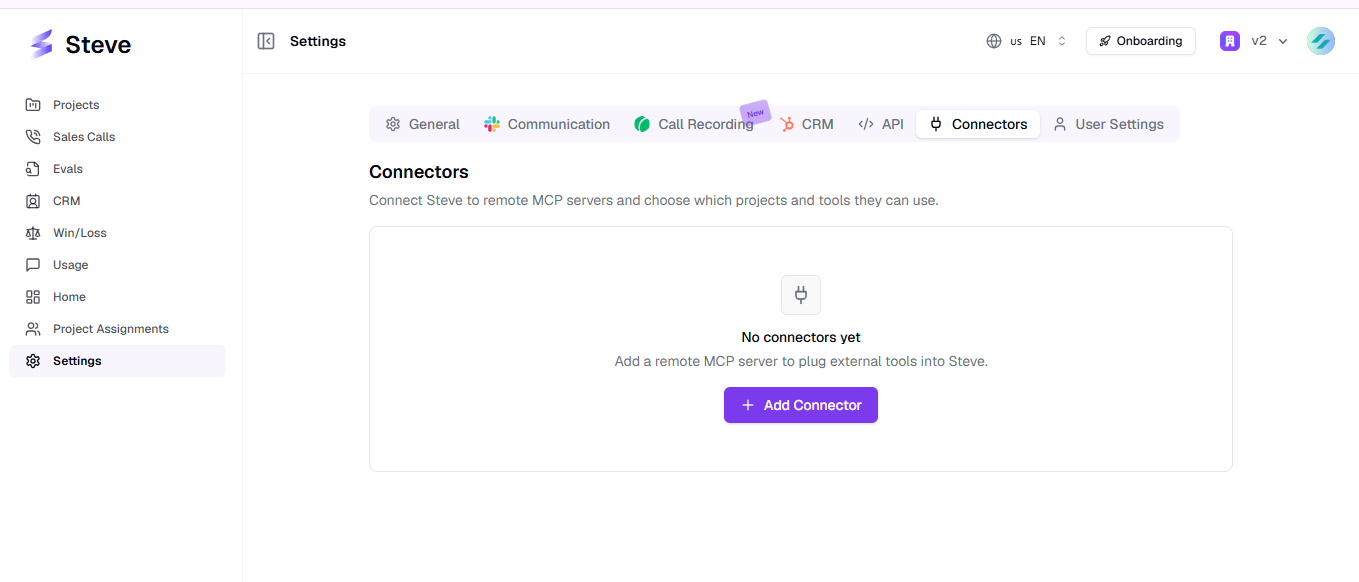
Caption: The Connectors tab — grouped list on the left, detail panel for the selected connector on the right.
What a connector adds
| It adds | What that means |
|---|---|
| Tools | Every tool you mark Allow is handed to Steve's model, which can call it mid-generation |
| A generation prompt | Optional instructions appended to Steve's prompt whenever those tools are offered |
Where it runs
A connector works in three places, and only the ones you enable:
| Feature | The surface it affects |
|---|---|
| Creation of BC | Battle card generation |
| Canvas | Canvas block generation and editing |
| Insights replies | Steve's knowledge-base answers — Slack, Zoom, and the public chat API |
When Steve uses it
For any generation, Steve loads only the connectors that are Connected, linked to that project, and enabled for that feature — then passes just the Allow-marked tools to the model.
A connector that can't be reached is skipped and generation continues without it.
Next Steps
- Add a Connector — server URL and credentials.
- Configure & Manage — projects, features, tools, and prompt.