Configure & Manage a Connector
Link projects, choose features, allow or block tools, add a generation prompt, and keep the connection healthy
Overview
A new connector is inert until you say where it works and which tools it may use. Everything here lives in the connector's detail panel — select it from the list in Settings → Connectors.
Who it's for: 📣 PMM / org manager.
Used in projects
Pick which projects can use this connector.
- Click + Add on the Used in projects row.
- Tick the projects, then click Add.
Linked projects show as chips — click the ✕ on one to unlink it.
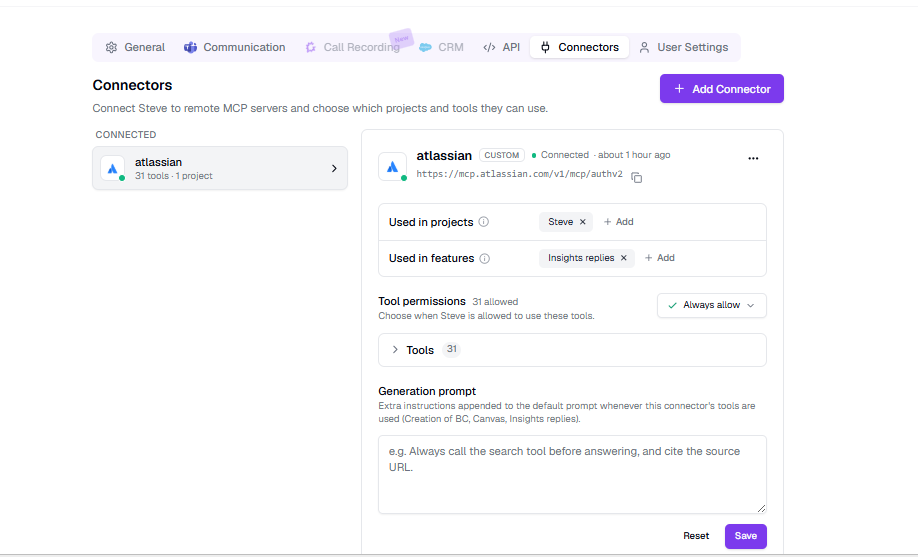
Caption: Projects and features are set the same way — pick from the popover, and selections become removable chips.
Used in features
Same interaction, over three fixed options: Creation of BC, Canvas, Insights replies.
Both settings must be satisfied. Steve loads a connector only when it's linked to the project and enabled for the feature doing the generating — a connector on Canvas contributes nothing to a battle card.
Tool permissions
Tools come from the server; you never type them. Each row has two toggles:
| Toggle | Meaning |
|---|---|
| ✓ Allow | Steve can use this tool without asking |
| ⊘ Block | Steve can never use this tool |
The dropdown at the top sets the fallback for tools you haven't decided on — Always allow or Always denied. The heading shows a live count, e.g. "12 allowed · 1 blocked".
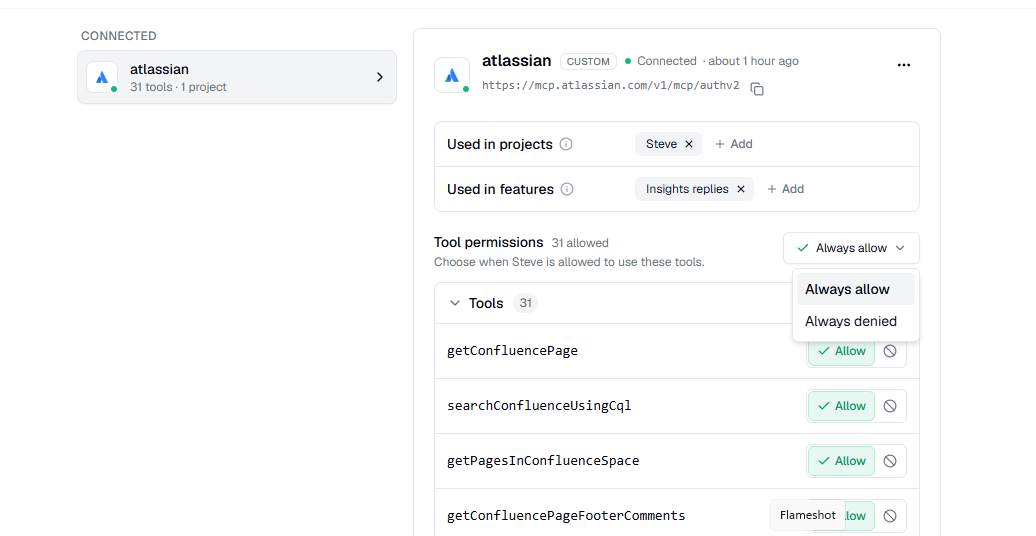
Caption: One row per discovered tool. Only Allow-marked tools ever reach Steve.
Steve prefixes each tool with the connector name — search on Firecrawl becomes Firecrawl_search — and its own built-in tools win any name collision. A tool call that fails or runs past 60 seconds is returned as an error; the generation still finishes.
Generation prompt
Optional instructions appended to Steve's prompt whenever this connector's tools are offered. Type them in the Generation prompt box and click Save (8,000 characters max).
Useful ones name a tool and when to use it:
- "Call
searchbefore answering pricing questions." - "Cite the source URL for every claim taken from this connector."
Blocked tools stay blocked — permissions always win over the prompt.
Keep it healthy
The ⋯ menu on the detail header has everything else:
| Action | What it does |
|---|---|
| Test connection | Re-validates the URL and credentials and refreshes the tool list. Your explicit Allow/Block choices are kept |
| Edit | Reopens the form. Changing the URL or credentials re-validates; a blank token keeps the stored one |
| Disconnect | Deletes the connector, its project links, features, permissions, prompt, and credentials — after a confirmation |
In the list, connectors are grouped Connected, Needs attention (last check failed), and Not connected. Anything in Needs attention is skipped at generation time — start with Test connection to see the current error.
Expected Outcome
- ✅ At least one project chip and one feature chip on the connector
- ✅ The setup checklist strip is gone
- ✅ The tools you want are Allow; the rest are Block
Next Steps
- Overview — where connectors run.
- Add a Connector — add another server.