Connecting HubSpot
Step-by-step authorization for the HubSpot integration, the scopes Steve requests, what gets stored, and how to verify the connection
Overview
Connecting HubSpot to Steve is a single OAuth authorization. It takes about a minute, and the first deal and company import starts automatically the moment it completes.
Who it's for: 📣 PMM / admin — connecting an integration is an organization-level action.
Check the prerequisites first. Read HubSpot Account Requirements — role, project, and HubSpot permission problems all surface here as confusing errors rather than clear ones.
Prerequisites
| Requirement | Details |
|---|---|
| A Steve account, signed in | At app.hiresteve.ai. Everything in this guide happens in the Steve app. |
| Steve organization manager role | Only an org manager can add, configure, or remove an integration. |
| A Steve role that isn't Individual Sales | The HubSpot pages redirect Individual Sales users to Projects. |
| A HubSpot account with Deals | Any tier with the CRM. |
| HubSpot permission to install apps | If the Marketplace is restricted in your portal, ask your HubSpot super admin to authorize or pre-approve the app. |
| HubSpot deal property rights | So Steve can create its custom properties for you during authorization. |
Where to start the installation
Start in Steve, not on the HubSpot App Marketplace. The authorization carries your Steve organization ID in its
stateparameter, so it has to be launched from Steve's settings page. Starting anywhere else comes back as "Invalid state parameter" and nothing is connected.
Step 1: Open the HubSpot settings tab
- Log in to Steve at app.hiresteve.ai.
- Click Settings in the navigation menu.
- Open the HubSpot tab.
You can go straight there with app.hiresteve.ai/settings?tab=hubspot.
The card reads HubSpot Integration — Connect your HubSpot account to sync deal data with Steve, with an orange cloud icon. When nothing is connected yet, it shows a warning alert: HubSpot Not Connected — Connect your HubSpot account to start syncing deal data with Steve.
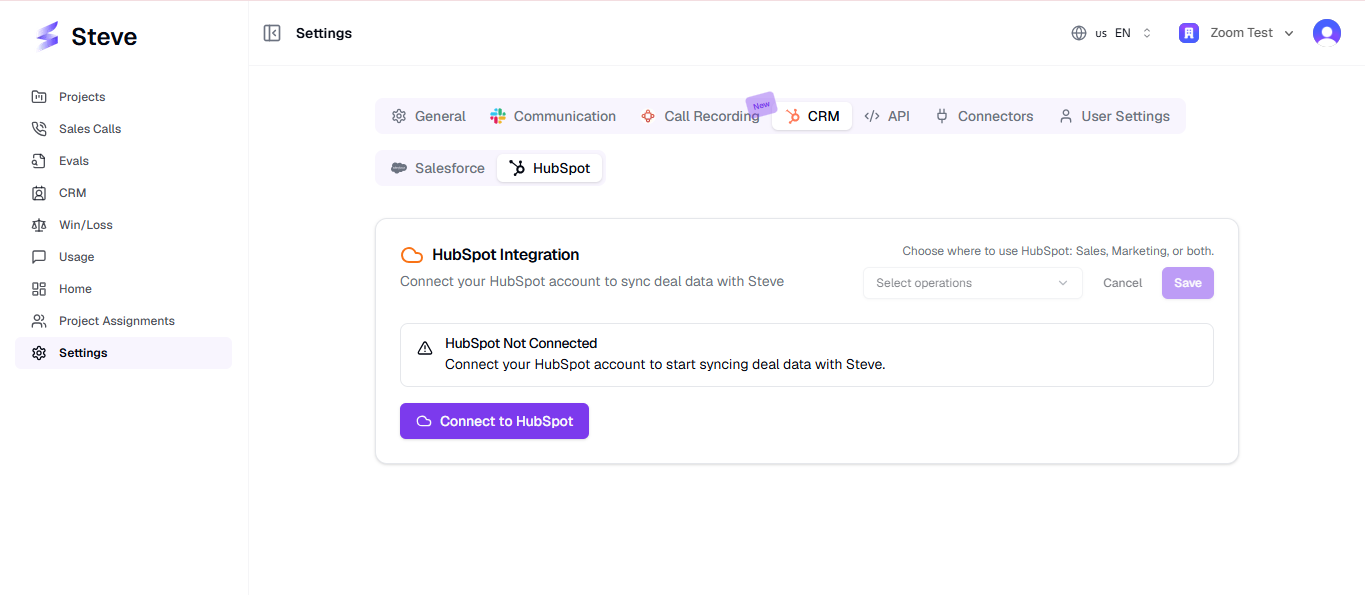
Caption: Settings → HubSpot before the integration is connected.
Step 2: Authorize on HubSpot
- Click Connect to HubSpot.
- Steve sends you to HubSpot's authorization page at
app.hubspot.com/oauth/authorize. - Sign in to HubSpot if you aren't already.
- If your login has access to more than one HubSpot account, choose the portal that holds the deals you want in Steve.
- Review the permissions Steve requests (listed below).
- Click Connect app.
- HubSpot returns you to Steve's settings.
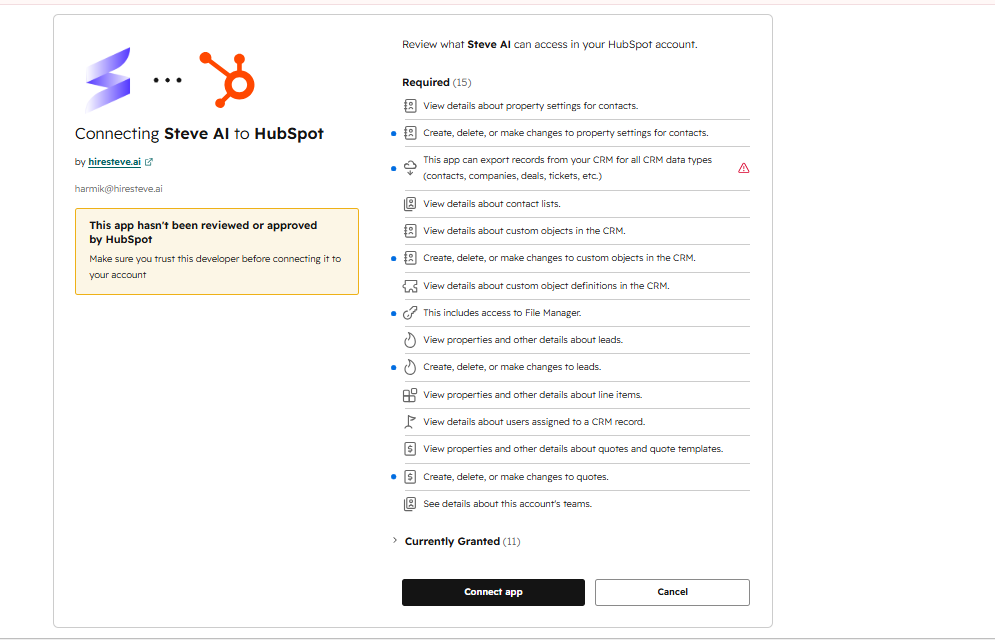
Caption: HubSpot's consent screen — confirm the right portal is selected, review the scopes, then connect.
Permissions requested
| Permission | Scope | Why Steve needs it |
|---|---|---|
| Basic OAuth | oauth | Required by HubSpot for every OAuth app. |
| Read deals | crm.objects.deals.read | Import your deals and read their properties. |
| Write deals | crm.objects.deals.write | Write competitor annotations, battle card links, connected calls, win and loss reasons, and AI-extracted field values back onto deals. |
| Read deal properties | crm.schemas.deals.read | List the deal properties in your portal so you can map them and choose which to sync. |
| Write deal properties | crm.schemas.deals.write | Create the Steve custom deal properties for you. |
| Read companies | crm.objects.companies.read | Import companies into the Companies tab. |
| Write companies | crm.objects.companies.write | Write AI-extracted field values onto company records. |
| Read company properties | crm.schemas.companies.read | List company properties for playbook field mapping. |
| Write company properties | crm.schemas.companies.write | Create custom company properties when a playbook needs them. |
| Read contacts | crm.objects.contacts.read | Resolve a deal's primary contact for win/loss surveys, and match calls to the right company. |
| Write contacts | crm.objects.contacts.write | Create and update the Notes and Call engagements Steve writes to the deal and company activity timelines. |
Steve cannot delete your HubSpot records; it does not read or write tickets, quotes, line items, products, forms, marketing emails, or workflows; and it never sends anything from HubSpot on your behalf.
What happens automatically at the moment you authorize
Three things fire in sequence as soon as HubSpot hands you back to Steve:
- Tokens are exchanged and stored. Steve swaps the authorization code for an access token and a refresh token. HubSpot access tokens expire after 30 minutes, so Steve refreshes them automatically using the refresh token.
- The auto-created properties are added to HubSpot. On a first-time connection only, Steve creates
steve_connected_callsandsteve_connected_battle_cardsas multi-line text properties in the Deal information group. If this fails — usually a permissions problem — the connection still succeeds and Steve shows you a banner later so you can create them in one click. - The first sync is queued. Steve triggers a background import of your HubSpot deals and companies. See How Deals and Companies Sync.
A brand-new connection also gets a default set of deal properties selected for you: dealname, dealstage, amount, dealtype, description, hs_lastmodifieddate, and steve_connected_calls. You can change this later on the Field Mapping page.
What Steve stores after you authorize
| Stored | Where | Removed |
|---|---|---|
| HubSpot access token and refresh token | Steve's database, scoped to your organization | Deleted when you delete the integration in Steve |
| The granted scope string, token type, and expiry | Steve's database, scoped to your organization | Deleted when you delete the integration in Steve |
| Your field mappings and selected properties | Steve's database, scoped to your organization | Deleted when you delete the integration in Steve |
| Imported deals — name, stage, type, amount, currency, close date, pipeline, description, and every selected property | Steve's database, scoped to your organization | Deleted when you delete the integration in Steve |
| Imported companies — name, domain, industry, location, size, revenue, lifecycle stage, owner | Steve's database, scoped to your organization | Deleted when you delete the integration in Steve |
| Deal resources you upload and the insights extracted from them | Steve's database and encrypted object storage | Retained until you delete them, or on request |
Imported data is visible only inside the Steve organization that imported it. Full details, including how to request permanent deletion, are on Disconnecting HubSpot.
Step 3: Verify the connection
After a successful authorization:
- A toast confirms "Successfully connected to HubSpot!"
- The settings card switches to a green check alert: Connected to HubSpot — Your HubSpot account is successfully connected and ready to sync deal data.
- Three buttons appear: View HubSpot Data, Configure Field Mapping, and Re-integrate.
- Below a divider, a red Delete Account button appears — that's how you remove the integration later.
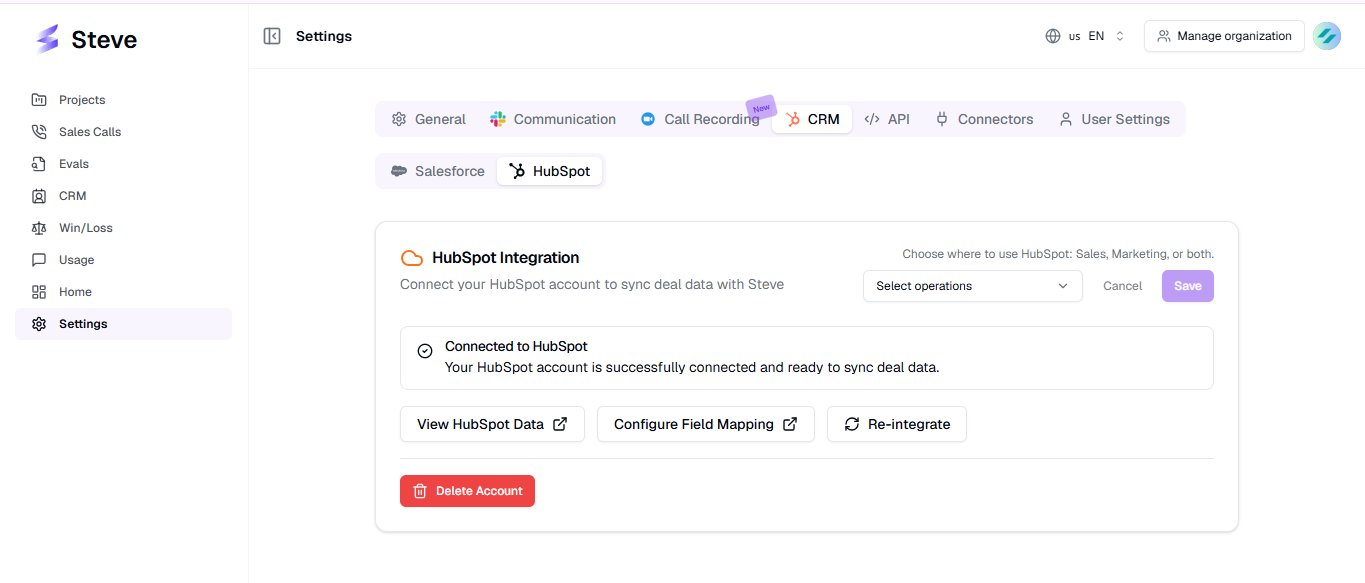
Caption: A green "Connected to HubSpot" alert confirms the portal is linked.
Step 4: Finish setup
Connecting imports deals. It does not yet make the two-way features work — competitor annotation, win and loss reasons, and battle card links all need mapped properties.
- Create the Steve properties — six custom deal properties, in one click or by hand.
- Map the fields and pick your properties — then Save Configuration, which triggers a fresh sync with your new selection.
Re-integrating
Re-integrate on the settings card runs the same OAuth flow again against an already-connected portal. Use it when:
- Steve shows the amber "Re-integrate to enable deal activity notes" banner — your connection was made before the notes scope existed.
- You need to grant a scope that was declined the first time.
- You want to move the connection to a different HubSpot portal.
Re-integrating updates the stored tokens and scope. It does not delete your deals, companies, mappings, resources, or insights, and it does not re-run the auto-property creation.
If something goes wrong
Steve returns you to the HubSpot settings tab with a red toast reading "HubSpot connection failed: …".
| Message | What it means | Usual fix |
|---|---|---|
| Authorization code not found | HubSpot sent you back without completing the authorization. | You probably cancelled or closed the consent screen. Click Connect to HubSpot again and finish it without navigating away. |
| Invalid state parameter | Steve couldn't match the response to your organization. | You started from somewhere other than Steve's settings, or your session changed mid-flow. Reload /settings?tab=hubspot, confirm you're in the right organization, and start again. |
| Failed to fetch access token | HubSpot rejected the code-for-token exchange. | Usually an expired code — the consent screen was left open too long. Retry immediately. If it repeats, contact us. |
| Failed to verify HubSpot connection | The token was issued but Steve couldn't confirm it. | Retry. If it persists, the app may not be approved for that portal — ask your HubSpot super admin. |
| Internal server error occurred | Something unexpected failed on Steve's side. | Retry once, then contact tech@hiresteve.ai with the time it happened. |
| Unknown error occurred | HubSpot returned an error Steve doesn't have a specific message for. | Check the HubSpot notification bar for a declined-permission notice, then retry. |
More detail in Troubleshooting.
Next Steps
- Field Setup Instructions — create the Steve custom properties.
- Field Mapping and Property Selection — finish configuration and trigger a sync.
- How Deals and Companies Sync — what the first import actually does.
- Disconnecting HubSpot — removal steps and what's deleted.