HubSpot Field Mapping and Property Selection
Map Steve fields to HubSpot deal properties, choose which properties sync, and save the configuration
Overview
This is the last configuration step. You tell Steve which HubSpot deal property corresponds to each Steve field, choose which additional properties should be pulled into Steve, and save.
Saving does two things: it stores the configuration, and it immediately triggers a fresh HubSpot sync so your new property selection takes effect.
Who it's for: 📣 PMM / admin.
Where: Steve → HubSpot → Configure Field Mapping, at app.hiresteve.ai/hubspot/setup. The page is titled HubSpot Field Mapping — Map your HubSpot deal properties to Steve fields for data synchronization.
Not connected yet? The page shows HubSpot Not Connected — You need to connect your HubSpot account before setting up field mappings, with a Connect HubSpot Account button. Start at Connecting HubSpot.
The page, top to bottom
| Card | What it does |
|---|---|
| Before You Begin | A shortcut to Field Setup Instructions, in case the properties don't exist yet. |
| Field Mapping Configuration | Six dropdowns — one per Steve field. |
| Property Selection | Checkboxes for every deal property in your portal, deciding what gets pulled into Steve. |
| Configuration Status | A live checklist and the Save Configuration button. |
Step 1: Map the six Steve fields
Each row shows the Steve field name, a description, a Required chip, and a searchable dropdown of every deal property in your HubSpot portal. Properties are listed as Label (internal_name), with anything starting with "steve" sorted to the top.
| Steve field | What it's for |
|---|---|
| Steve Channels | The channels where Steve is being used |
| Steve Usage | How Steve is being utilized |
| Loss Reason | Reason for losing the deal |
| Win Reason | Reason for winning the deal |
| Project Competitor | The property that holds competitor information for the deal |
| Steve Project | The Steve project associated with the deal |
For each field:
- Click the dropdown and type to filter — the search matches both label and internal name.
- Pick the HubSpot property. A green check appears next to the field label once it resolves to a real property.
- Choose No mapping to leave a field unmapped.
Refresh Properties in the card header re-fetches the property list from HubSpot. Use it after creating a property in HubSpot in another tab — a toast confirms "Properties refreshed successfully!"
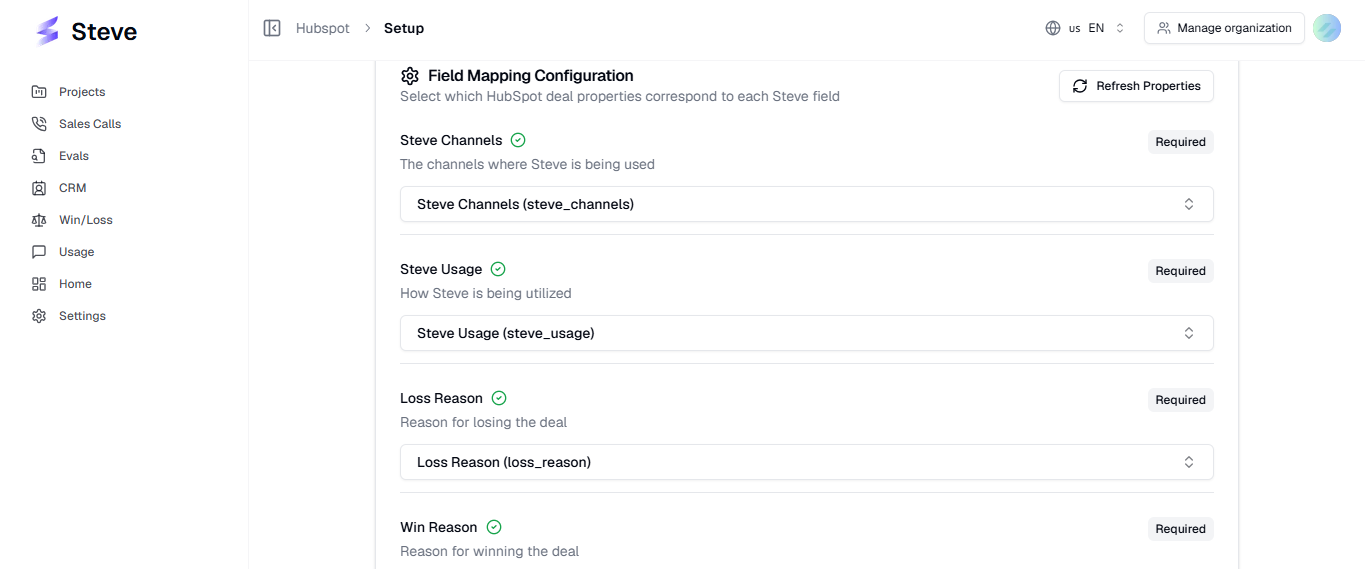
Caption: Field Mapping Configuration — one searchable dropdown per Steve field.
Mapping is what makes a column editable. In the deals table, Steve Channels, Steve Usage, Win Reason, Loss Reason, and Competitors are editable only if they're mapped here. An unmapped field shows as read-only, and edits have nowhere to write back to.
Steve Project drives auto-assignment. If you map it, the sync reads the project ID out of that HubSpot property on every deal and assigns the deal to that Steve project — as long as the ID matches a real project in your organization. If it doesn't match, Steve logs a warning and leaves the deal unassigned rather than breaking the import.
Step 2: Choose which properties sync
The Property Selection card lists every deal property in your portal with a checkbox, a search box, and a count of what's selected. Anything you check is pulled in on every sync, stored on the deal record, and available as a column in the deals table and in the deal details dialog.
Sorting puts required properties first, then selected ones, then everything else alphabetically.
Some properties are locked on and show a padlock — you can't uncheck them:
| Always selected | Why |
|---|---|
dealname, dealstage, amount, dealtype, description, hs_lastmodifieddate | Core deal data the table depends on |
steve_connected_calls, steve_connected_battle_cards | Steve's own auto-created properties |
| Every property you mapped in Step 1 | Unchecking would break the mapping |
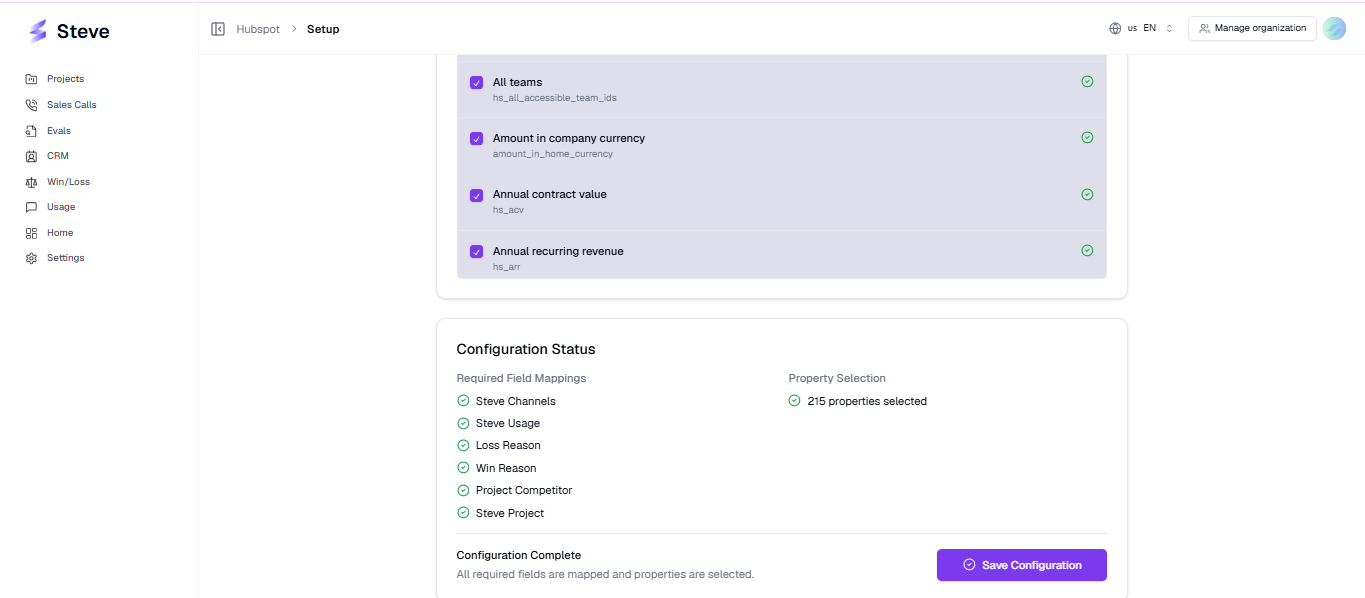
Caption: Property Selection — locked required properties at the top, everything else searchable below.
Select what you'll actually use. Every extra property is fetched for every deal on every sync. A handful of useful ones — close date, owner, pipeline, your custom qualification fields — is the sweet spot. Selecting a hundred slows the sync down for no benefit.
Step 3: Save
The Configuration Status card at the bottom tracks two things live:
- Required Field Mappings — a green check per field once it's mapped to a real property
- Property Selection — a green check and a count once at least one property is selected
The status line reads Configuration Complete — All required fields are mapped and properties are selected, or Configuration Incomplete — Please complete all required field mappings and select at least one property.
Save Configuration is disabled until all six fields are mapped and at least one property is selected. When you click it:
- A toast shows "Saving HubSpot configuration…", then "HubSpot configuration saved successfully".
- A HubSpot sync is triggered in the background with your new selection.
- After about two seconds Steve redirects you to the HubSpot dashboard with "Redirecting to HubSpot Dashboard".
Your selected-properties list is saved as the union of what you checked and everything that's required — so mapped and locked properties are always included, whether you ticked them or not.
Changing the configuration later
Come back to this page any time. Remapping a field to a different HubSpot property changes where future writes go; it does not rewrite values Steve already pushed to the old property. If you re-point Loss Reason at a new property, historical values stay on the old one in HubSpot.
Adding properties to the selection backfills them on the next sync for any deal that changes in HubSpot; deals that never change again keep the property set they were imported with until you run a full sync from the deals table.
Next Steps
- The Deals Table — what your mapping unlocks.
- How Deals and Companies Sync — when your new selection takes effect.
- Connected Battle Cards — what happens once Project Competitor is mapped.