HubSpot Field Setup Instructions
Create the custom deal properties Steve needs in HubSpot, either automatically from Steve or by hand in HubSpot settings
Overview
Steve needs a handful of custom deal properties in HubSpot to write competitor annotations, win and loss reasons, and project assignment back to your CRM. This page creates them.
You have two routes, and the page offers both: let Steve create them for you, or create them by hand in HubSpot and point Steve at them afterwards.
Who it's for: 📣 PMM / admin.
Where: Steve → HubSpot → Field Setup Instructions, at app.hiresteve.ai/hubspot/instruction. The page is titled HubSpot Field Setup Instructions — Learn how to create the required custom fields for Steve integration.
You must be connected first. If HubSpot isn't connected, connect it from Settings → HubSpot before doing anything here.
The six properties
| Internal name | Display label | What it holds |
|---|---|---|
steve_channels | Steve Channels | The channels where Steve is being used |
steve_usage | Steve Usage | How Steve is being utilized on the deal |
loss_reason | Loss Reason | Reason for losing the deal |
win_reason | Win Reason | Reason for winning the deal |
project_competitor | Project Competitor | The competitors annotated on the deal |
steve_project | Steve Project | The Steve project associated with the deal |
These are defaults, not requirements. If your portal already has equivalents — closed_lost_reason, competitor, and so on — skip creation entirely and map to the existing ones on the Field Mapping page.
Two more are already there.
steve_connected_callsandsteve_connected_battle_cardswere created for you when you authorized. They're not listed on this page. If they're missing, the HubSpot dashboard shows an amber "New Steve fields need to be created" banner with a Create missing fields button.
Option A — Let Steve create them
The Automated Field Creation card does the work: "Let Steve create the required fields automatically in your HubSpot account's deal activity group."
- Scroll to Automated Field Creation.
- The blue panel confirms what will happen:
- Fields are created in the Deal Activity property group
- All fields are visible on deal records
- Fields are available in forms and workflows
- Single-line text type, for easy data entry
- For each field, you can edit two boxes before creating:
- Field Name — the internal name used by the HubSpot API, for example
steve_channels - Display Label — the label shown in the HubSpot interface, for example
Steve Channels
- Field Name — the internal name used by the HubSpot API, for example
- Leave the defaults unless your portal has a naming convention you need to follow.
- Click Create Fields in HubSpot. The button shows Creating Fields… while it runs.
- A toast reports the result: "Successfully created N custom field(s)", and "Failed to create N field(s)" if any were rejected.
- A green Fields Created Successfully! alert lists what was created.
Only what's missing gets created. The page checks your live HubSpot deal properties and lists only fields that don't already exist. If everything is already there, both cards show All Fields Ready! instead.
Option B — Create them by hand in HubSpot
The Manual Field Creation card walks through it: "Follow these steps to manually create custom fields in HubSpot."
- Log in to your HubSpot account and navigate to Settings.
- Go to Properties → Deal Properties.
- Click Create property for each field.
- Use the exact field names and labels shown on the page.
- Set the field type to Single-line text.
- Assign fields to the Deal activity property group.
- Make sure Show on deal records is enabled for visibility.
The card lists each field still missing from your portal, showing its internal name as a code chip, its display label, and its description. An Open HubSpot Settings button takes you straight to app.hubspot.com/settings in a new tab.
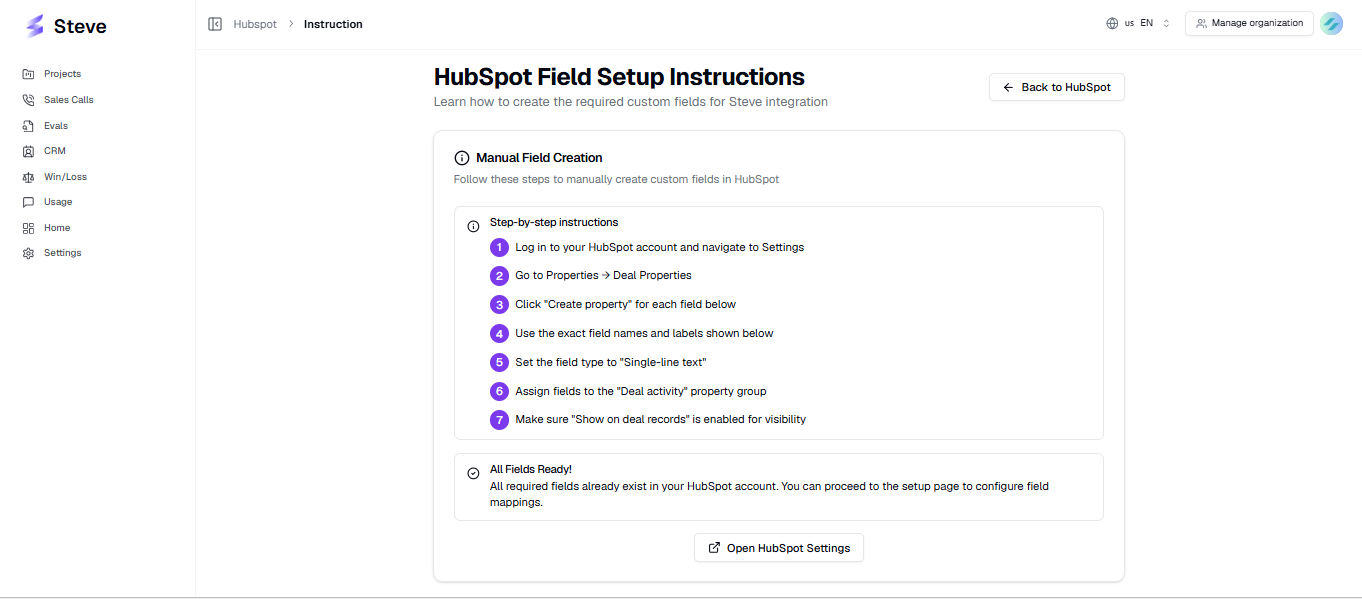
Caption: Manual Field Creation — the numbered steps and the exact names to use in HubSpot.
When you're done in HubSpot, come back and the missing-field list refreshes. If it still shows a field you just created, click Refresh Properties on the Field Mapping page — HubSpot can take a moment to expose a new property over its API.
Which option should I pick?
| Pick automated if… | Pick manual if… |
|---|---|
| You want it done in one click | Your portal has property governance and every new property needs review |
| You're happy with single-line text in the Deal Activity group | You need a different field type — dropdown, number, date |
| The connected HubSpot user can manage deal properties | The connected user can't create properties, but an admin can |
You can mix them freely — create some by hand and let Steve do the rest.
Verifying
In HubSpot: Settings → Properties → Deal Properties, filter by group Deal activity, and confirm the properties are there.
In Steve: the page shows All Fields Ready! — All required fields already exist in your HubSpot account. No additional field creation is needed.
Next Steps
Click Proceed to Field Mapping at the bottom of the page, or go straight to:
- Field Mapping and Property Selection — connect each Steve field to a HubSpot property and save.
- The Deals Table — what the mapped fields unlock.
- Troubleshooting — if field creation failed.