How to Upload Project Resources
Add documents, presentations, and files to your project knowledge base
Steve Documentation Team
resourcesknowledge-baseupload
Overview
Upload sales collateral, product docs, and competitive research to enhance Steve's AI insights and battle card generation.
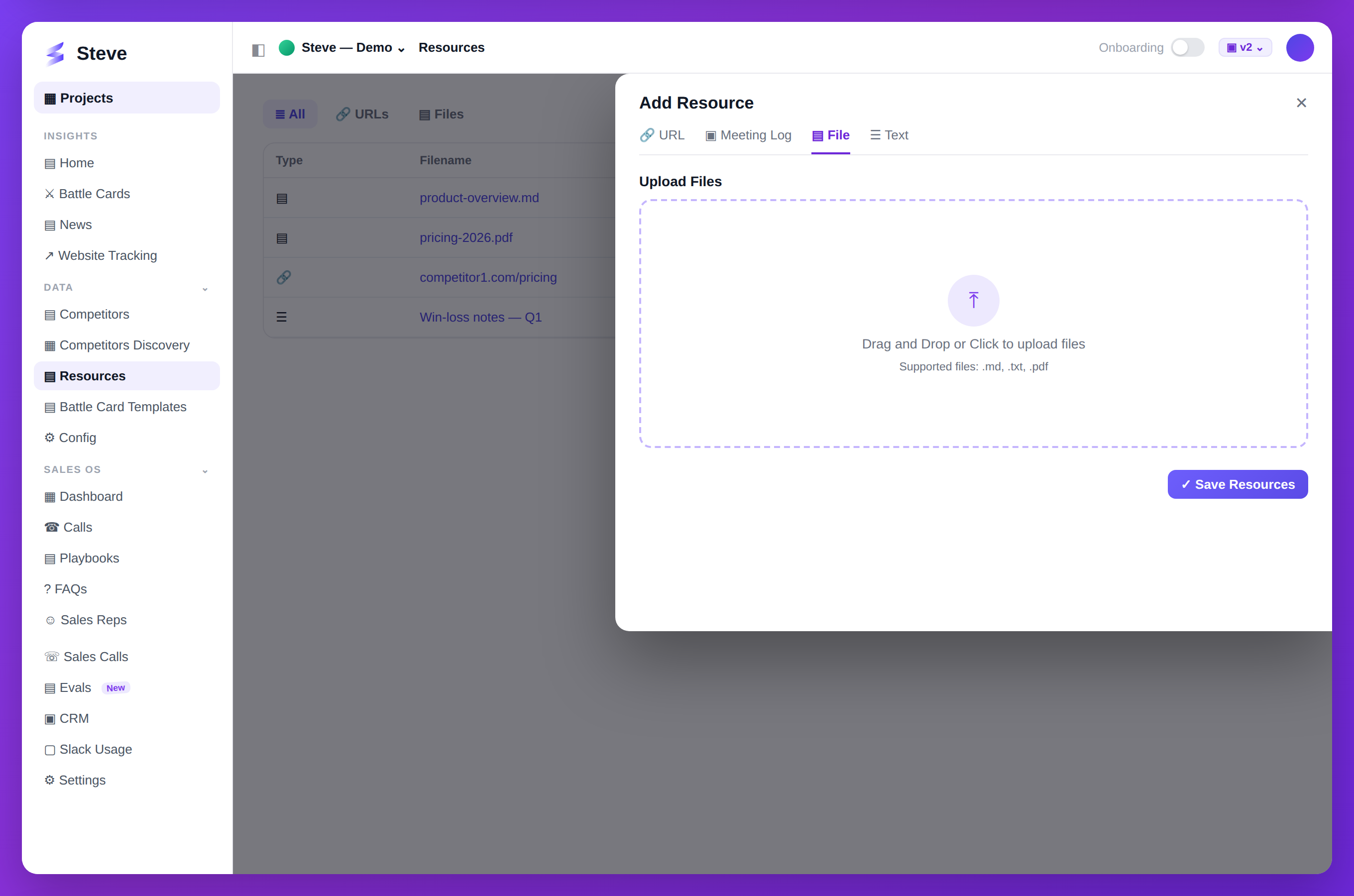
Caption: Add resources — files, URLs, meeting logs, or text — for Steve to learn from.
Navigate to Resources
Click Resources in your project sidebar.
Upload Files
Step 1: Click Upload
Click Upload Resources or drag files to the upload area.
Step 2: Select Files
Choose files from your computer.
Supported formats:
- PDF documents
- Word documents (.docx)
- PowerPoint presentations (.pptx)
- Text files (.txt, .md)
- Images (.jpg, .png)
Step 3: Add Metadata
For each file, provide:
- Title - Descriptive name
- Type - Document category (Sales deck, Product sheet, Research, etc.)
- Description - Brief summary (optional)
Step 4: Complete Upload
Click Upload to add files to your knowledge base.
View Resources
Resources appear in the list with:
- File name and type
- Upload date
- File size
- Actions (view, download, delete)
Use Resources
Steve automatically uses uploaded resources when:
- Generating battle cards
- Answering competitive questions
- Creating reports
- Providing sales insights
Expected Outcome
✅ Files uploaded to knowledge base ✅ Content indexed for AI ✅ Available for battle card generation
Troubleshooting
Upload fails?
- Check file size (max 10MB per file)
- Ensure supported file format
- Verify stable internet connection
File not appearing?
- Wait for processing (may take 1-2 minutes)
- Refresh the page
Next Steps
- Manage Knowledge Base - Organize resources
- Generate Battle Cards - Use resources in cards