How to Manage Your Knowledge Base
Organize, search, and maintain your project resource library
Steve Documentation Team
resourcesknowledge-basemanagement
Overview
Keep your competitive intelligence resources organized and accessible for your team and Steve's AI.
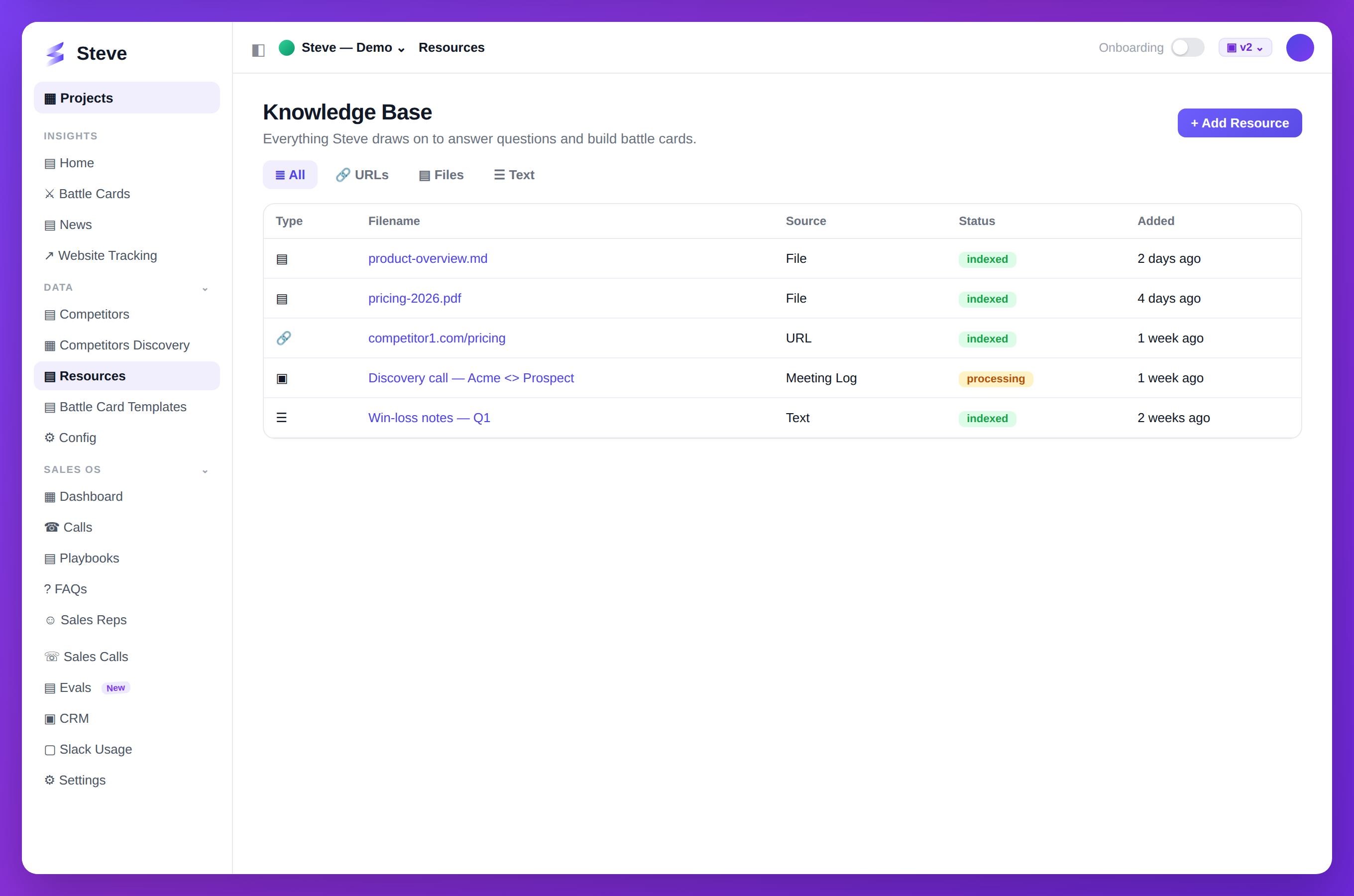
Caption: Everything Steve draws on, in one indexed knowledge base.
Access Knowledge Base
Navigate to your project and click Knowledge Base or Resources.
Organize Resources
Categories
Resources auto-categorize by type:
- Sales Decks
- Product Sheets
- Research Reports
- Competitive Analysis
- Customer Stories
- Training Materials
Manual Categorization
Update resource category:
- Click resource
- Select Edit
- Choose category
- Click Save
Search Resources
Quick Search
Use the search bar to find resources by:
- File name
- Content keywords
- Upload date
- Category
Filters
Combine filters for precise results:
- Type - Document, presentation, image
- Date - Last week, month, quarter
- Size - File size range
- Uploader - Team member
View Resource Details
Click any resource to see:
- File preview
- Upload date and user
- Category and tags
- Usage in battle cards
- Download count
- Related competitors
Edit Resources
Update Metadata
- Click resource
- Select Edit
- Update:
- Title
- Description
- Category
- Tags
- Click Save
Replace File
- Click resource
- Select Replace
- Upload new version
- Old version archives automatically
Delete Resources
Remove outdated content:
- Select resource
- Click Delete
- Confirm deletion
Warning: Deletion is permanent. Battle cards using this resource won't be affected.
Track Usage
See how resources are used:
- Battle cards referencing this resource
- Team members who downloaded
- Last access date
- Total views
Expected Outcome
✅ Resources organized by category ✅ Easy search and retrieval ✅ Up-to-date knowledge base
Next Steps
- Upload Resources - Add more content
- Generate Battle Cards - Use resources