Browse Battle Card Canvases with /canvas
Open the you-vs-one-competitor comparison canvases from Zoom Team Chat, by project and competitor
Steve Documentation Team
zoomzoom-team-chatcanvasbattle-cardspmm
Overview
A canvas is the you-vs-one-competitor comparison document your team builds. /canvas lets you browse those shared canvases from Zoom, by project and competitor.
Who it's for: 📣 PMM as the owner · 🎯 Sales Rep to browse.
Use case: You want to share a full competitive canvas with a teammate rather than a single card.
Prerequisites
- A Steve project with at least one share-enabled canvas — only canvases with public sharing turned on appear here
- The Steve bot added to the channel, if you're running it in a channel
How to use it
/canvas
In a channel, address the bot instead: /steve canvas or @Steve canvas
- Steve posts a selection card. Choose the project — if you're assigned to exactly one project, Steve picks it for you.
- Optionally filter by competitor, or leave it on All Competitors.
- Press Submit.
- Steve returns each matching canvas with its status, last-updated date, and an Open canvas link.
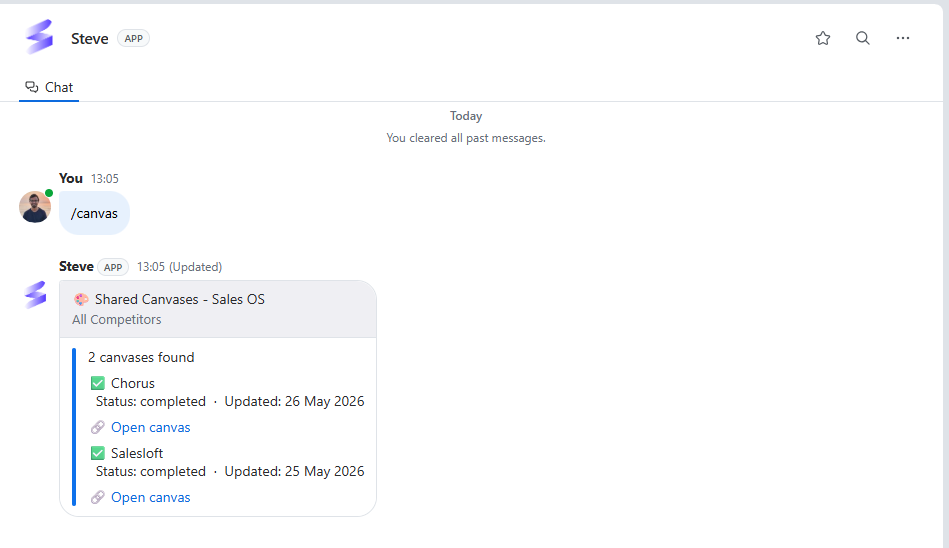
Caption: Each canvas shows its status and last-updated date, with a link to jump straight in.
If no canvas has sharing enabled, Steve says so and points you at the Steve dashboard to turn sharing on.
Best ways to use it
📣 For PMM
- This is the source document behind the battle cards reps consume.
/canvasis the quickest way to check what's live for a given competitor. - Keep one canvas per competitor current, so reps always see an accurate full picture.
- Remember that sharing must be enabled on a canvas before the field can see it here.
🎯 For sales reps
- When a card isn't enough, open the full canvas for the whole picture on a single competitor.
- Use it to prep for a competitive deal where you expect deep questions.
Next Steps
- Battle Cards in Zoom — the card-sized cuts of the canvas.