Calls & Analysis
Review recorded sales calls and dive into post-call analysis — action items, playbook step coverage, objections, FAQ handling, and CRM deal linking.
Calls & Analysis
Once your reps start running Sales OS-assisted calls, the data flows into two pages: Calls and Analysis. Together they give managers a complete picture of team performance, and give reps a structured review of every call they complete.
Navigate to your project and open Sales OS > Calls to get started.
Role Visibility
Sales OS enforces strict data visibility based on role:
- Managers see every call from every rep in the project
- Sales Reps see only their own calls
This means the Calls and Analysis pages show different data depending on who is logged in, with no configuration required.
The Calls Page
The Calls page is a searchable, filterable table of every completed call associated with the current project.
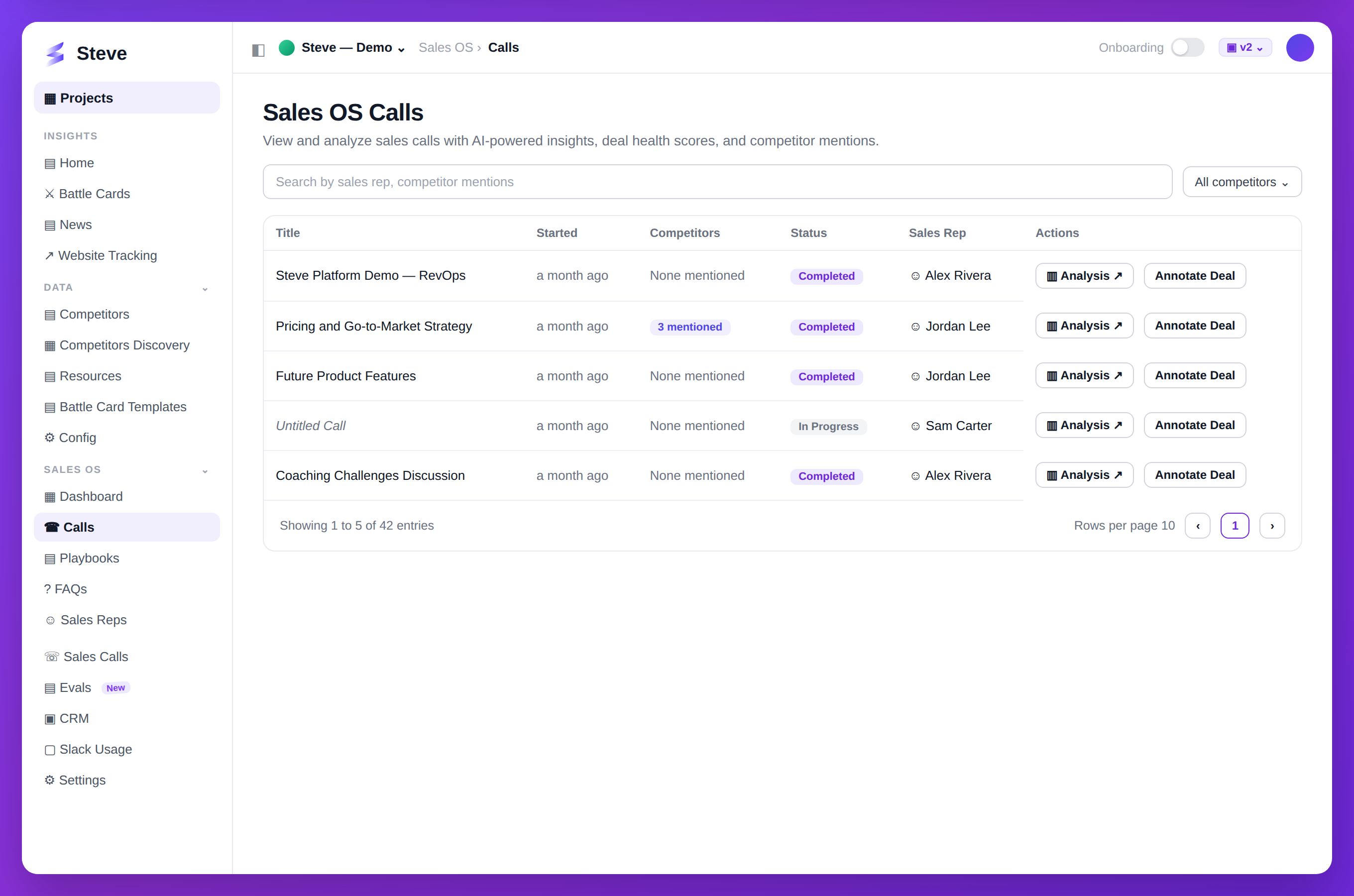
Caption: Every call analyzed — deal health, competitor mentions, and next steps.
Filters and Search
At the top of the page, two controls narrow down the call list:
Search bar — type a sales rep's name or a competitor name to filter the table in real time. The search uses a short debounce so results update as you type. Clear the search with the X button.
Competitor Filter — a dropdown populated with every competitor mentioned across your calls. Select a specific competitor to see only calls where that competitor was mentioned. Select "All Competitors" to reset.
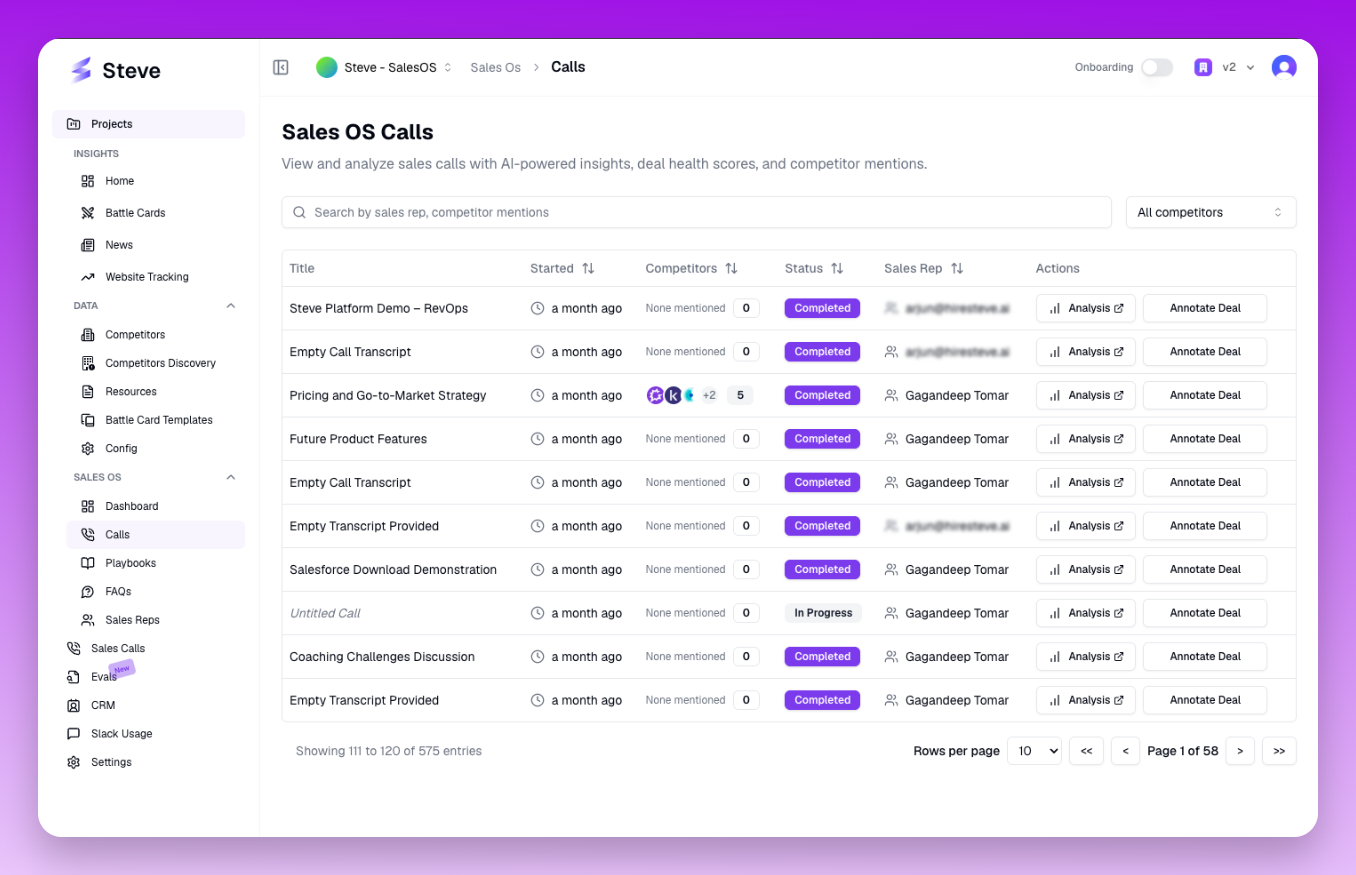
The Calls page — filter by rep name or competitor, then click Analysis to drill into any call.
Call Table Columns
| Column | Description |
|---|---|
| Title | The call title, sourced from the calendar event or meeting title. If no title was set, shows "Untitled Call" |
| Started | Relative time since the call started (e.g., "2 hours ago"), with an absolute timestamp on hover |
| Competitors | Avatar icons for each competitor mentioned during the call. Hover to see the competitor name |
| Status | "Completed" (call ended and analysis is available) or "In Progress" (call is still running) |
| Sales Rep | The rep who ran the call |
| Actions | Buttons to open the analysis or annotate the CRM deal |
All columns except Title support sorting — click the column header to toggle ascending/descending order.
Pagination
The table supports pagination with a configurable page size. Use the page size selector to show 10, 25, or 50 rows per page. The pagination controls show the current range (e.g., "Showing 1–10 of 47") and previous/next buttons.
Opening the Analysis
In the Actions column, click Analysis to open the post-call analysis for that call. The analysis opens in a new tab so you can keep the Calls list visible.
Linking a CRM Deal
Also in the Actions column, the Deal Annotation button opens a dialog to associate the call with a specific CRM deal or opportunity. Once linked, the call is associated with that deal in your CRM, and extracted field data from the call is written to the deal record automatically.
The Analysis Page
The Analysis page gives a deep breakdown of a single call. It is accessible by clicking Analysis from the Calls table or navigating directly with a call ID.
Call Selector
At the top of the page, a dropdown lists all calls in the project that have post-call analysis available. Select a call to load its analysis. If you navigated from the Calls table, the call is pre-selected.
The selector automatically loads the most recent call when the page first opens with no call specified.
Call Overview
The overview card at the top summarizes the call at a glance:
- Call title and date
- Duration
- Sales rep name
- Playbook used
- Overall performance score — a composite score based on the success metrics defined in the playbook
- Deal stage at the time of the call
Action Items
Below the overview, the Action Items card lists every follow-up task the AI identified during the call.
Action items are extracted from statements like "I will send you the proposal by Friday" or "Let me loop in our solutions engineer." Each item shows the action, the speaker who committed to it, and the timestamp in the call where it was mentioned.
Managers use this section to hold reps accountable. Reps use it as a checklist after the call.
Playbook Steps Analysis
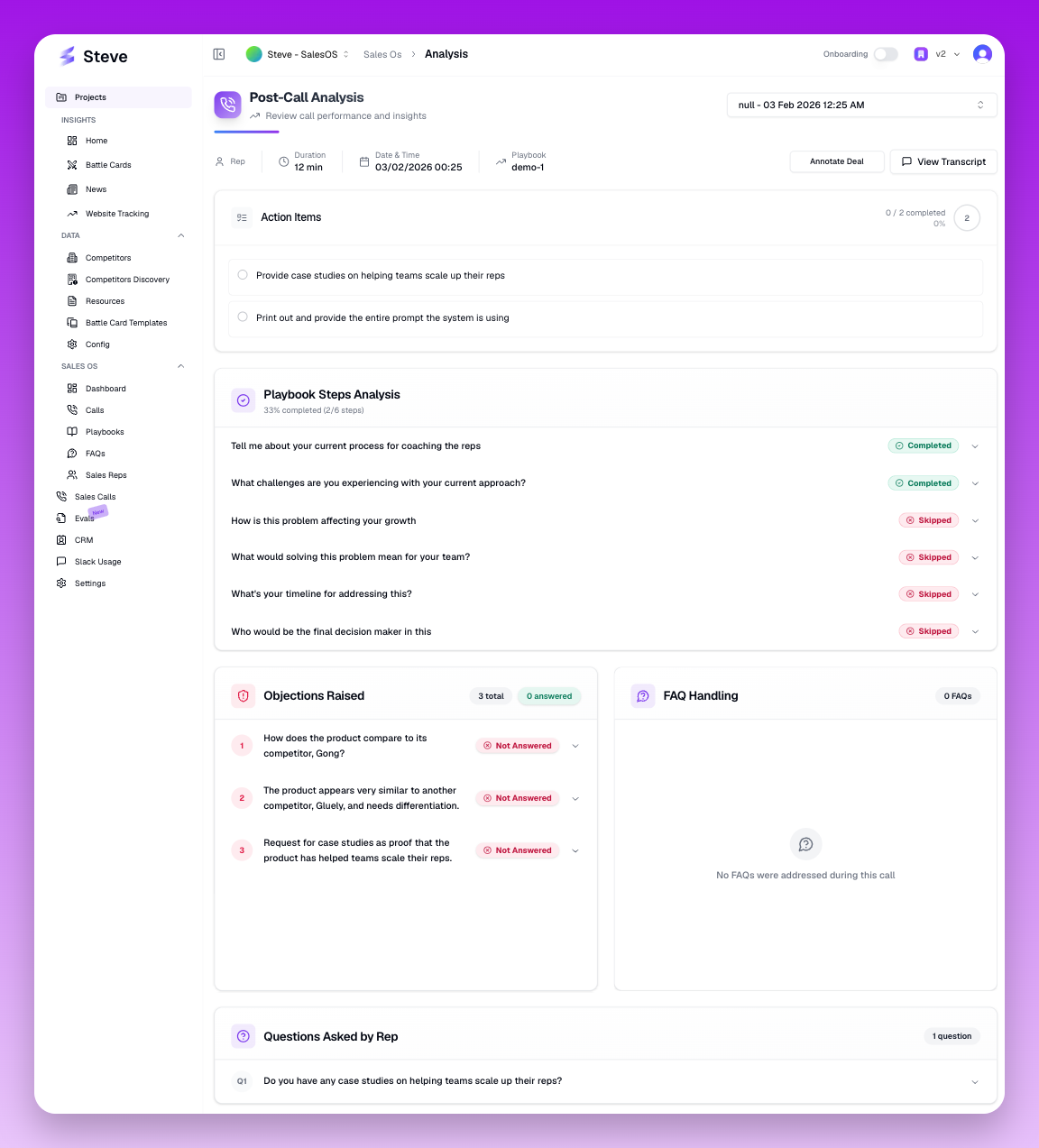
The Analysis page — call overview at the top, playbook step coverage below. Red "Not Addressed" rows are coaching opportunities.
The Playbook Steps table shows how the rep performed against every discovery question in the playbook.
Each row represents one playbook question with the following information:
| Column | Description |
|---|---|
| Question | The discovery question from the playbook |
| Status | Answered, Partially Answered, or Not Addressed |
| Explanation | The AI's reasoning for the status — what was said (or not said) |
| Opportunities | Any upsell, expansion, or commitment signals detected when this question was discussed |
| Timestamp | When in the call this question was addressed |
This table is the clearest view of how well the rep followed the playbook. Questions marked "Not Addressed" are gaps to coach on.
Objections Raised
The Objections list captures every objection the prospect raised during the call.
For each objection, the AI records:
- The objection statement (paraphrased)
- The timestamp
- How the rep responded (if at all)
Recurring objections across multiple calls indicate a pattern — a product gap, a pricing concern, or a competitive threat that the team should address at a strategic level.
FAQ Handling
The FAQ Handling list shows every instance where the prospect asked a question that matched a playbook FAQ.
For each FAQ trigger:
- Prospect's question — what the prospect actually said
- Recommended answer points — the key points the rep should have covered
- Rep's response — a summary of what the rep actually said
- Completeness score — a percentage indicating how thoroughly the rep covered the recommended points
- Explanation — the AI's reasoning for the completeness score
Low completeness scores highlight where reps need coaching on specific FAQ responses.
Questions Asked
The Questions Asked section lists every question the rep asked during the call, in chronological order.
This section is useful for understanding the rep's conversational flow. Are they asking discovery questions early? Are they asking qualifying questions at the right stage? Are there long stretches without any questions (suggesting the rep is pitching rather than listening)?
CRM Deal Annotation
The Deal Annotation button (top-right of the analysis page, next to Transcript) opens the same deal linking dialog as on the Calls page. If the deal is already linked, the button shows the deal name.
Transcript
Click Transcript to open a side sheet with the full call transcript, segmented by speaker and timestamp. Use this to verify the AI's interpretations or to find specific moments in the call.
Using the Data for Coaching
The analysis page is designed to support a structured coaching conversation between manager and rep. A typical workflow:
- Manager reviews the Playbook Steps table and identifies 2–3 gaps
- Manager reads the Objections and FAQ Handling sections
- Manager schedules a coaching call and references specific moments (using timestamps)
- Rep reviews the transcript and action items before the coaching call
- Both parties align on improvements for the next call
Over time, trends across multiple calls (improving completeness scores, fewer uncovered steps) show whether coaching is working.
Next Steps
- Web Quickstart — review the real-time analysis experience during a live call
- Create Your First Playbook — adjust your playbook based on patterns you see in the analysis