Create Your First Playbook
A complete guide to creating a Sales OS playbook — covering methodology selection, discovery questions, FAQs, CRM field extraction, success metrics, and coaching instructions.
Create Your First Playbook
A playbook is the brain of Sales OS. It defines what the AI listens for during a sales call, how it coaches the rep, what data it extracts for your CRM, and how success is measured. Every AI-assisted call runs against exactly one playbook.
This is a manager-only workflow. Reps select and use playbooks; only managers create them.
To get started, navigate to your project and open Sales OS > Playbooks, then click New Playbook.
The Creation Wizard
Playbook creation is a multi-step wizard. Every step builds on the previous one. You can go back at any point to revise earlier choices.
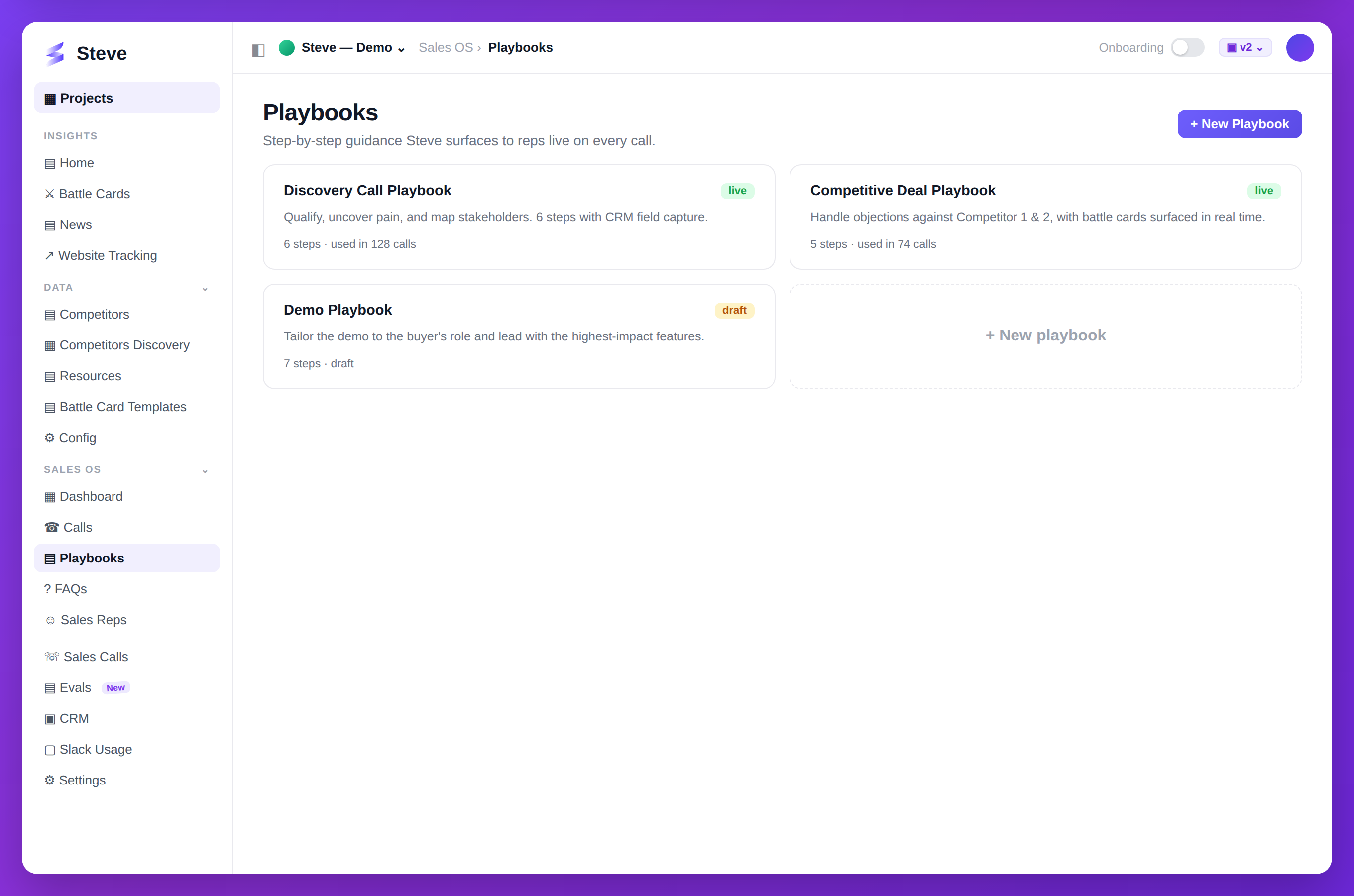
Caption: Build playbooks Steve surfaces to reps live on every call.
Step 1: Choose a Creation Method
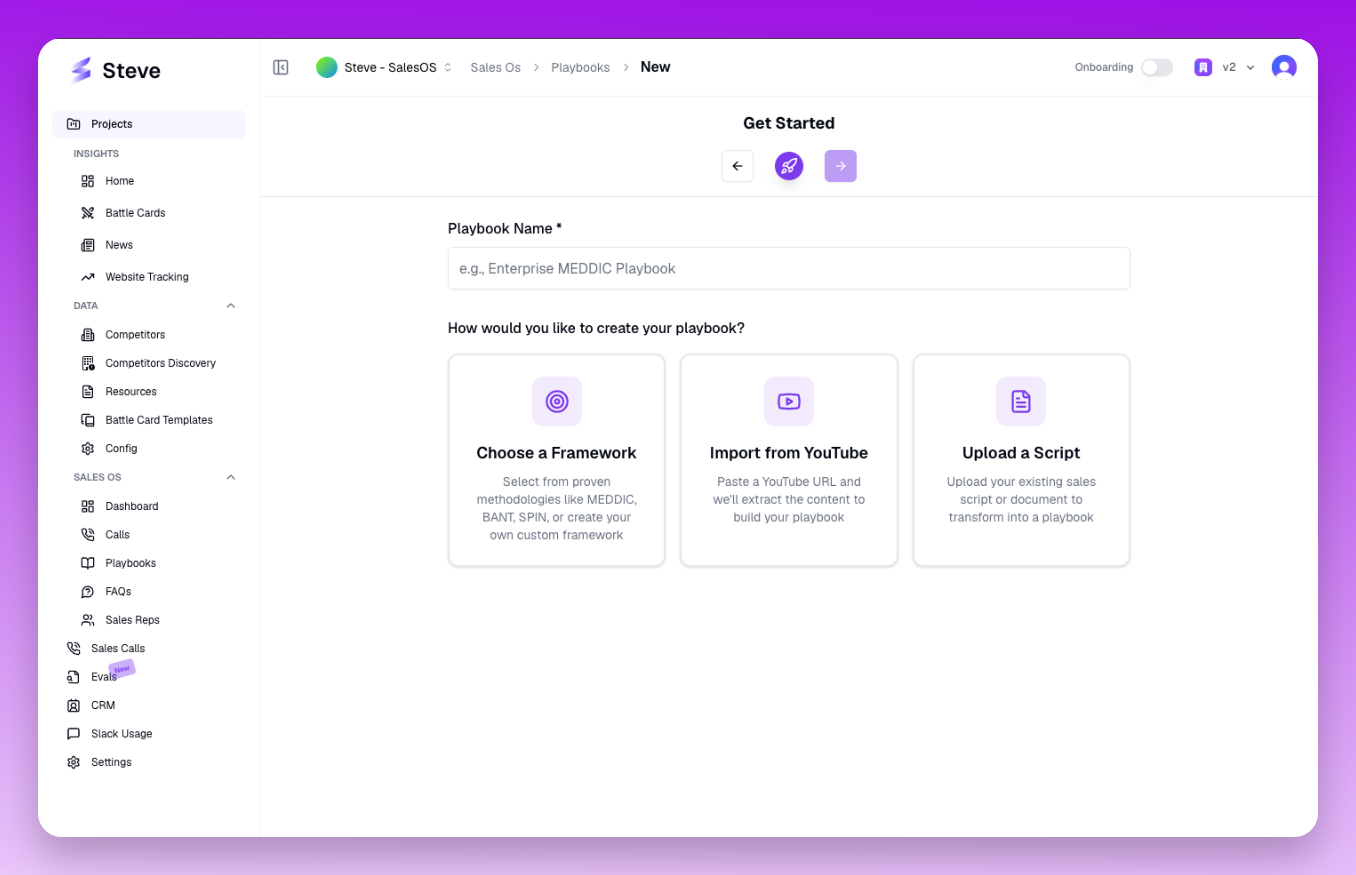
Step 1 — choose how to build your playbook. Framework is the most common starting point.
The wizard opens with three options for how to build your playbook:
Framework
Choose a proven sales methodology as the foundation. Sales OS pre-populates a complete set of discovery questions and CRM extraction fields based on the methodology you select. Best for teams that already follow a structured sales process.
Script Upload
Upload your existing sales call scripts or training materials (PDF, DOCX, TXT). Sales OS uses AI to analyze your scripts and generate discovery questions tailored to your actual language and process. Best when you have established internal call scripts you want to digitize.
YouTube Link
Paste a YouTube URL of a sales training video or recorded call. Sales OS fetches the transcript and generates discovery questions from the content. Best for teams learning from video-based training programs.
After selecting Script or YouTube, the methodology is automatically set to "Custom" since your content defines the structure rather than a named framework.
Step 2: Select a Methodology (Framework Method Only)
If you chose Framework, select one of the supported sales methodologies:
MEDDIC
A qualification framework focused on Metrics, Economic Buyer, Decision Criteria, Decision Process, Identify Pain, and Champion. Best for complex enterprise deals with multiple stakeholders.
SPIN Selling
Built around four question types: Situation, Problem, Implication, and Need-Payoff. Best for consultative selling where the rep guides the prospect to articulate their own need.
Challenger Sale
Focuses on teaching, tailoring, and taking control of the conversation. The rep challenges the prospect's assumptions and brings new commercial insight. Best for markets where the rep can differentiate through expertise.
BANT
A lightweight qualification checklist: Budget, Authority, Need, Timeline. Best for high-volume inside sales where quick qualification is essential.
SANDLER
Covers upfront contracts, pain discovery, budget, and decision process. Emphasizes mutual qualification — the prospect qualifies to work with you, not just the reverse. Best for complex deals where rep control of the process matters.
Custom
A blank slate. You define the questions and structure yourself. Use this when none of the frameworks fit, or when creating questions from a script or YouTube video.
Once you select a methodology, the wizard automatically advances to the next step and pre-populates discovery questions and CRM extraction fields accordingly.
Step 3: Discovery Questions
Discovery questions are the backbone of the playbook. The AI listens for signals in the conversation that indicate each question is being addressed.
Each question has the following fields:
| Field | Description |
|---|---|
| Question Text | The actual question the rep should ask |
| Description | Context for the AI — what a good answer looks like |
| Category | Groups questions by topic (e.g., Pain, Budget, Timeline) |
| Priority | Signals how important this question is relative to others |
| Stage | The deal stage this question applies to (e.g., Discovery, Demo, Negotiation) |
| Trigger Condition | Optional: a condition that must be true before the AI starts monitoring for this question |
How discovery questions affect the call: During the real-time analysis, each question appears in the left panel of the assistant. As the conversation progresses, the AI detects when a question is being addressed and marks it. When the question is fully answered, the AI generates an explanation and surfaces any opportunities (upsell, expansion, commitment signals) that emerged.
You can add, edit, reorder, or delete questions. For Framework methods, the pre-populated questions are a starting point — edit them to match your team's language.
Step 4: FAQs
FAQs are questions that prospects commonly ask during calls. When the AI detects that a prospect has asked one of these questions, it instantly surfaces the recommended answer for the rep.
Each FAQ has:
| Field | Description |
|---|---|
| Question | The prospect's question (or variations of it) |
| Full Answer | A complete answer the rep can use verbatim or adapt |
| Recommended Answer Points | Bullet points covering the key things the answer must address |
How FAQs affect the call: The AI detects the prospect question, matches it to the closest FAQ in your playbook, and shows the rep the answer in the Live Insights Feed. After the rep responds, the AI evaluates how completely the rep covered the recommended answer points and assigns a completeness score.
Add as many FAQs as your team commonly encounters. Good FAQ coverage significantly improves rep confidence during calls.
Step 5: Battle Cards
Attach competitive battle cards to this playbook to give reps quick access to competitive intelligence during calls.
When a competitor is mentioned during the call, the AI surfaces the relevant battle card automatically in the assistant. If no competitor is mentioned, the rep can browse battle cards manually from the assistant interface.
Select the battle cards relevant to the deals this playbook covers. You can select multiple battle cards from those already created in your project.
Step 6: Resources
Attach knowledge base resources — product documentation, pricing sheets, case studies, or internal training materials — to this playbook.
The AI uses these resources to answer prospect questions that are not covered by an explicit FAQ. When a prospect asks an unexpected question, the AI searches your attached resources for relevant context and provides an answer with a confidence score.
Select resources from your project's knowledge base. Resources that are always relevant (pricing, product overview) should be attached to every playbook.
Step 7: CRM Field Extraction
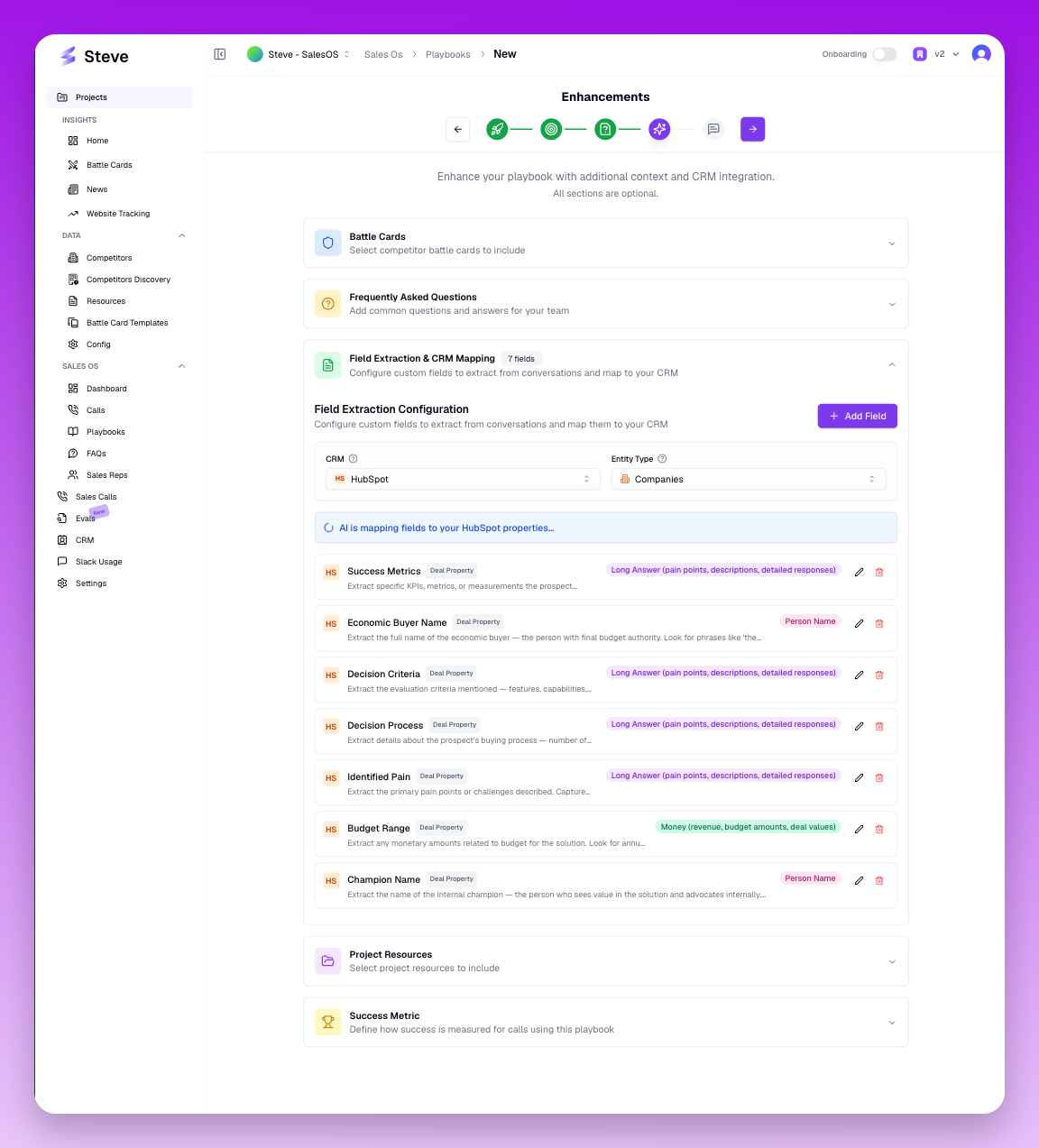
Step 7 — CRM field extraction. AI suggestions are pre-filled based on your methodology; review and confirm each mapping.
This is one of the most powerful steps in the wizard. Field extractions define what data the AI should capture from the call and write back to your CRM.
Each extraction field has:
| Field | Description |
|---|---|
| Name | Label for this extracted data point (e.g., "Budget Range") |
| Description | What this field captures |
| Data Type | Text, number, date, boolean, or enum |
| Extraction Instructions | How the AI should identify and extract this value from the transcript |
| CRM Type | The CRM object to write to (HubSpot Deal, Contact, etc.) |
| CRM Field Name | The exact API field name in your CRM |
| Destination | crm (writes to your CRM) or call_log (saves to Sales OS only) |
AI-assisted field mapping: When you select a methodology, Sales OS automatically maps the standard extraction fields for that methodology to your connected CRM. For example, selecting MEDDIC pre-creates fields for Metrics, Economic Buyer, Decision Criteria, etc. — and the AI suggests which HubSpot fields they should map to. You can accept, edit, or delete these suggestions.
For Custom methodology, you define fields manually.
Why this matters: After every call, the AI reads the full transcript and populates each extraction field with the relevant value. Your reps never have to manually log call notes to the CRM — the data is there automatically after the call ends.
Step 8: Success Metrics
Define what a successful call looks like for this playbook.
The success metric configuration allows you to set thresholds and criteria that Sales OS uses to evaluate call performance in post-call analysis. Examples:
- Minimum number of discovery questions covered
- Minimum FAQ completeness score
- Specific required questions that must be addressed
This data appears in the post-call analysis and helps managers identify where reps need coaching.
Step 9: Coaching Instructions
The coaching instructions field is a free-form text area where you write direct instructions for the AI coach.
Think of this as a message from you (the manager) to the AI about how it should behave during calls using this playbook. Examples:
- "Always prioritize questions about budget before moving to technical requirements."
- "If the prospect mentions a competitor, focus on our superior integration story."
- "This playbook is for mid-market deals — avoid enterprise-level questions about procurement."
- "The rep should use the customer's name frequently."
The AI incorporates these instructions into its coaching logic. Be specific — the more precise your instructions, the more targeted the coaching.
Step 10: Save the Playbook
Review all steps and click Create Playbook (the final "Next" button on the last step).
Sales OS validates:
- Playbook name is set
- A methodology is selected
- All CRM field extractions that have a CRM destination have a CRM field mapped
If validation passes, the playbook is created and you are returned to the Playbooks list. The playbook is immediately available for reps to select in the desktop app.
Next Steps
- Adding Sales Reps — make sure your team is set up and can use this playbook
- Calls & Analysis — after your reps run calls with this playbook, review the results