How to Generate Reports
Create formatted competitive intelligence reports for stakeholders
Steve Documentation Team
analyticsreportsexport
Overview
Generate professional reports summarizing competitive intelligence, market activity, and team performance.
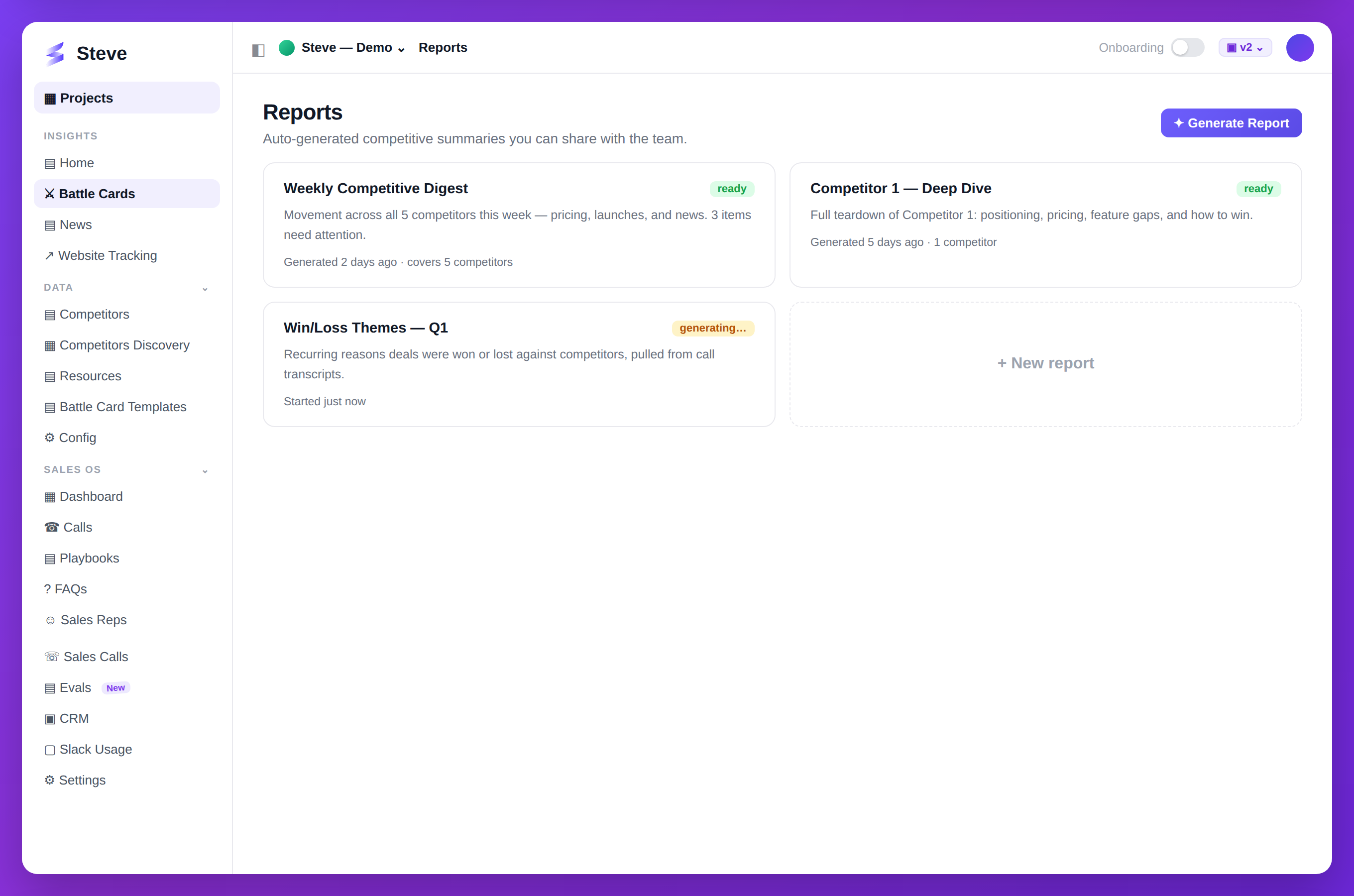
Caption: Auto-generated competitive reports you can share with the team.
Access Reports
Navigate to Reports in your project sidebar.
Create New Report
Click Generate Report.
Configure Report
Step 1: Select Template
Choose report type:
- Executive Summary - High-level overview
- Competitive Analysis - Deep dive on competitors
- Market Trends - Industry movement
- Team Performance - Usage and ROI metrics
- Custom - Build your own
Step 2: Set Parameters
Define scope:
- Time range - Last 30/60/90 days, custom
- Competitors - All or specific competitors
- Metrics - Which data to include
- Team members - Whose activity to track
Step 3: Choose Format
Select output:
- PDF - Formatted document
- PowerPoint - Slide deck
- Excel - Data spreadsheet
- Word - Editable document
Step 4: Customize Content
Select sections:
- ☑ Executive summary
- ☑ Key findings
- ☑ Competitor highlights
- ☑ Battle card performance
- ☑ ROI metrics
- ☑ Recommendations
Generate Report
Click Generate and wait for processing.
Review and Download
Preview Report
Review before downloading:
- Check data accuracy
- Verify formatting
- Ensure completeness
Download
Click Download to save the report.
Share Report
Share directly from Steve:
- Email to stakeholders
- Slack to team channel
- Copy share link
Schedule Recurring Reports
Automate report delivery:
- Click Schedule Report
- Choose frequency (weekly, monthly, quarterly)
- Select recipients
- Set delivery day and time
- Click Save Schedule
Manage Report Templates
Save Custom Template
After configuring a report:
- Click Save as Template
- Name your template
- Reuse for future reports
Edit Template
Modify existing templates:
- Go to Report Templates
- Select template
- Click Edit
- Update settings
- Save
Expected Outcome
✅ Professional report generated ✅ Stakeholder-ready format ✅ Scheduled for recurring delivery
Next Steps
- View Analytics - See live metrics
- Share Battle Cards - Improve team engagement