How to Add Competitors
Add competitors to your project to track their activity and generate battle cards
Steve Documentation Team
competitorstrackingfeatures
Overview
Add competitors to monitor their products, pricing, features, and market activity.
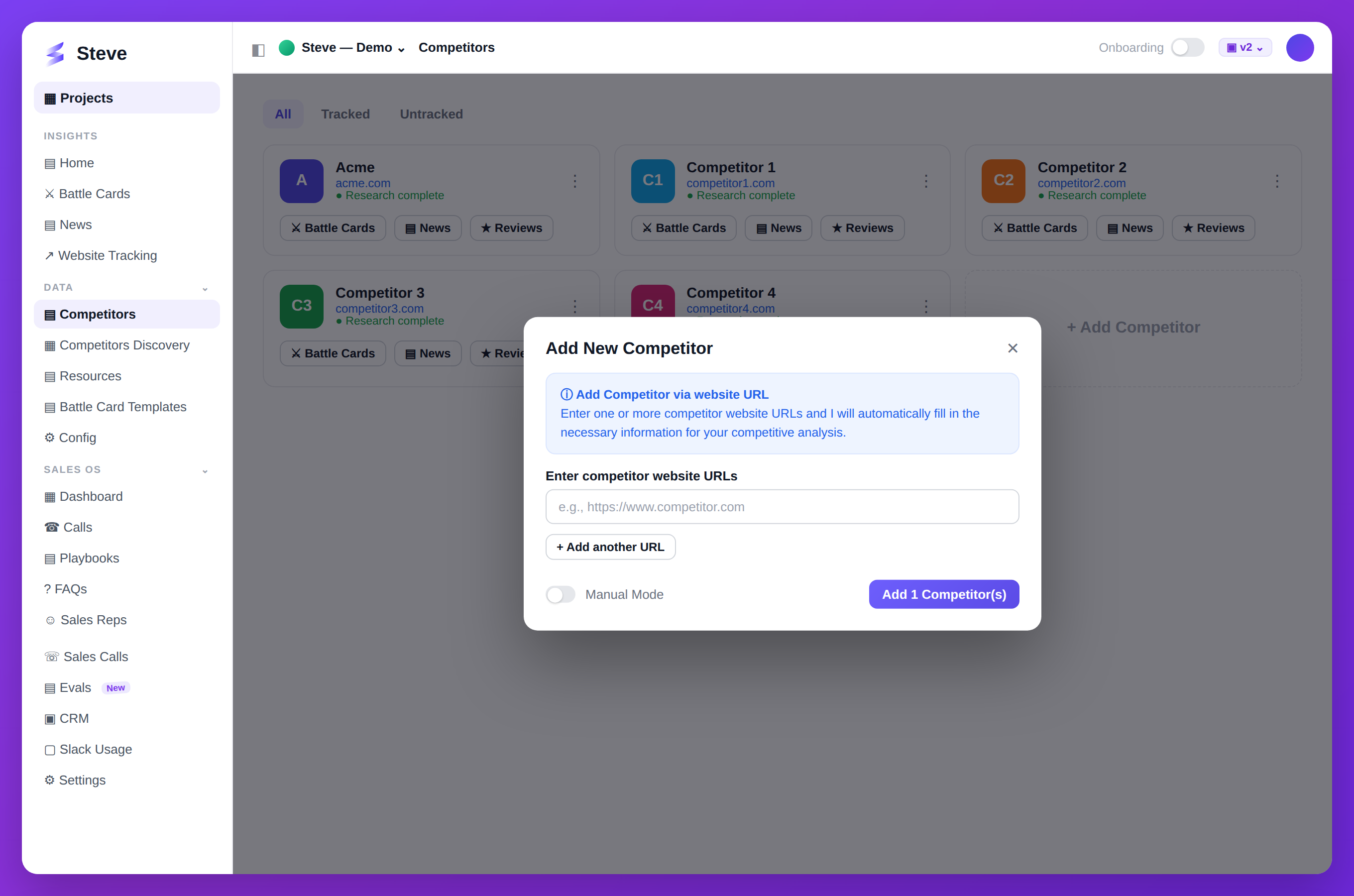
Caption: Add a competitor by pasting its website URL — Steve researches it automatically.
Access Competitors Page
Navigate to your project and click Competitors in the sidebar.
Add a Competitor
Step 1: Open Add Dialog
Click the Add Competitor button (with Plus icon).
Step 2: Enter Details
Fill in:
- Company Name - Competitor's full business name
- Website URL - Primary domain (e.g., competitor.com)
Step 3: Start Tracking
Click Add Competitor or Add & Research.
Add Competitor - Adds without immediate research Add & Research - Triggers automated research immediately
View Competitors
Competitor Tabs
Switch between views:
- Tracked - Actively monitored competitors
- All - All competitors including untracked
- Untracked - Competitors not currently monitored
Competitor Tiles
Each tile shows:
- Company name and logo
- Research status (pending/partial/complete)
- Tracking toggle
- Actions menu
Expected Outcome
✅ Competitor added to project ✅ Research initiated (if selected) ✅ Competitor visible in list
Next Steps
- Research Competitors - View automated research
- Generate Battle Cards - Create competitive insights
- Discover Competitors - Find more competitors with AI