Turn Zoom Chatter into Intel with Intelligence Detection
Steve watches the Zoom channels you choose for competitive intel and offers to save it in one tap
Overview
Field intel usually dies in a chat thread. Intelligence detection catches it. When someone posts competitive intel in a Zoom channel Steve watches, Steve replies and offers to save it to the right project's resources — no form, no copy-paste.
Who it's for: 🎯 Sales Rep who hears it first · 📣 PMM who owns the intel library.
Use case: Reps constantly drop competitor screenshots, pricing pages, and win/loss notes into chat, and that intel is lost the moment it scrolls away. Steve catches it and files it against the right project.
Prerequisites
- The Steve bot is a member of each channel you want monitored
- Organization manager rights in Steve to select intelligence channels
- The channel is mapped to a project as an intelligence channel
How it works
When a message in a monitored channel looks like competitive intelligence — for example "I just heard our biggest competitor had a major outage" — Steve replies in the thread and asks whether to keep it.
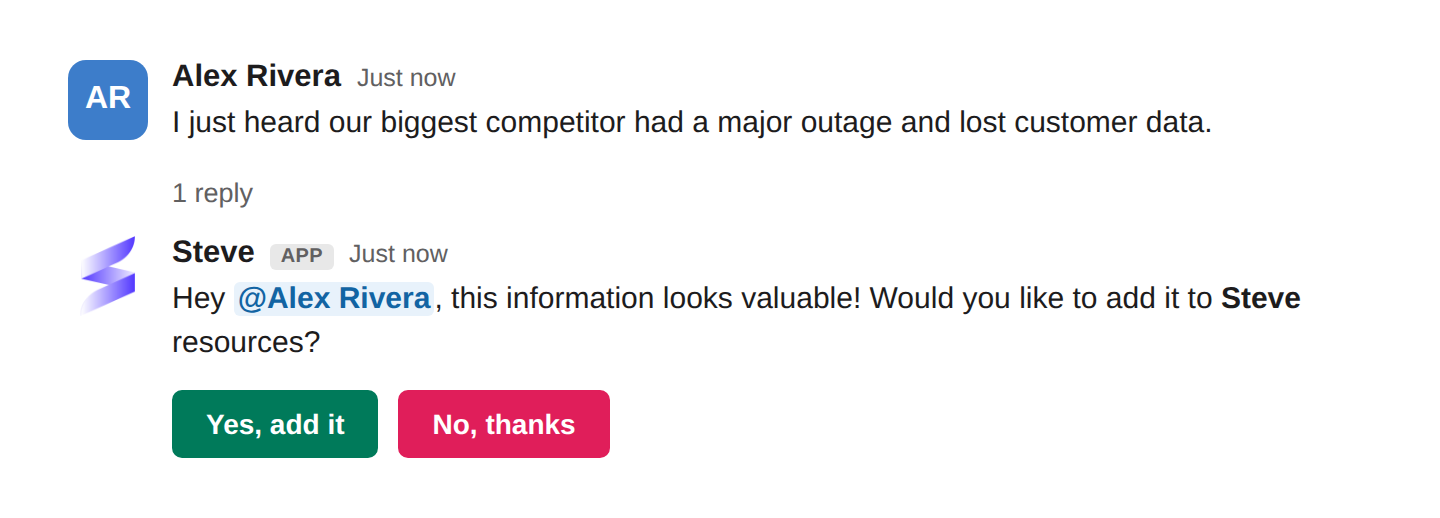
Caption: Steve spots the intel, then asks before saving — one tap on Yes, add it and it's in your project.
- Tap
Yes, add itand Steve files the message as a resource on that project, where it feeds battle cards, prep, and answers. The card is replaced with a confirmation naming who approved it and which competitors were detected. - Tap
No, thanksand Steve dismisses it; nothing is saved. - Links are scraped for context. If the message contains URLs, Steve pulls the page content in alongside the message so the saved insight isn't just a bare link.
- Duplicates are skipped. If a similar insight already exists on the project, Steve stays quiet.
- Competitors are tagged automatically from the names Steve detects in the message.
- Commands and mentions aren't scanned. Messages that start with
/or @mention Steve are handled as commands or questions, not as possible intel.
Set it up
An admin points Steve at the channels to watch:
- In Steve, open the project and go to Settings → Communication, then choose Zoom.
- Open Intelligence Channels and add one or more channels under Zoom Team Chat Intelligence Channel. The list shows the channels of the Zoom account that connected Steve — make sure the Steve bot is a member of each channel you add. A channel can be an intelligence channel for only one project.
- Click Save Intelligence Settings.
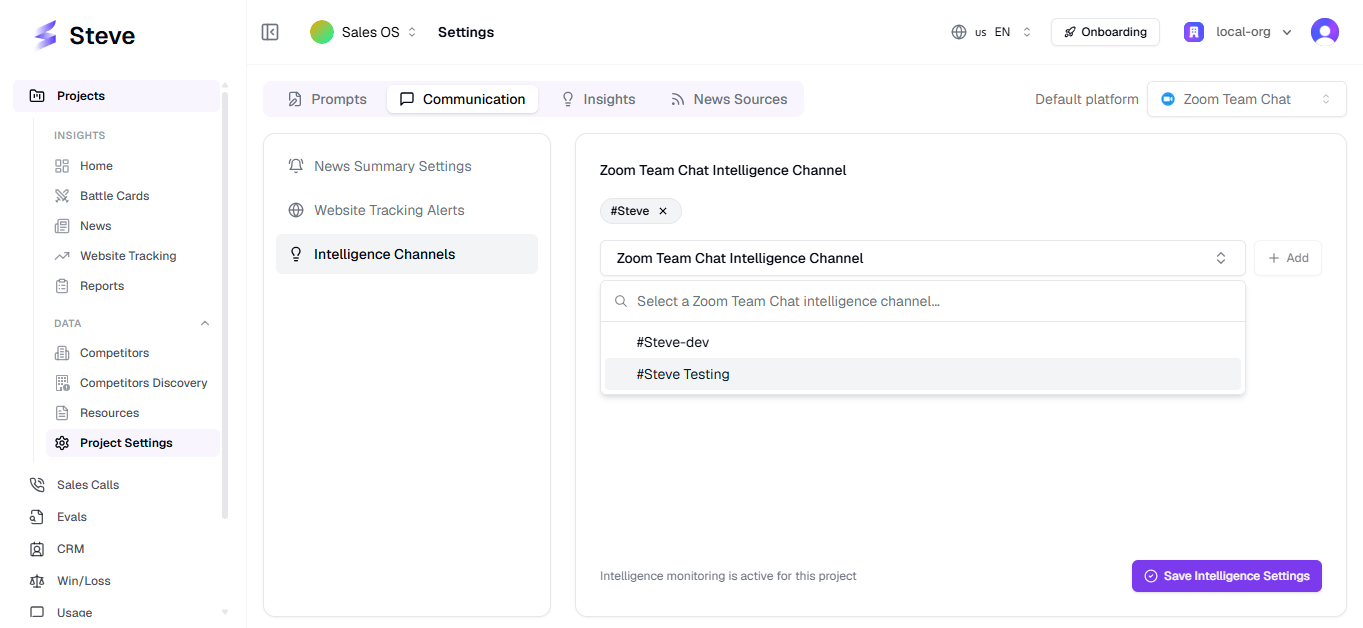
Caption: Only channels you list are monitored, so you control exactly where Steve is listening.
Approval modes
Insight capture follows the project's Approval Type (project Settings → Insights). The Zoom Intelligence Channels settings also show a Require PMM approval only switch.
| Approval Type | What happens |
|---|---|
| User Approvals (default) | The Yes / No card is posted in-channel and anyone can approve or dismiss it |
| PMM Approvals | No in-channel card is posted; a PMM approves the insight in the Steve app under Triage Insights → Team Chat → Zoom Team Chat |
| AI Approvals | No card is posted; Steve evaluates the insight against the project's approval prompt and approves or rejects it automatically |
Whatever the mode, every detected insight is also listed in Triage Insights under the Zoom Team Chat tab.
Best ways to use it
🎯 For sales reps
- Drop what you hear on calls straight into the deal channel; let Steve decide if it's worth keeping.
- Say yes to the small stuff too — pricing hints and objections compound into better battle cards.
📣 For PMM
- Point intelligence detection at your busiest deal and competitor channels so field signal doesn't evaporate.
- Use PMM Approvals for sensitive projects; use User Approvals when you want the team to curate together.
- Review what reps capture; it's a live feed of what's actually happening in deals.
Next Steps
- Competitor News with /latest-news — the outbound half: news Steve brings to you.
- Zoom News Summary — schedule competitor updates into a channel.
- Chat with Steve — ask what a new piece of intel means for a deal.