Competitor Digests with Zoom News Summary
Have Steve post scheduled competitor news summaries into a Zoom channel, no command needed
Overview
/latest-news is on-demand. A Zoom news summary is automatic. Set it once and Steve posts a rolled-up digest of competitor news and website changes into a Zoom channel on a schedule, so the whole team stays current without anyone running a command.
Who it's for: 📣 PMM who configures it · 🎯 Sales Rep who reads it in-channel.
Use case: Your team wants a standing daily or weekly digest of competitor movement posted where they already work, instead of remembering to check a dashboard.
Prerequisites
- Steve for Zoom Team Chat connected — see Adding the App
- The Steve bot is a member of the channel that will receive summaries
- Organization manager rights in Steve to save project settings
What a summary looks like
Steve posts a single, grouped digest — product launches, pricing moves, and other changes, per competitor — right in the channel.
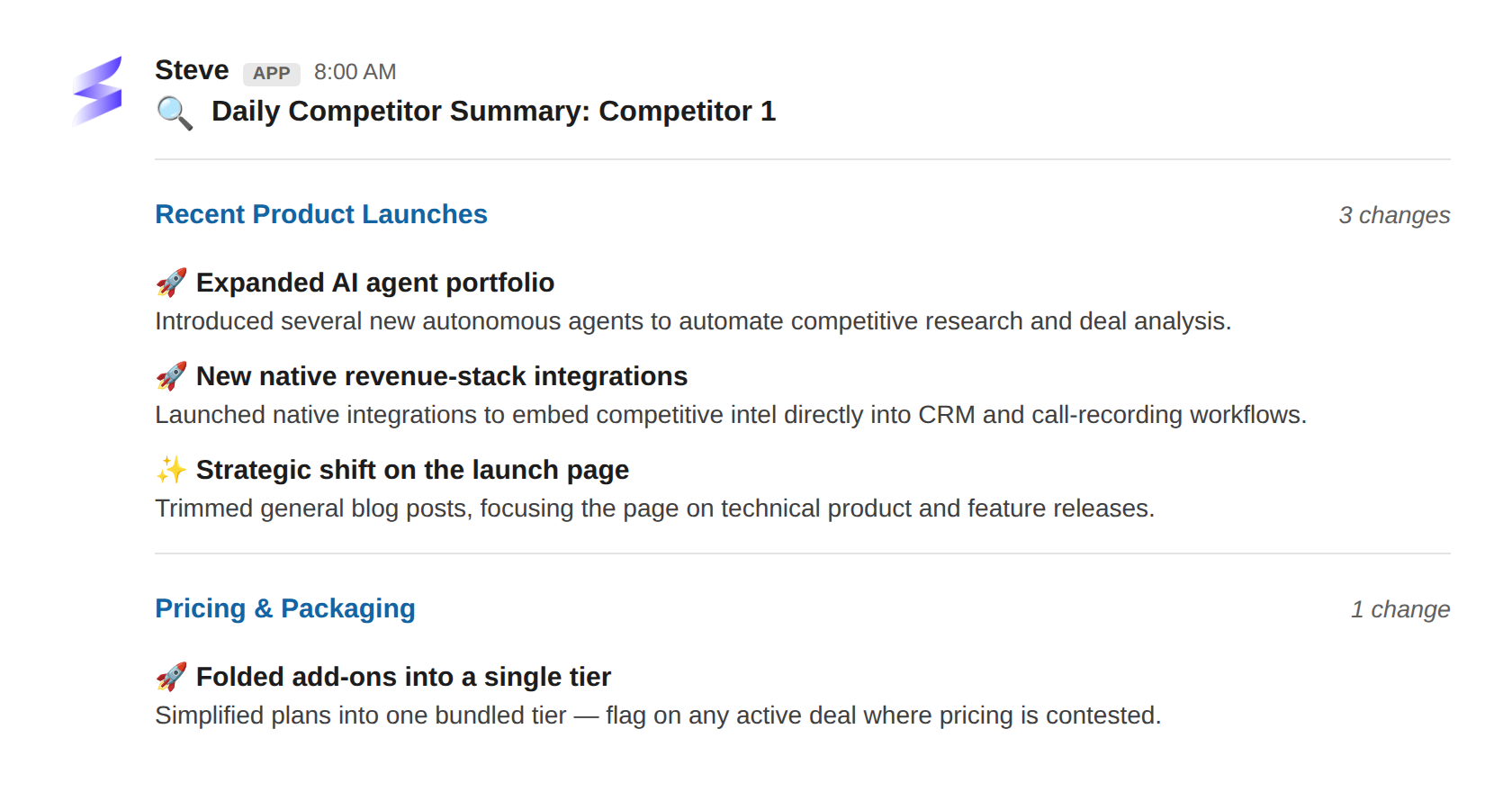
Caption: A daily digest grouped by change type, delivered to your channel so nobody has to ask.
Set it up
Configure the summary from the project:
- In Steve, open the project and go to Settings → Communication, then choose Zoom.
- Open News Summary Settings and pick the Zoom channel under Notification channel. The list shows the channels of the Zoom account that connected Steve; the Steve bot must also be a member of the channel you pick. (If your organization has connected more than one chat app, pick Zoom first.)
- Optionally switch on Email to send the digest to one or more email addresses as well.
- Choose the Summary Frequency — Daily, Twice a week, or Weekly.
- Click Save News Summary Settings.
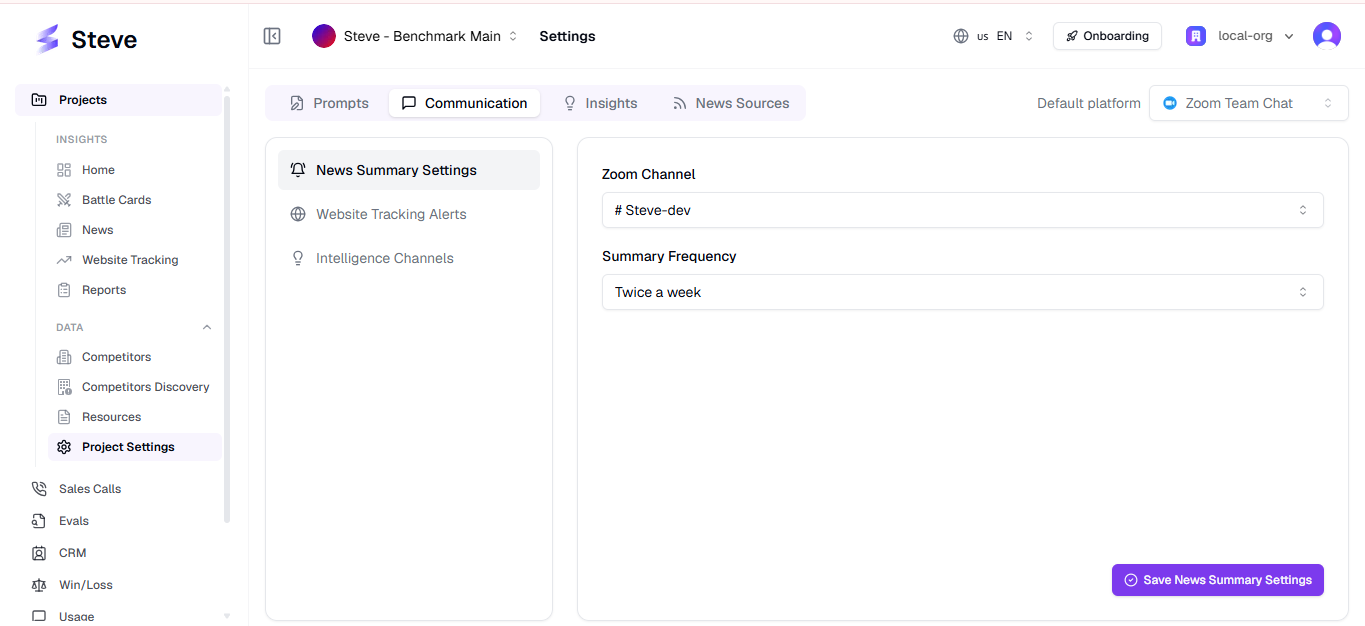
Caption: Pick the channel and cadence, then save — Steve delivers on that schedule from then on.
Channel missing from the list? The Zoom account that connected Steve isn't a member of it. Join the channel with that account, then reopen this page.
Website tracking alerts
The project's Zoom settings also have a Website Tracking Alerts section, so competitor pricing- and page-change alerts can land in a Zoom channel alongside the news digest.
Stopping the digest
There's no pause switch today: News Summary Settings always needs a destination (a Zoom channel or an email address) to save. To stop the digest reaching Zoom, switch the destination to email only, or disconnect Zoom (see Removing the App).
Best ways to use it
📣 For PMM
- Set one digest per project so each team gets only its competitors.
- Start with Daily for fast-moving categories; drop to Weekly if the channel gets noisy.
- Use a dedicated competitive-intel channel so the digest doesn't compete with deal chatter.
🎯 For sales reps
- Treat the summary channel as your passive feed — skim it with your morning coffee.
- Seeing a launch or pricing move here is your cue to pull the latest
/battle-cardsbefore the next call.
Next Steps
- Competitor News with /latest-news — pull the same news on demand.
- Intelligence Detection — capture the intel your team hears first.
- Troubleshooting — if summaries aren't arriving.