How to Set Up Website Tracking
Track competitor website changes and monitor their digital presence
Steve Documentation Team
trackingmonitoringcompetitors
Overview
Monitor competitor websites for changes in pricing, features, messaging, and content.
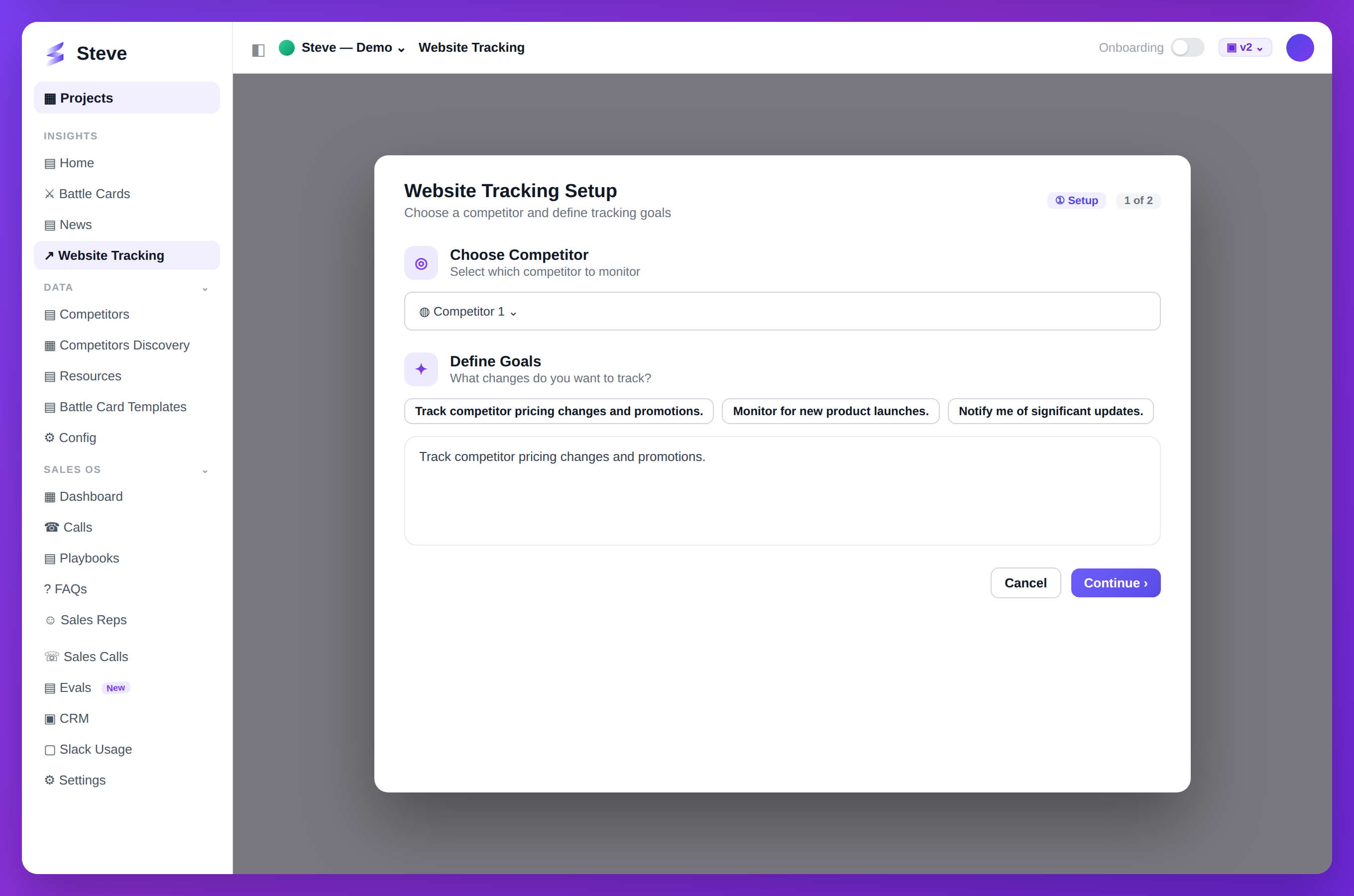
Caption: Pick a competitor and define what changes to watch — pricing, launches, and more.
Access Website Tracking
Navigate to Website Tracking in your project sidebar.
Add Websites to Track
Step 1: Click Add Website
Click Track New Website.
Step 2: Enter URL
Provide:
- Website URL - Full domain to monitor
- Associated Competitor - Link to competitor in your project
- Pages to Track - Specific pages or entire site
Step 3: Select Tracking Frequency
Choose monitoring schedule:
- Daily - Check every 24 hours
- Weekly - Check every Monday
- Real-time - Continuous monitoring (premium)
Step 4: Configure Alerts
Set notifications for:
- Pricing changes
- New product pages
- Content updates
- Homepage redesigns
View Tracking Data
Changes Dashboard
See detected changes:
- Screenshot comparison (before/after)
- Change date and time
- Change type (pricing, content, design)
- Affected pages
Change History
Timeline view of all detected changes per competitor.
Receive Alerts
Slack Notifications
Changes post to configured Slack channel:
- Screenshot preview
- Change summary
- Link to full comparison
Email Alerts
Daily or weekly digest of website changes.
In-App Notifications
Real-time alerts in Steve dashboard.
Analyze Trends
Track patterns over time:
- Frequency of pricing updates
- Product page additions
- Messaging evolution
- Seasonal changes
Expected Outcome
✅ Competitor websites monitored ✅ Changes detected automatically ✅ Alerts delivered to team
Troubleshooting
No changes detected?
- Verify URL is correct
- Check tracking is active
- Confirm sufficient time has passed
Too many alerts?
- Adjust sensitivity settings
- Filter alert types
- Change frequency to weekly
Next Steps
- Generate News Summaries - Combine with news tracking
- View Analytics - See tracking impact