Adding the Steve App to Zoom
Prerequisites, how to add the app from Steve, the permissions Steve requests, and how to verify the connection
Overview
This page covers adding Steve for Zoom Team Chat to your Zoom account — the prerequisites, the install steps, the permissions Steve requests, and how to confirm everything is working.
Who it's for: 📣 PMM / admin — connecting Zoom is an organization-level action.
Having trouble? See Troubleshooting, or email tech@hiresteve.ai.
Prerequisites
Before you add the Zoom app:
| Requirement | Details |
|---|---|
| A Steve account | Sign up at hiresteve.ai. Zoom integrations are configured at the organization level. |
| Steve organization manager / admin role | Only an org manager can connect, configure, or disconnect integrations. |
| Zoom permission to authorize apps | You must be able to authorize an app on your Zoom account. If your Zoom admin has restricted the Marketplace, ask them to pre-approve the Steve app. |
| At least one Steve project | Commands, summaries, and monitoring are scoped to projects, so create a project first. |
| Zoom Team Chat enabled | Required — the Steve bot lives in Zoom Team Chat. |
Where to start the installation
Start in Steve, not on the Zoom App Marketplace. The authorization has to carry your Steve organization with it, so it must be launched from the Add to Zoom button in Steve's settings. If you click Add on the Marketplace listing instead, Zoom sends you back to Steve with "Authorization code not found." and nothing is connected — start again from Settings → Zoom. For reference, our app's listing on the Zoom App Marketplace is Steve — review the app there, but do the configuration from Steve's settings page.
Add the app from Steve
Step 1: Open the Zoom settings
- Log in to your Steve account.
- Click Settings in the navigation menu.
- Open the Zoom tab, labeled Zoom Team Chat.
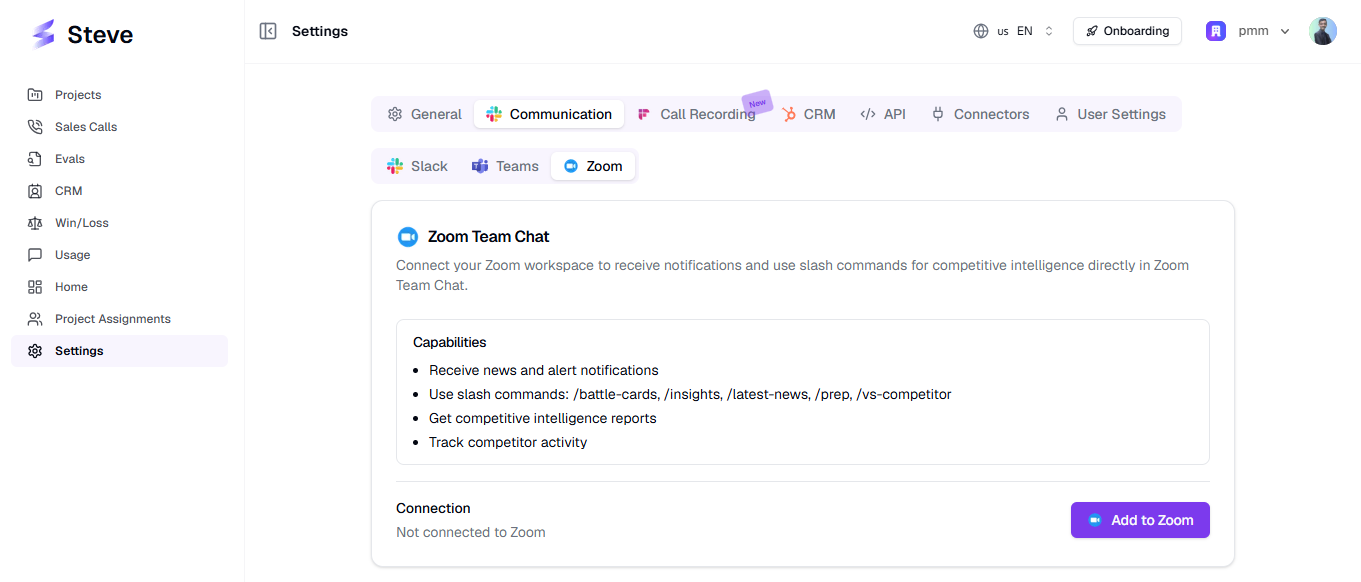
Caption: The Zoom Team Chat card lists the bot's capabilities and your current connection status.
Step 2: Connect your Zoom workspace
On the Zoom tab you'll see the Zoom Team Chat card listing the bot's capabilities and your current status — Not connected to Zoom, or Connected as your email once linked.
- Click Add to Zoom.
- You're redirected to Zoom's authorization page.
- Review the permissions Steve requests.
- Click Allow.
- Zoom redirects you back to Steve.
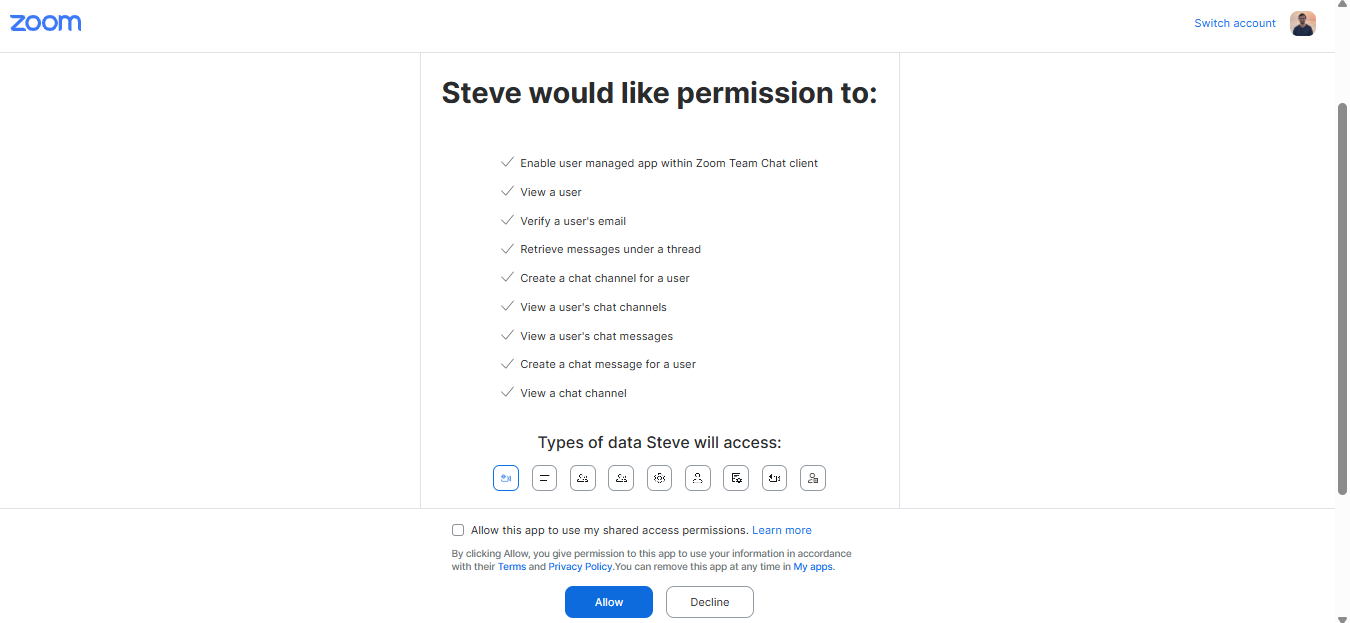
Caption: Zoom's consent screen — review the scopes, then click Allow.
Permissions requested
Steve asks for the following Zoom scopes — the same ones shown on our Marketplace listing:
| Scope | Why Steve needs it |
|---|---|
user:read:user | Read your basic profile — email and Zoom account ID — to link your Zoom account to your Steve organization |
imchat:userapp | Let the Steve bot send and receive messages and interactive cards (dropdowns, buttons) in Zoom Team Chat |
team_chat:read:list_user_channels | List your Zoom channels, so you can choose notification and intelligence channels in Steve |
team_chat:read:user_message | Read messages in channels Steve is part of, so it can recognize commands and detect competitive insights |
Steve only reads messages in chats and channels the bot has been added to. It does not access your meetings, cloud recordings, or contacts.
Verify the connection
After a successful authorization:
- You'll see the success message "Zoom connected successfully!"
- The Zoom Team Chat card shows a green dot and Connected as your email address.
- The Add to Zoom button is replaced by a Disconnect option.
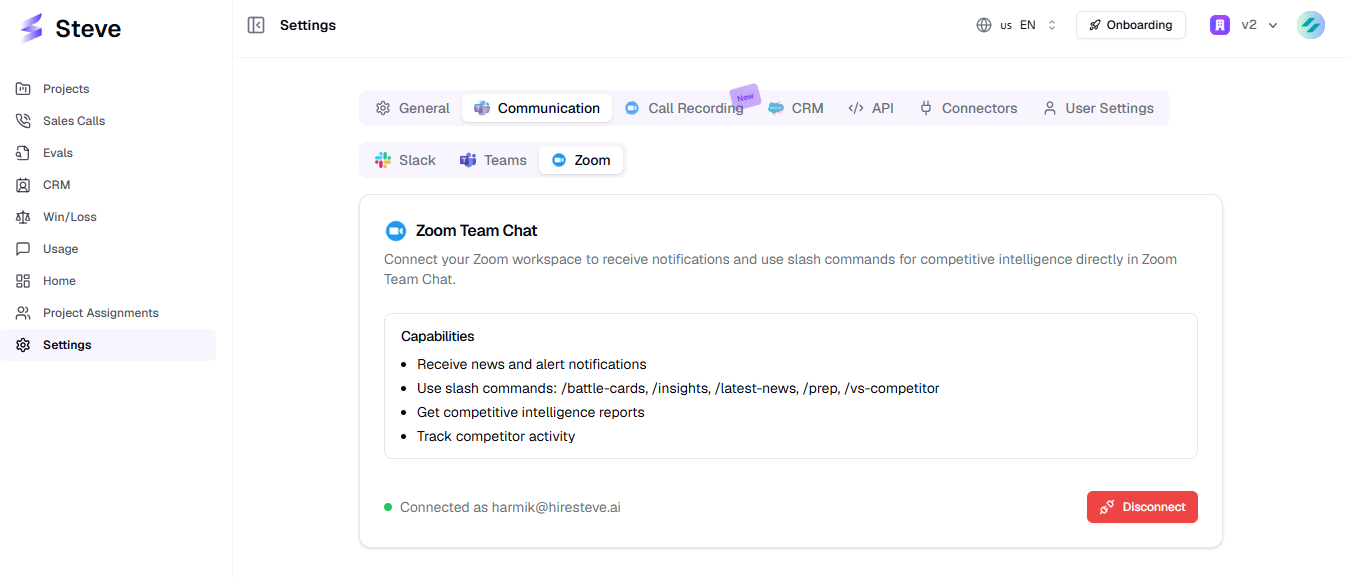
Caption: A green dot and your Zoom email confirm the workspace is linked.
One Zoom account can be connected to a single Steve organization. If you see "This Zoom account is already connected to another organization", disconnect it there first, or contact tech@hiresteve.ai.
Add the Steve bot to your channels
Channel features — scheduled summaries, intelligence monitoring, and /steve commands — only work in channels the bot is a member of.
- In Zoom Team Chat, open the channel you want to use.
- Add the Steve app/bot to the channel as a member.
- Repeat for every channel you plan to use for notifications or monitoring.
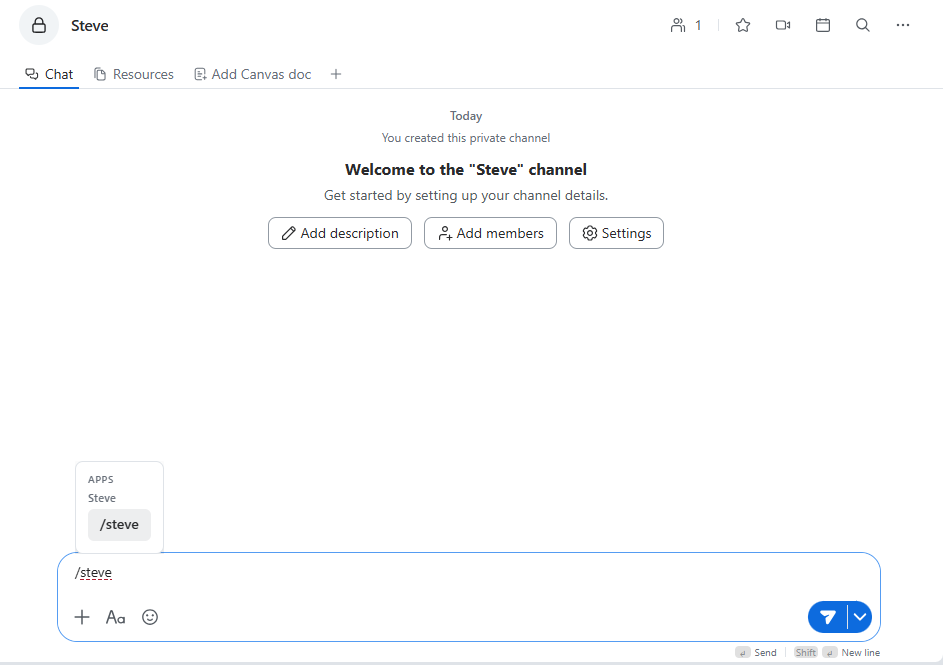
Caption: Add the bot to a channel before you configure that channel in Steve.
The channel dropdowns in Steve's settings list the Zoom channels that the Zoom account which connected Steve belongs to. If a channel is missing, that account isn't a member of it — join it with that account, then reopen the settings page. The Steve bot must also be added to the channel, or Steve can't post or listen there.
Confirm it works
Send /help to the Steve bot in a Zoom direct message. If the bot replies with the command menu, installation is complete.
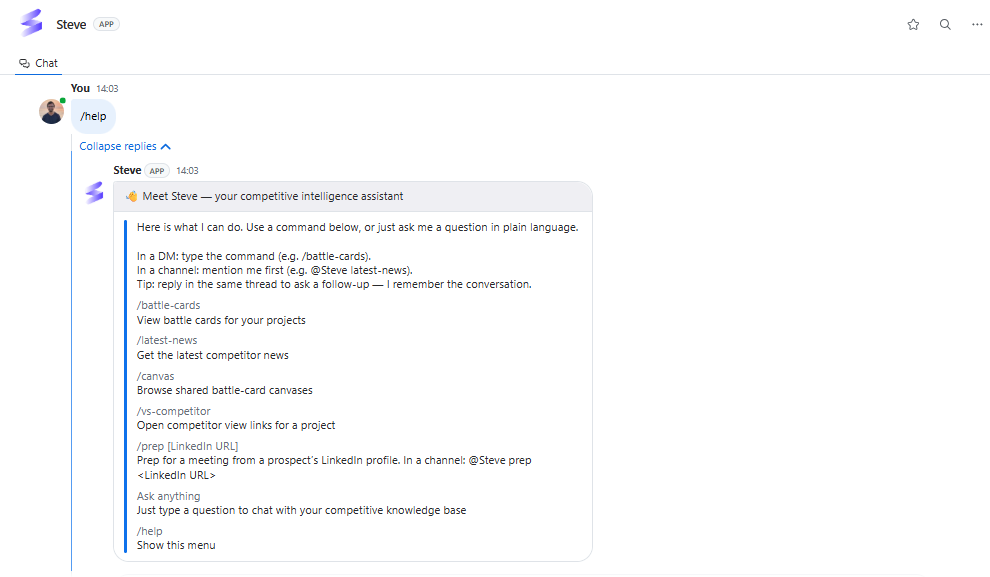
Caption: The /help reply is the quickest confirmation that the bot is live.
If it doesn't reply, see Troubleshooting.
Next Steps
- Chat with Steve — ask your first question.
- Zoom News Summary — schedule a digest into a channel.
- Intelligence Detection — pick the channels Steve watches.
- Removing the App — de-authorization and data handling.