Competitive Insights from Zoom Calls
How Steve turns Zoom Revenue Accelerator transcripts into competitive insights, and how to review, approve, and manage them
Overview
Importing calls is only half the value. Once a Zoom conversation is in Steve, it's scanned for competitor mentions, and each mention becomes a competitive insight that can be approved into a project — where it starts informing battle cards, answers, and news.
Who it's for: 📣 PMM — reviewing and approving insights is a PMM job.
How an insight is created
Zoom RA conversation imported
        ↓
Transcript scanned for competitor mentions
        ↓
Each mention becomes a Zoom Revenue Accelerator insight
        ↓
Pending review  →  approve / reject
        ↓
Approved insights become project resources Steve answers from
Detection runs automatically after import. You don't trigger it.
Reviewing insights in Triage
Open your project and go to Triage Insights. Under the Call Recording category you'll find a Zoom Revenue Accelerator tab holding every insight extracted from Zoom calls.
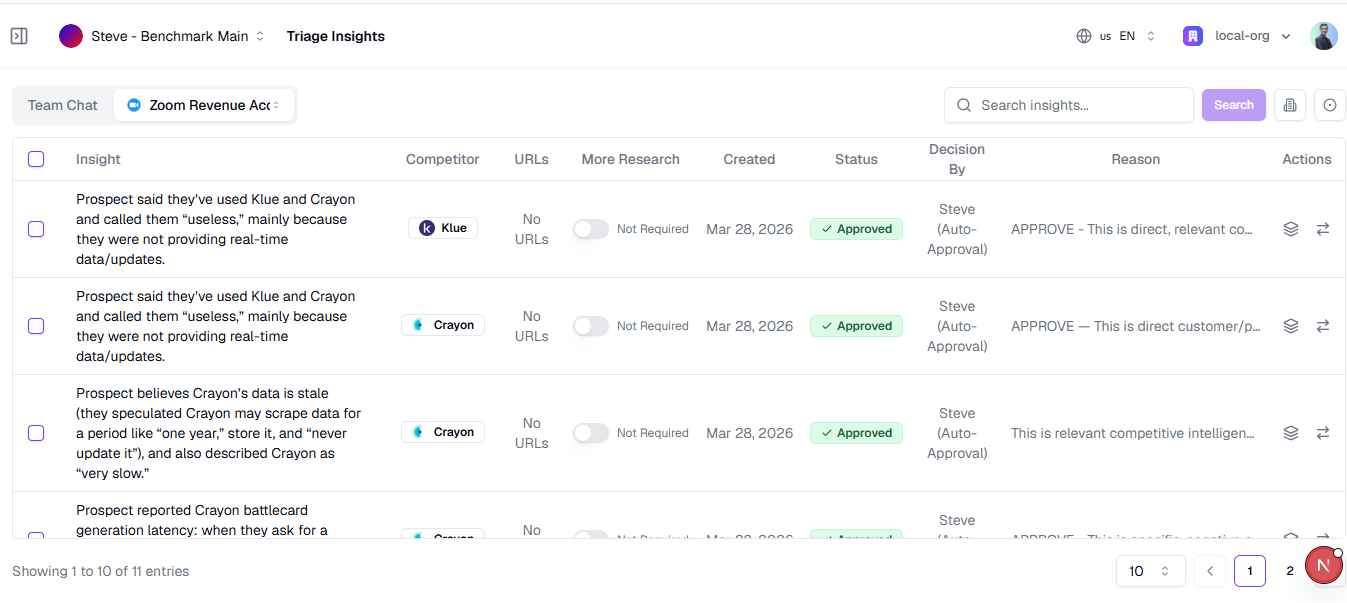
Caption: Triage Insights — review what Steve collected so it only learns what matters.
From here you can:
- Filter by status — All, Pending, Approved, Rejected — and by competitor, including No Competitor.
- Search insight text.
- Approve or reject individually, or select several and act in bulk.
- Edit an insight's text before approving it.
- Move insights to a different project.
If the tab is empty you'll see No Zoom Revenue Accelerator insights found.
Approved insights become project resources
Once approved, an insight lands in your project's knowledge base. Open Projects → Resources and select the Zoom RA tab to see them.
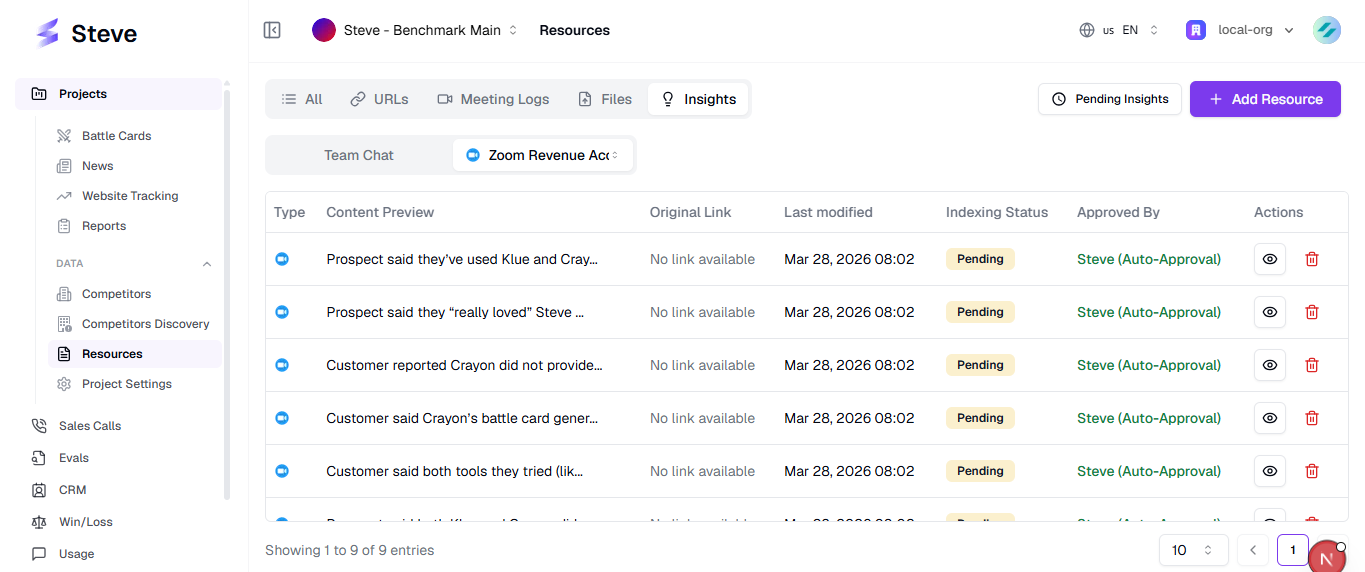
Caption: Approved Zoom call insights, listed as project resources.
| Column | What it shows |
|---|---|
| Type | The Zoom icon, marking the insight's source. |
| Content Preview | The first part of the insight text. Hover for the full text. |
| Original Link | Opens the original Zoom Revenue Accelerator call the insight came from. |
| Last Modified | When the resource was last updated. |
| Indexing Status | Whether the insight has been indexed and is usable in answers. |
| Approved By | Who made the decision, and when. Rejections are labelled. |
| Actions | View full content, or delete the resource. |
The header reads Zoom Revenue Accelerator Insights; an empty tab shows No Zoom Revenue Accelerator Insights found.
Once an insight is indexed, Steve can use it when answering questions — including in Slack and Zoom Team Chat.
Approval modes
Insights from Zoom calls follow your organization's call-insight approval setting — the same one that covers Gong, Avoma, and your other call recorders — not a per-project setting:
- Manual (default) — every insight waits in Triage. Nothing enters the knowledge base until someone approves it.
- Automatic approval — when Enable Automatic Approval is on in your organization's insight settings, Steve evaluates each new insight against the organization's insight approval prompt and approves or rejects it, so Triage becomes a review of decisions already made rather than a queue you must clear.
Getting better insights
- Make sure transcripts exist. No transcript means nothing to detect. See Transcripts, Briefs & Key Points.
- Keep your competitor list current. Steve detects the competitors your project tracks — an untracked competitor won't be picked up.
- Reject aggressively. Rejecting weak insights is as valuable as approving strong ones; it keeps the knowledge base high-signal.
Next Steps
- Transcripts, Briefs & Key Points — what insights are extracted from.
- Viewing Calls in Sales Calls — find the call an insight came from.
- FAQ — common questions about data and access.