Viewing Zoom Calls in Sales Calls
Find, filter, and search your imported Zoom Revenue Accelerator conversations on Steve's Sales Calls page
Overview
Every conversation imported from Zoom Revenue Accelerator lands on the Sales Calls page, next to calls from every other recorder you've connected. This page covers finding them, filtering them, and searching across their transcripts.
Who it's for: 🎯 Sales Rep · 📣 PMM — everyone who works with call data.
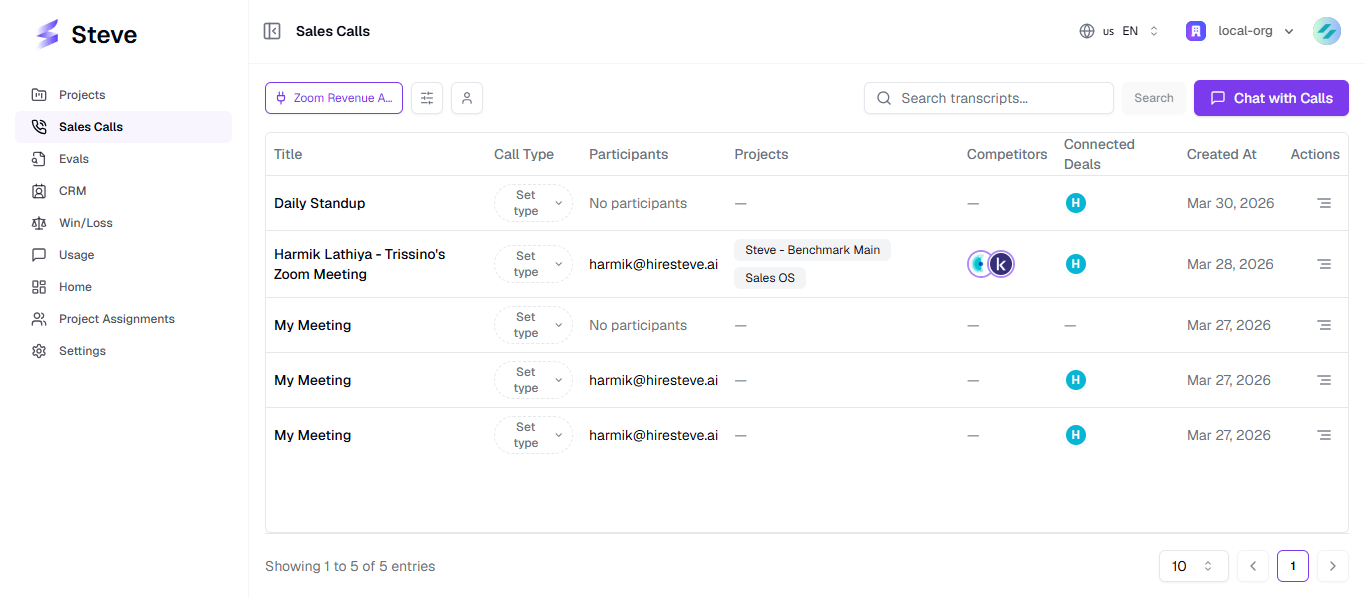
Caption: Zoom RA conversations sit alongside every other connected call source.
Filter to Zoom calls only
Open the source filter and choose Zoom Revenue Accelerator to show only calls imported from Zoom. Choose All Sources to go back to everything. Each connected recorder appears in the list with its own icon.
The other filters
| Filter | What it does |
|---|---|
| Call type | Customer, Internal, or All. Sales Calls opens on Customer by default, so internal calls are hidden until you switch. |
| Sales rep email | Multi-select. Pick one or more reps to see only their calls. Search within the list, and Clear all to reset. |
| Search transcripts | Full-text search across the transcripts of every imported call — see below. |
Changing any filter resets you to page 1.
Search across transcripts
The search box searches the contents of your call transcripts, not just titles. Type a phrase — a competitor name, a pricing objection, a product term — and press Enter or click Search.
Steve returns the calls whose transcripts contain it and shows a match count per call, so you can see where a topic came up most — useful for finding the moment a competitor was mentioned.
Combine it with the source filter to search only your Zoom conversations.
The call table
| Column | What it shows |
|---|---|
| Title | The conversation topic from Zoom. Conversations with no topic show Untitled Call. |
| Call Type | Customer or Internal. If it hasn't been classified, the cell offers Set type so you can set it yourself. |
| Participants | Everyone on the call. Long lists collapse — use View all participants to see the rest. |
| Projects | The Steve projects the call has been associated with. |
| Competitors | Competitors detected in the transcript. |
| Connected Deals | CRM deals linked to the call. Click through to View connected deals. |
| Created At | When the call was imported. |
| Actions | View Brief and Chat with this call. |
Use the page-size selector and the pagination controls at the bottom — Steve shows the current range, for example Showing 1–10 of 47 calls.
Chat with your calls
Chat with Calls opens a chat panel scoped to your call data. Ask questions across the whole set — "what objections came up most this month?" — or open a single call and use Chat with this call to ask about that conversation alone.
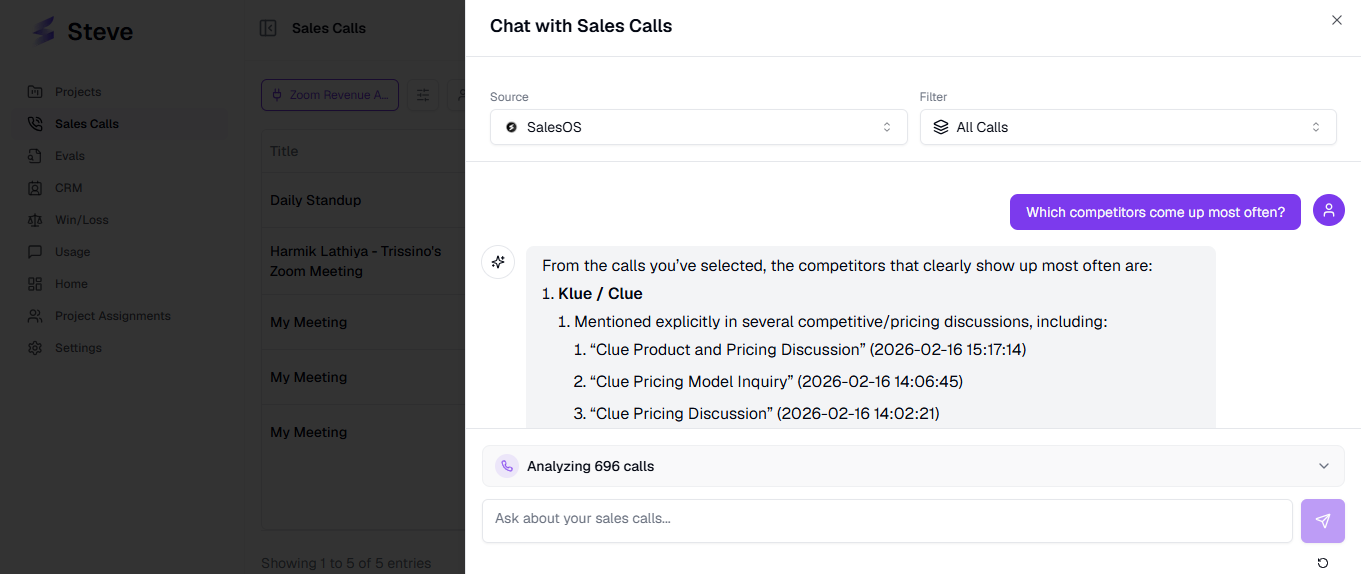
Caption: Ask questions across every imported conversation, or drill into one.
Connected deals
If you've connected a CRM, customer calls are matched to deals automatically and the Connected Deals column fills in. Open View connected deals to see the deal, its CRM, its contacts, and when it was connected.
Empty states
| What you see | What it means |
|---|---|
| Connect a call recorder | No call recording integration is connected yet. Start at Adding the App. |
| No recordings found — Recordings will appear here once they are imported from Zoom Revenue Accelerator. | Zoom RA is connected but nothing has imported yet. Either the first sync is still running, or something on the Zoom side is blocking it. |
If the second one persists, work through Troubleshooting — the usual cause is a missing ZRA license.
Next Steps
- Transcripts, Briefs & Key Points — read a single call in full.
- Competitive Insights from Zoom Calls — turn call content into knowledge.
- How Calls Are Imported — if a call you expected is missing.