Removing the Zoom Revenue Accelerator App
How to fully de-authorize and remove the Zoom Revenue Accelerator integration, what stops working, and how your data is handled afterwards
Overview
You can remove Zoom Revenue Accelerator at any time. Removing it ends Steve's access to your Zoom account and stops future imports; the calls already imported stay in Steve unless you delete them.
Who it's for: 📣 PMM / admin — removing an integration is an organization-level action.
A complete removal is two steps. Step 1 deletes the credentials Steve holds. Step 2 removes the app from your Zoom account so Zoom itself revokes the authorization. Do both — either one alone leaves the other side untouched.
Step 1: Disconnect in Steve
- In the Steve app at app.hiresteve.ai, go to Settings → Call Recording → Zoom RA.
- On the Zoom Revenue Accelerator card, click the red Delete Account button.
- The Delete Zoom Revenue Accelerator Integration Data dialog opens.
- Type
delete zoom revenue acceleratorin the confirmation box — the confirm button stays disabled until it matches. - Click Delete Integration Data.
- A toast confirms the integration data was deleted, and the card returns to Connection — Not connected with the Connect button back in place.
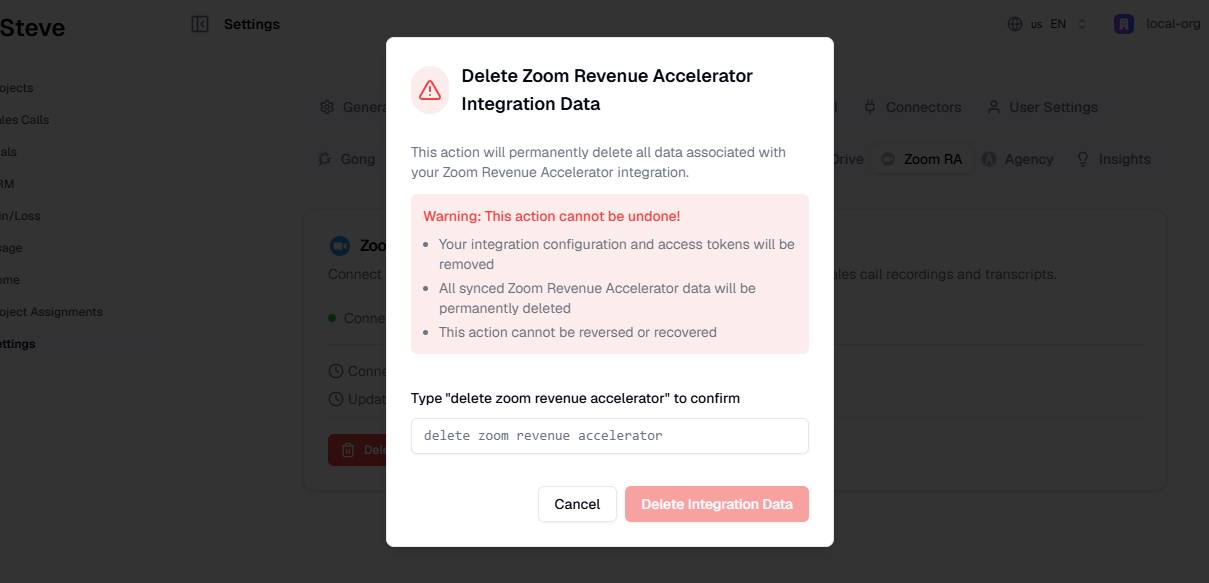
Caption: The removal is typed-confirmation gated — enter the phrase exactly to enable the button.
About the dialog's warning. The dialog says all synced Zoom Revenue Accelerator data will be permanently deleted. In practice this step removes the connection and the stored credentials; calls, transcripts, briefs, and insights already imported stay in Steve. See How your data is handled below.
Step 2: Remove the app from your Zoom account
This is the de-authorization on Zoom's side. It revokes the OAuth grant so the app can no longer be used against your Zoom account at all.
- Sign in to the Zoom App Marketplace.
- Click Manage in the top-right corner.
- Select Added Apps in the left sidebar.
- Find Steve Call Insights in the list of installed apps — it's our app listed at marketplace.zoom.us/apps/fyw0JtVHQV-Mh-I3SCx5MQ.
- Click Remove, then confirm by clicking Remove again.
Order doesn't matter, but do both. Removing the app in Zoom revokes the tokens but leaves Steve's stored copies behind as dead credentials; disconnecting in Steve deletes those credentials but leaves the app listed in your Zoom account. Doing both leaves nothing on either side.
Removal checklist
- Delete Integration Data confirmed in Settings → Call Recording → Zoom RA, and the card now reads Connection — Not connected
- Steve removed from Zoom App Marketplace → Manage → Added Apps
- Any remaining imported calls or approved insights deleted in Steve, if you want them gone
- A data deletion request emailed, if you want everything permanently erased (see below)
What stops working
- No new calls import. Conversations recorded after you disconnect will not appear in Sales Calls.
- No new insights. Competitor detection has nothing new to read, so no new Zoom RA insights are created.
- No new briefs or transcripts from Zoom.
- Steve can no longer call Zoom. It cannot list conversations, read participants, or fetch transcripts on your behalf.
- Everything already imported stays. Existing calls, transcripts, briefs, key points, and approved insights remain in Steve and stay searchable.
- Your Steve account is unaffected. Projects, battle cards, competitors, and every other integration keep working — you can keep using Steve without Zoom.
- Nothing changes inside Zoom. Your recordings, transcripts, and Revenue Accelerator data stay exactly as they are; Steve only ever read them.
How your data is handled
Deleted when you complete Step 1
- Your stored Zoom access and refresh tokens
- The linked Zoom account ID, user ID, and email address
After this step Steve holds no credentials for your Zoom account and cannot call Zoom on your behalf.
Retained until you delete it
- Calls already imported, with their participants, transcripts, briefs, and key points
- Insights approved into your projects, and the project resources created from them
This is your own organization's data. You can delete individual calls and resources in Steve at any time.
Full deletion on request
To have all Zoom-derived data permanently erased from Steve, email tech@hiresteve.ai from an organization manager's address with the subject "Zoom data deletion request". Requests are processed within 30 days, and we confirm by email once complete.
Reconnecting later
You can add the app again at any time from Settings → Call Recording → Zoom RA — the same flow as the first time, described on Adding the App.
One thing to expect: because your organization already has Zoom RA calls on record, the reconnect does not backfill three months again — it resumes with the normal short sync window. Calls that took place while you were disconnected will not be imported. See How Calls Are Imported.
Next Steps
- Adding the App — if you want to reconnect.
- FAQ — common questions about data and access.
- Support — contact us about a deletion request.