Adding the Zoom Revenue Accelerator App
Step-by-step setup and authorization for the Zoom Revenue Accelerator integration, the permissions Steve requests, and how to verify the connection
Overview
Adding Zoom Revenue Accelerator to Steve is a single OAuth authorization. It takes about a minute, and the first import starts automatically the moment it completes.
Who it's for: 📣 PMM / admin — connecting an integration is an organization-level action.
Check the prerequisites first. If the Zoom account has no active ZRA subscription, this flow completes successfully and then imports nothing. See Zoom Account Requirements.
Prerequisites
| Requirement | Details |
|---|---|
| A Steve account | Sign up and sign in at app.hiresteve.ai — the Steve app, where everything in this guide happens. Call recording integrations are configured per organization. |
| Steve organization manager role | Only an org manager can add, configure, or remove an integration. |
| A Steve plan that includes Call Recording | Without it the Zoom RA tab is disabled and Steve shows an upgrade prompt instead of the card. |
| A paid Zoom plan with an active Zoom Revenue Accelerator subscription | ZRA is a paid, per-seat Zoom add-on. Without it, authorization succeeds and nothing imports. |
| Zoom permission to authorize apps | If your Zoom admin has restricted the Marketplace, ask them to pre-approve the Steve app for the account first. |
| A Zoom account admin to authorize | Recommended. Steve imports the conversations the connected Zoom account can access in Revenue Accelerator. |
The full checklist, including the Zoom-side recording and transcription settings, is on Zoom Account Requirements.
Where to start the installation
Start in Steve, not on the Zoom App Marketplace. The authorization has to carry your Steve organization with it, so it must be launched from Steve's settings page. If you open the Marketplace listing and click Add directly, the authorization has no organization to attach to and comes back with "Invalid OAuth state. Please try connecting again." — start again from Settings → Call Recording → Zoom RA and it will work. For reference, our app's listing on the Zoom App Marketplace is Steve Call Insights — review the app there, but connect from Steve's settings page.
Everything below is that flow, start to finish.
Step 1: Open the Zoom RA settings
- Log in to Steve at app.hiresteve.ai.
- Click Settings in the navigation menu.
- Open the Call Recording tab.
- Select the Zoom RA sub-tab.
You can also go straight there with app.hiresteve.ai/settings#call-recording-zoom-ra.
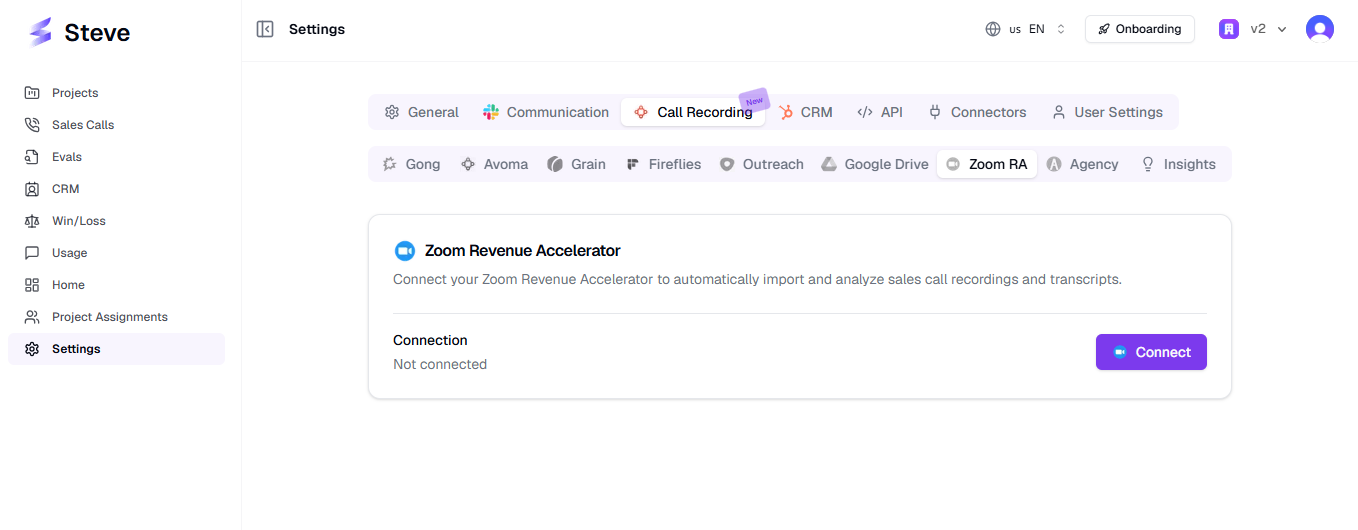
Caption: The card reads "Zoom Revenue Accelerator — Connect your Zoom Revenue Accelerator to automatically import and analyze sales call recordings and transcripts."
If the Zoom RA tab is greyed out, your plan doesn't include Call Recording and Steve shows an upgrade prompt instead of the card.
Step 2: Authorize on Zoom
- Under Connection, the card shows Not connected.
- Click Connect.
- Steve sends you to Zoom's authorization page.
- Sign in with a Zoom account that has Revenue Accelerator access — ideally a Zoom account admin.
- Review the permissions Steve requests (below).
- Click Allow.
- Zoom returns you to Steve's settings.
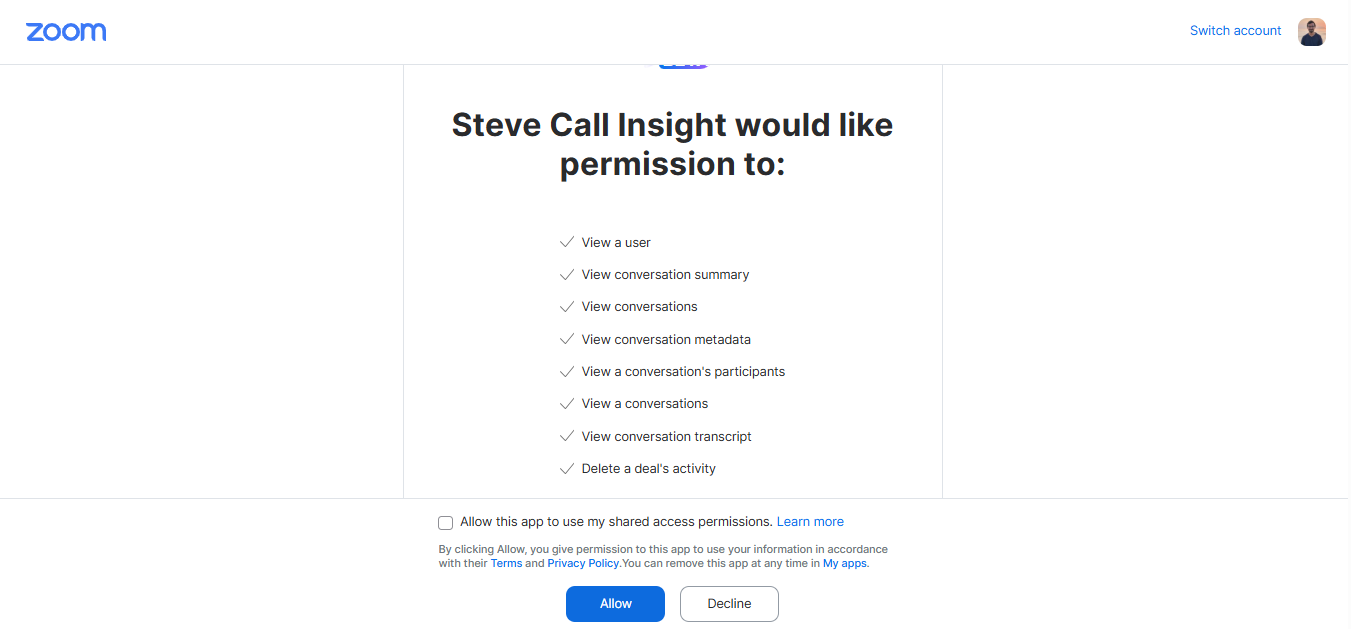
Caption: Zoom's consent screen — review the scopes, then click Allow.
Permissions requested
Steve asks Zoom for read-only access to Revenue Accelerator data plus your basic profile. These are the only Zoom APIs Steve calls:
| Permission | Zoom API Steve calls | Why Steve needs it |
|---|---|---|
Read Revenue Accelerator conversations (zra:read:list_conversations) | GET /v2/zra/conversations | List the conversations ZRA has processed, so Steve knows which calls exist and can read each one's topic, start time, duration, and call type. |
Read conversation participants and analysis (zra:read:conversation_participants) | GET /v2/zra/conversations/{conversationId}/interactions | Build the participant list on each call, tag people Internal or External, and retrieve the transcript. |
Read your user profile (user:read:user) | GET /v2/users/me | Capture your email, Zoom user ID, and Zoom account ID so the Zoom account can be linked to your Steve organization. Without this the connection fails with "Invalid Zoom token." |
Steve requests read access only. It cannot start, stop, edit, or delete recordings; it cannot create, change, or join meetings; it cannot read Zoom Team Chat messages; and it never writes or posts anything into Zoom.
Steve imports the conversations that the connected Zoom account can access in Revenue Accelerator.
What Steve stores after you authorize
| Stored | Where | Removed |
|---|---|---|
| Zoom OAuth access token and refresh token | Steve's database, scoped to your organization | Deleted when you complete removal in Steve |
| Your Zoom account ID, user ID, and email address | Steve's database, scoped to your organization | Deleted when you complete removal in Steve |
| Imported call records — topic, times, duration, call type, participants | Steve's database, scoped to your organization | Retained until you delete them, or on request |
| Call transcripts | Steve's encrypted object storage, scoped to your organization | Retained until you delete them, or on request |
Tokens are refreshed automatically as they expire, and are used only to call the three endpoints listed above. Imported data is visible only inside the Steve organization that imported it. Full details, including how to request permanent deletion, are on Removing the App.
Step 3: Verify the connection
After a successful authorization:
- A toast confirms "Zoom Revenue Accelerator connected successfully!"
- The card shows a green dot and Connected as your Zoom email address.
- Below it you'll see Connected {time} — and Updated {time} once the connection has been refreshed.
- The Connect button is replaced by a red Delete Account button, which is how you remove the integration later.
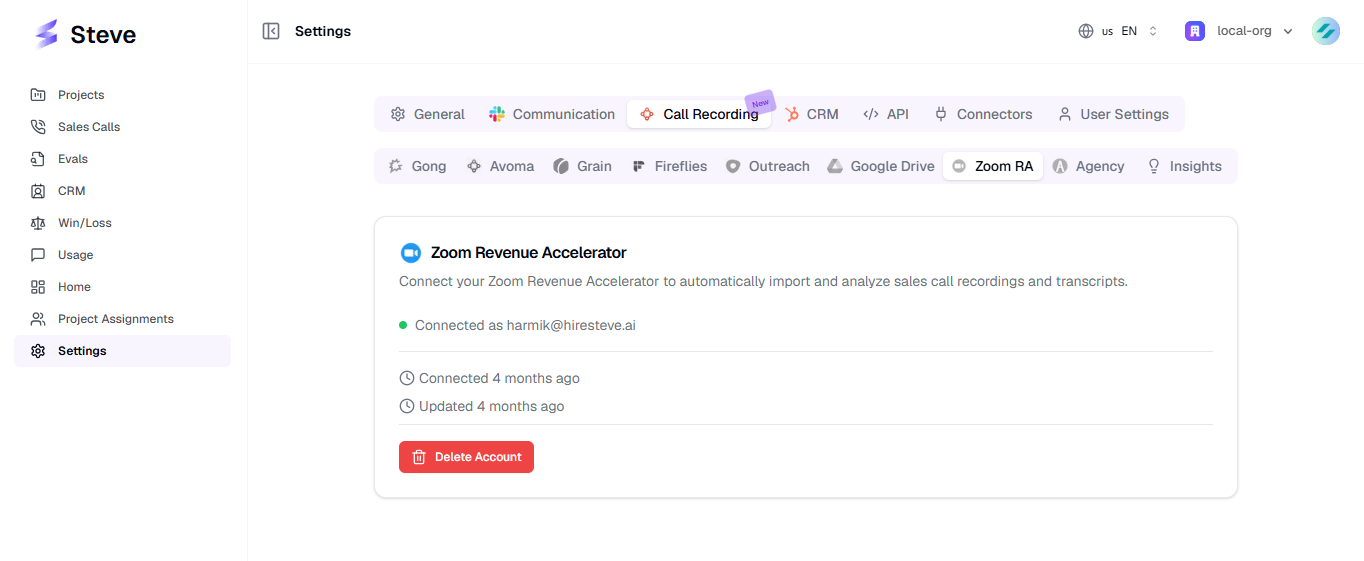
Caption: A green dot and your Zoom email confirm the account is linked.
Step 4: Wait for the first import
Connecting immediately queues an import in the background. The first run backfills up to three months of conversations, so give it time — a large history can take a while to process.
Open Sales Calls and set the source filter to Zoom Revenue Accelerator to watch the calls arrive. See How Calls Are Imported for what happens to each conversation on the way in.
One Zoom account, one Steve organization
A Zoom account can be connected to a single Steve organization at a time. If you see "This Zoom account is already connected to another organization", disconnect it in that organization first, or email tech@hiresteve.ai.
If something goes wrong
Steve returns you to the Zoom RA settings with a specific message:
| Message | What it means | Usual fix |
|---|---|---|
| Authorization code not found. | Zoom sent you back without completing the authorization. | You may have cancelled or closed the consent screen. Click Connect and complete it without navigating away. |
| Invalid OAuth state. Please try connecting again. | Steve couldn't match the response to your organization. | Reload the settings page, confirm you're in the right organization, and start again. |
| Invalid Zoom token. Please try again. | Zoom accepted the authorization but Steve couldn't read your profile. | The app wasn't granted profile access, or isn't approved for that Zoom account. Re-authorize, or ask your Zoom admin to approve the app. |
| This Zoom account is already connected to another organization. | That Zoom account is linked elsewhere in Steve. | Disconnect it in the other organization first. |
| Unable to connect to Zoom Revenue Accelerator. Please try again. | Anything else — most often the account has no active ZRA subscription. | Re-check the requirements, then retry. |
More detail in Troubleshooting.
Next Steps
- How Calls Are Imported — sync windows and what happens to each conversation.
- Viewing Calls in Sales Calls — find your imported calls.
- Removing the App — full de-authorization steps and what's deleted.