Steve in Zoom: Overview
What Steve can do inside Zoom Team Chat, which command is for sales reps vs PMM, and how to get set up
Overview
Steve brings competitive intelligence into Zoom. Ask your competitive knowledge base a question, pull battle cards and competitor news, prep for a call, and let Steve capture the intel your team drops in chat, all without leaving Zoom Team Chat.
Who it's for: 🎯 Sales Rep · 📣 PMM — everyone on a GTM team. Each page in this section is tagged with the role it serves.
The Steve app for Zoom
Steve for Zoom Team Chat is a bot in your Zoom chats — slash commands, Q&A against your competitive knowledge base, scheduled news summaries, and competitive-insight capture. Our app's page on the Zoom App Marketplace is Steve — it's there for reference. The actual setup is done from Steve → Settings → Zoom; see Adding the App.
What you can do in Zoom Team Chat
Three ways to interact: type a command, ask Steve a plain-language question, or let Steve post to a channel on a schedule.
| Command | What it does | Who it's for |
|---|---|---|
Ask anything (DM, /steve, or @Steve) | Ask a question in plain language, no command needed | 🎯 · 📣 |
/prep <LinkedIn URL> (add-on) | Prep for a meeting from a prospect's LinkedIn profile | 🎯 |
/battle-cards | View battle cards for a project, grouped by type | 🎯 |
/canvas | Browse shared battle card canvases | 📣 |
/latest-news | Latest competitor news and updates | 🎯 · 📣 |
/help | Show the full command menu | 🎯 · 📣 |
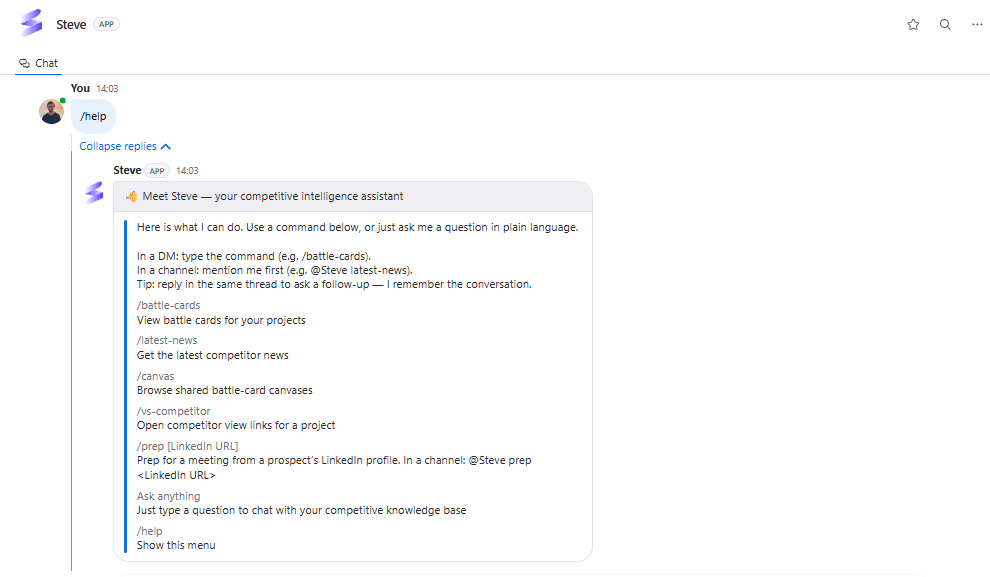
Caption: Send /help in a Zoom chat with Steve and the full command menu appears with a one-line hint for each.
Add-on.
/prepis available as an add-on and depends on your plan and remaining prep credits. If it isn't enabled for your organization, talk to your admin. See Prep with /prep.
How to talk to Steve
It matters where you are:
- In a direct message: type the command directly —
/battle-cards - In a channel: address the bot first — either with
/steveor by @mentioning it:/steve latest-news,@Steve latest-news, or/steve prep https://www.linkedin.com/in/jane-doe/
Send /help at any time for the command menu — help, menu, and commands work too, and so does a bare /steve with nothing after it. When the bot is first installed, it posts a welcome message listing its commands.
Tip: Reply in the same thread to ask a follow-up — Steve keeps the conversation context for that thread.
How commands work
- Pick a project — most commands first ask which project you mean, via a dropdown.
- Refine with filters — battle cards, news, and canvases offer dropdown filters (competitor, type, duration, item count). Set them and press Submit.
- Get results — Steve edits the message in place with the results, including clickable links to open cards, canvases, and articles.
- Long results — if a response is long, Steve continues it as replies in the thread so nothing is cut off.
Projects and rep assignments
- Reps can be assigned to a project. Once a rep is assigned, Steve narrows the project list automatically, and a single match skips the picker entirely.
- Everything is project-scoped. Commands, summaries, and intelligence monitoring all belong to a project, so create at least one before you start.
Set up first
Before commands work, add the app once:
- Adding the App — prerequisites, the install steps, the permissions Steve requests, and how to verify the connection.
- Add the Steve bot to the channels your team uses. Channel features (summaries, intelligence monitoring,
/stevecommands) only work in channels the bot is a member of.
Tips for the whole team
- Add more intel to your projects — news, docs, and call transcripts all improve the quality of answers.
- DMs keep context — ask follow-up questions in the thread without repeating yourself.
- Channels stay clean — Steve replies in threads, so nothing gets buried.
- Use dedicated channels — a focused competitive-intel channel keeps summaries and captured insights high-signal.
Next Steps
- Adding the App — start here.
- Chat with Steve — the fastest way in.
- Intelligence Detection — let Steve capture the intel your team hears first.
- Zoom News Summary — schedule competitor digests into a channel.
- Removing the App · Troubleshooting · FAQ · Support